Understanding Roles and Permissions
In Terasu, permissions are managed at two levels: the Workspace level and the Room level. In addition, internal members and external members (customers) have access to different features.
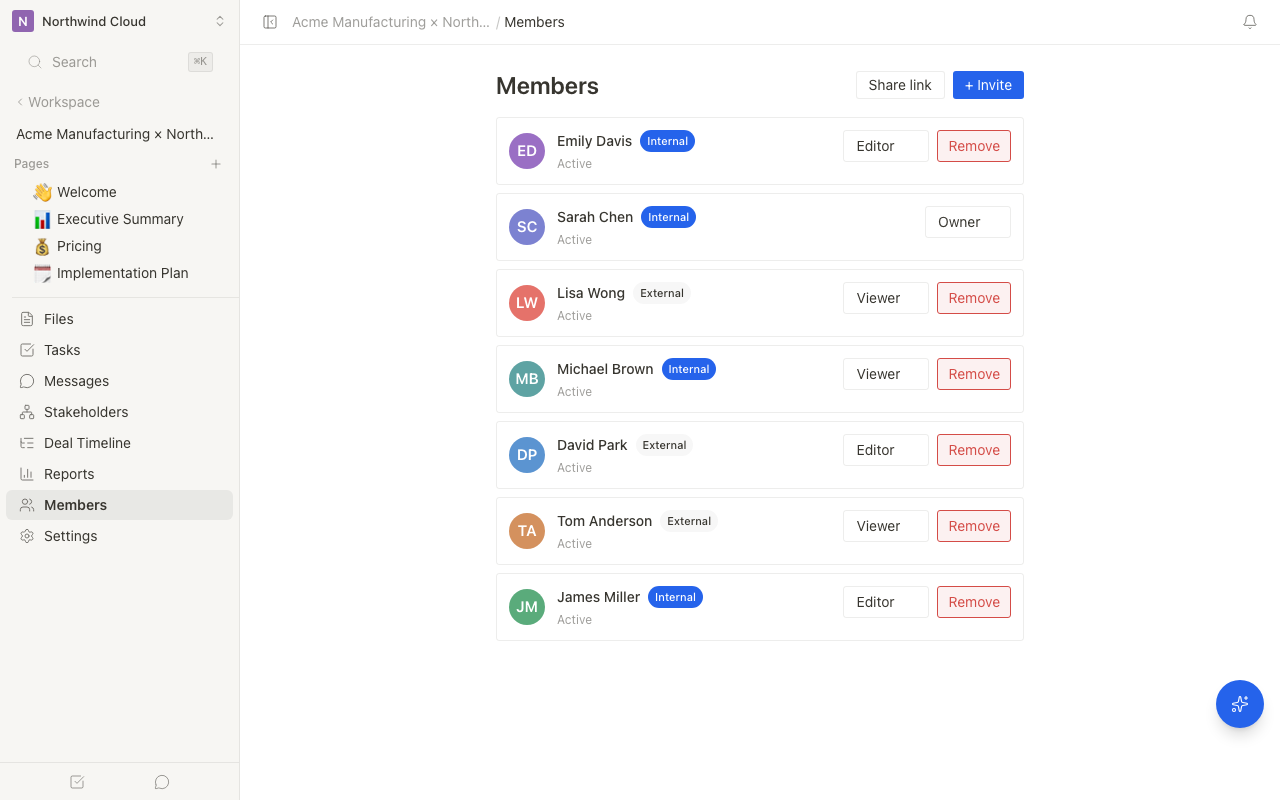
Internal vs. External Members
Members in Terasu fall into two broad categories.
| Type | Description | How they're invited |
|---|---|---|
| Internal members | Your client-work team, who belong to the Workspace | Invited to the Workspace |
| External members | Customers and partners invited to a Room | Invited to a Room |
This distinction lets you collaborate safely within the same Room while protecting the materials your team creates and internal information from customers.
Internal and external members have different permissions for files and pages. For details, see Managing Content Permissions.
Workspace Roles
These are permissions for the entire Workspace and apply only to internal members.
| Role | Description |
|---|---|
| Owner | Has full permissions for the Workspace, including billing management, member management, and settings changes |
| Admin | Can invite members, manage Rooms, and change settings. Cannot manage billing |
| Member | Can create Rooms and edit content. Cannot change Workspace settings |
Permission Matrix
| Action | Owner | Admin | Member |
|---|---|---|---|
| Change Workspace settings | Yes | Yes | No |
| Invite/remove members | Yes | Yes | No |
| Manage billing and plans | Yes | No | No |
| Create Rooms | Yes | Yes | Yes |
| Manage your own Rooms | Yes | Yes | Yes |
Room Roles
These are permissions within each Room. They can be set independently of Workspace roles.
| Role | Applies to | Description |
|---|---|---|
| Room owner | Internal members only | Full permissions for the Room, including settings changes, member management, and deletion |
| Editor | Internal and external members | Can view and edit content and upload files |
| Viewer | Internal and external members | Can only view content |
The Room owner role can only be assigned to internal members. External members (customers) cannot be granted Room owner permissions.
Permission Differences Between Internal and External Members
Even with the same "Editor" role, internal and external members can perform different actions.
| Action | Internal (Owner) | Internal (Editor) | External (Editor) | External (Viewer) |
|---|---|---|---|---|
| View public pages | Yes | Yes | Yes | Yes |
| View internal-only pages | Yes | Yes | No | No |
| Edit pages | Yes | Yes | Depends on page settings | No |
| Edit/delete all files | Yes | Yes | No | No |
| Edit/delete your own files | Yes | Yes | Yes | No |
| Upload files | Yes | Yes | Yes | No |
| View the org chart | Yes | Yes | No | No |
| View analytics reports | Yes | Yes | No | No |
| Manage members | Yes | No | No | No |
| Change Room settings | Yes | No | No | No |
You can set external members' page-editing permissions on a per-page basis. Set only the pages you want customers to fill in to "All members can edit." For details, see Managing Content Permissions.
Permission Hierarchy
Workspace admins and above can access every Room. Members can only access the Rooms they've been invited to.
The owner role can be transferred, but a Workspace must always have at least one owner.
Best Practices
- Principle of least privilege: Grant only the minimum permissions necessary.
- Regular reviews: Clean up members who have left the company or whose projects have ended.
- Managing external members: Invite them per Room and remove them promptly once they're no longer needed.
- Use internal-only pages: Set internal notes and strategy materials to "internal-only" so external members can't see them.
- Tailor page-editing permissions: Set only the pages you want customers to fill in to "All members can edit."