Last updated: 2026-09-20 · 1 min read
Account setup
To enter Terasu, sign in or create an account. The first time, you set your name and photo. To change them later, see Profile settings.
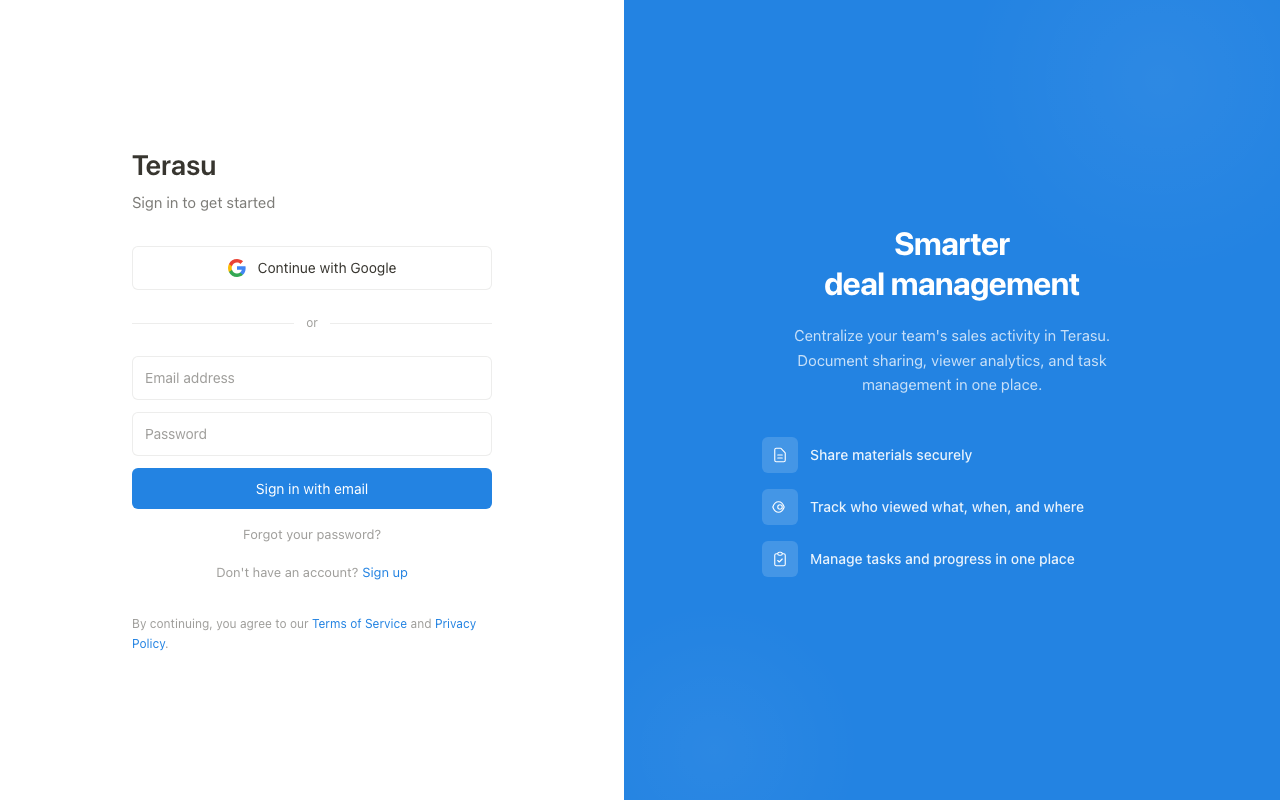
Sign in
- Open the sign-in screen
- Choose "Continue with Google", or enter your email and password and press "Sign in with email"
- If you forgot your password, use "Forgot your password?"
Terms of Service and Privacy Policy open in a new tab.
Create an account
- Open "Sign up" from the sign-in screen
- Choose "Sign up with Google", or enter your email and password (including confirmation)
- Use at least 8 characters with at least one letter and one number
- Press "Create account". A successful signup signs you in right away
There is no confirmation-email waiting screen. After signup, first-time setup continues.
First profile
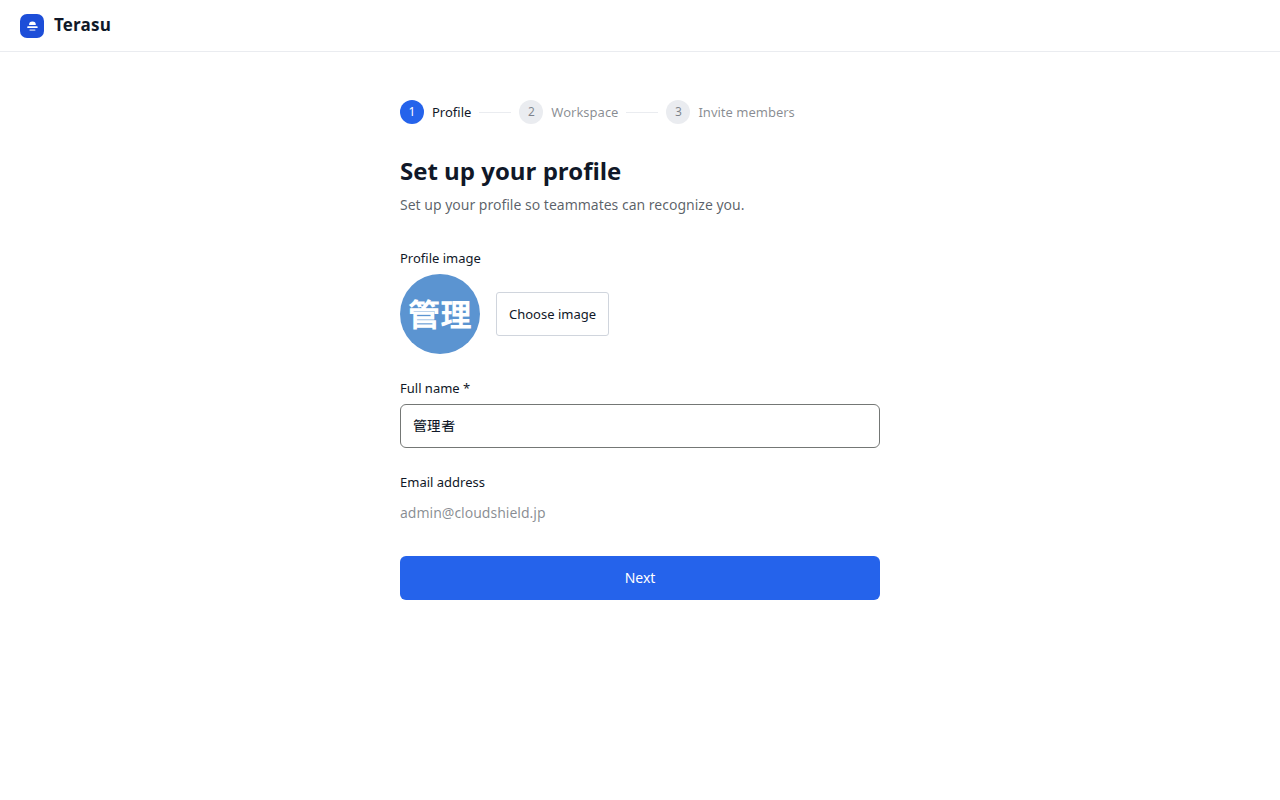
- Optionally press "Choose image" to pick a profile photo
- Enter your full name (required)
- Your email is shown only; you cannot change it here
- Press "Next" to create a workspace
"Next" stays unavailable until a name is entered.