Getting started with Terasu Signal
Terasu Signal shows you when, by whom, and how far your sales documents are read. You can reach out while interest is still high, instead of following up blind.
This article walks through sharing your first document and reading the response.
No sign-up required to try it
You can add up to 3 PDFs and create share links without a Terasu account.
Documents and share links you create during the trial carry over to your free account. Nothing has to be recreated.
Share in three steps
- Open Terasu Signal and drag a PDF in, or click to pick a file
- When the upload finishes, the share panel appears — click "Copy URL"
- Send the copied URL by email or chat
Recipients need no account and no special app. The document opens in their browser.
What you learn after sending
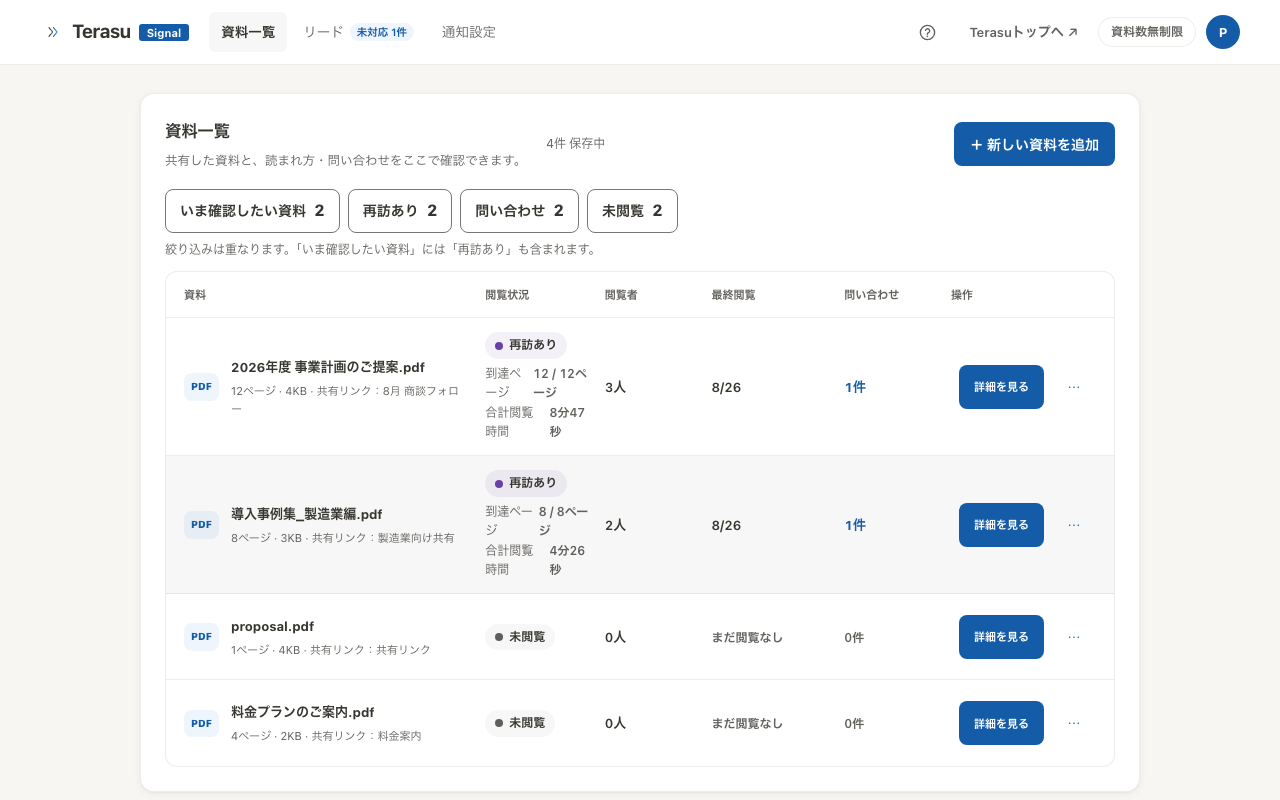
Once the recipient opens the link, the reading state appears in your document list. There are four stages.
| State | Meaning |
|---|---|
| Not viewed | The link has not been opened yet |
| Opened | The link was opened |
| High interest | Read carefully, deep into the pages |
| Revisited | Opened again for a second read |
Revisited is the strongest signal: the deal is moving, and the document may be circulating internally. It is usually the best moment to make contact.
Time spent per page is recorded too, so you can see where attention actually went — for example, a long pause on the pricing page.
Give each link a name such as "Yamada — proposal". Separate links per recipient keep reading activity from being mixed up.
Get notified when it is read
After signing up for free, you receive view notifications by email — and in Slack if your workspace is connected.
You choose which moments notify you: Opened, Half read, Fully read, Revisit, and High interest signal. Opened and High interest signal are enabled by default.
See When notifications do not arrive to configure them.
Read next
- When notifications do not arrive — configuring and troubleshooting notifications
- Share link settings — PIN, expiry, and downloads
- Identify readers with email verification — know exactly who read it
Related articles
- When notifications do not arriveCheck notification timings, per-link settings, and email or Slack delivery
- Share link settingsUse PIN, expiry, download control, and stopping to send documents outside your company with confidence
- Managing the responses you receiveFollow responses from form submissions and email verification, from untouched to settled, with statuses and notes
- Balance and unlockingWhen read-link details and form responses become paid, with the free allowance, unit prices, prepaid balance and the auto-unlock cap