Last updated: 2026-09-21 · 1 min readBusiness〜
CRM Integration
Workspace Settings → Integrations manages the workspace-wide CRM fallback. Personal connections live on My Page, and a personal connection takes precedence when it exists.
The screenshot is the administrator view. Connect and disconnect are available to workspace admins only.
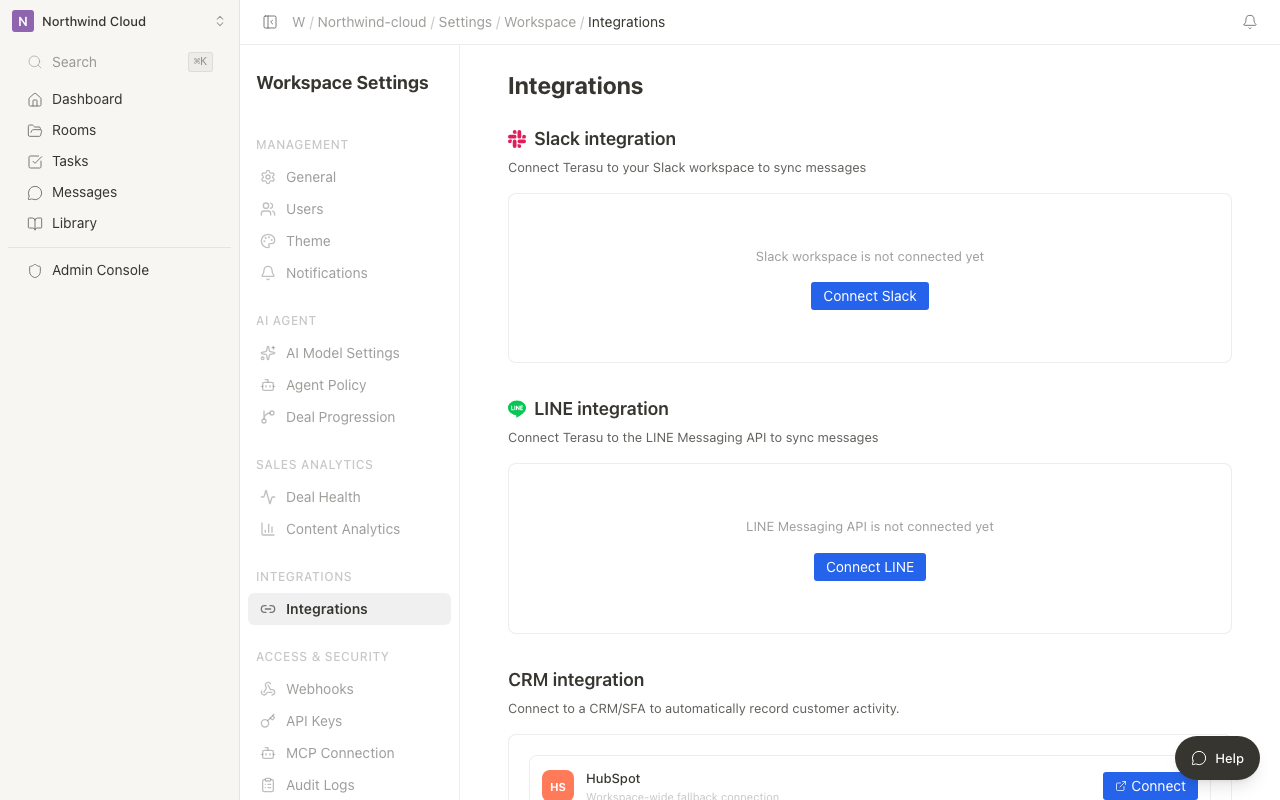
Providers on this screen
| Provider | Control names |
|---|---|
| HubSpot | Connect / Disconnect (accessible name: Connect HubSpot) |
| Salesforce | Connect / Disconnect (accessible name: Connect Salesforce) |
| kintone | Connect / Disconnect (accessible name: Connect kintone) |
Disconnected rows show the workspace-wide fallback copy.
Connect the workspace fallback
- Click the workspace name at the top of the sidebar
- Choose Settings
- Under Integrations, open Integrations
- In CRM integration, click Connect for the provider
- Approve the provider authorization screen
To disconnect, click Disconnect, then confirm with Disconnect (or Cancel).
Personal connection
- Open My Page from the account menu
- Connect from the personal CRM card
A personal connection takes precedence. If none exists, the workspace fallback is used.
Disconnecting does not delete activity already written to the CRM.