Page Comments
Create comment threads on specific parts of a page to exchange feedback directly on proposals and documents.
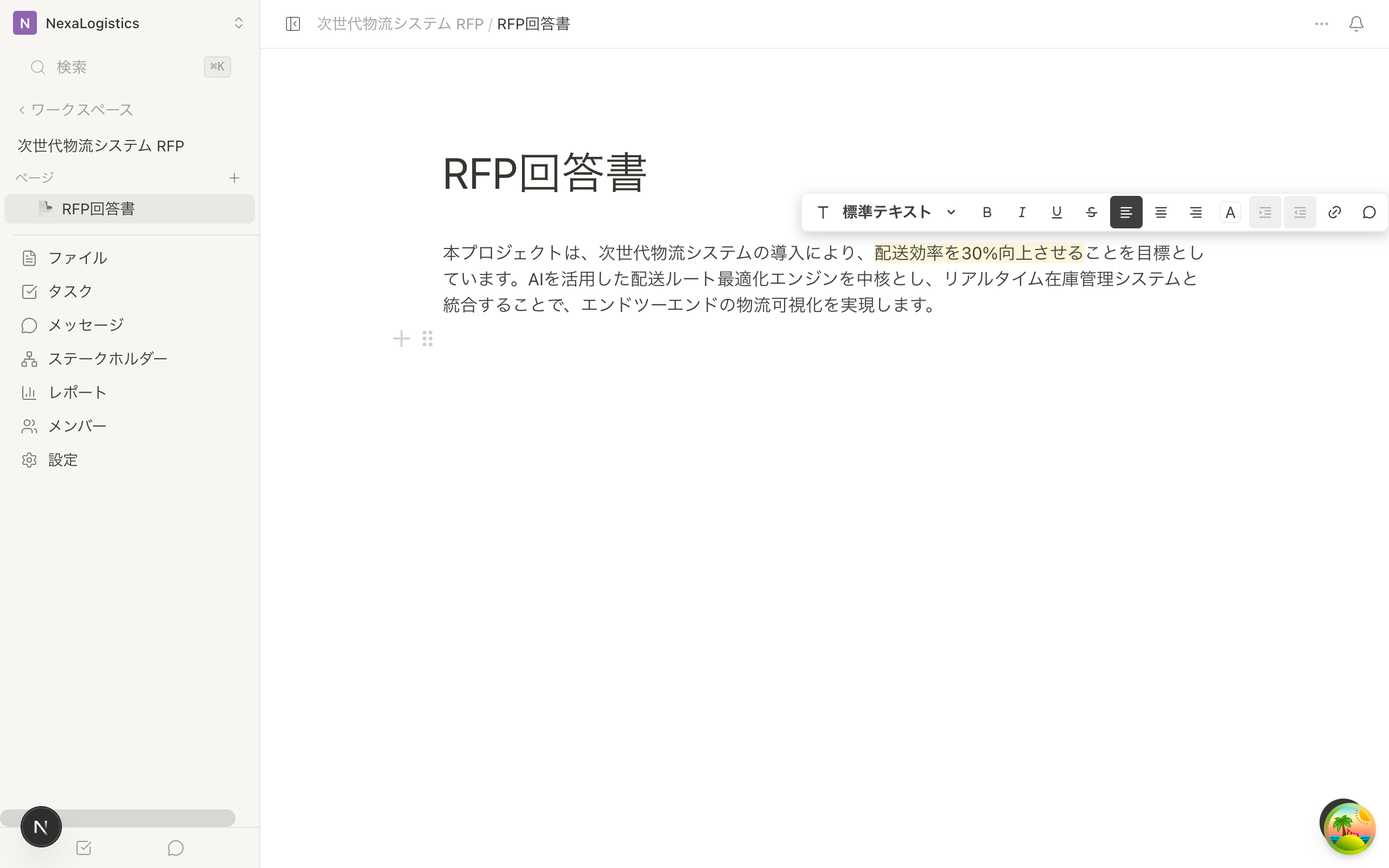
Adding a comment
- Select text in the page editor
- Click the comment icon in the toolbar that appears
- Type your comment and save it
Comments are organized as threads. The first comment serves as the starting point, and you can build a deeper discussion by adding replies.
Replying to a thread
- Click the comment marker on the page to expand the thread
- Type your message in the reply field
- Click Save to post
Threads support a collapsed view. Click "N more replies" to review past exchanges.
Notifying with mentions (@)
Type @ followed by a member's name inside a comment to send that person a mention notification.
- Type
@in the comment field - Choose a member from the suggestions that appear
- Type your comment and save it
Mentioned members receive a "comment mention" notification. Clicking the notification automatically opens the comment thread on the relevant page.
Save stays visible while the comment is empty. When you cannot save, the reason “Write a comment to save” appears. Resolve, reopen, and reaction actions are available without hovering.
Reacting to a comment
Add an emoji reaction to a comment to give quick feedback.
- Click the emoji icon in the comment actions
- Choose a reaction from the emoji picker
Deleting a comment
You can delete comments you have posted.
Comment permissions
Posting and replying to comments requires editing permission (editor or higher) in the Room. Members with view-only permission (viewer) can only read comments.
Page comments are visible to every member who has view permission for that page. For internal-only discussions, be mindful of the page's visibility settings.
Related articles
- Using the Page EditorHow to create and edit pages with the block editor, plus page visibility and editing permissions
- Messages and CommentsHow to communicate with your team and customers using the messaging features inside a Room
- Managing sharing and notificationsHow to review and manage notifications, and customize the email notifications sent when sharing