Stakeholder Map
The stakeholder map places the decision-makers and key people in a client project on influence × sentiment. Share with your team who the decision-makers are and what you should confirm with whom.
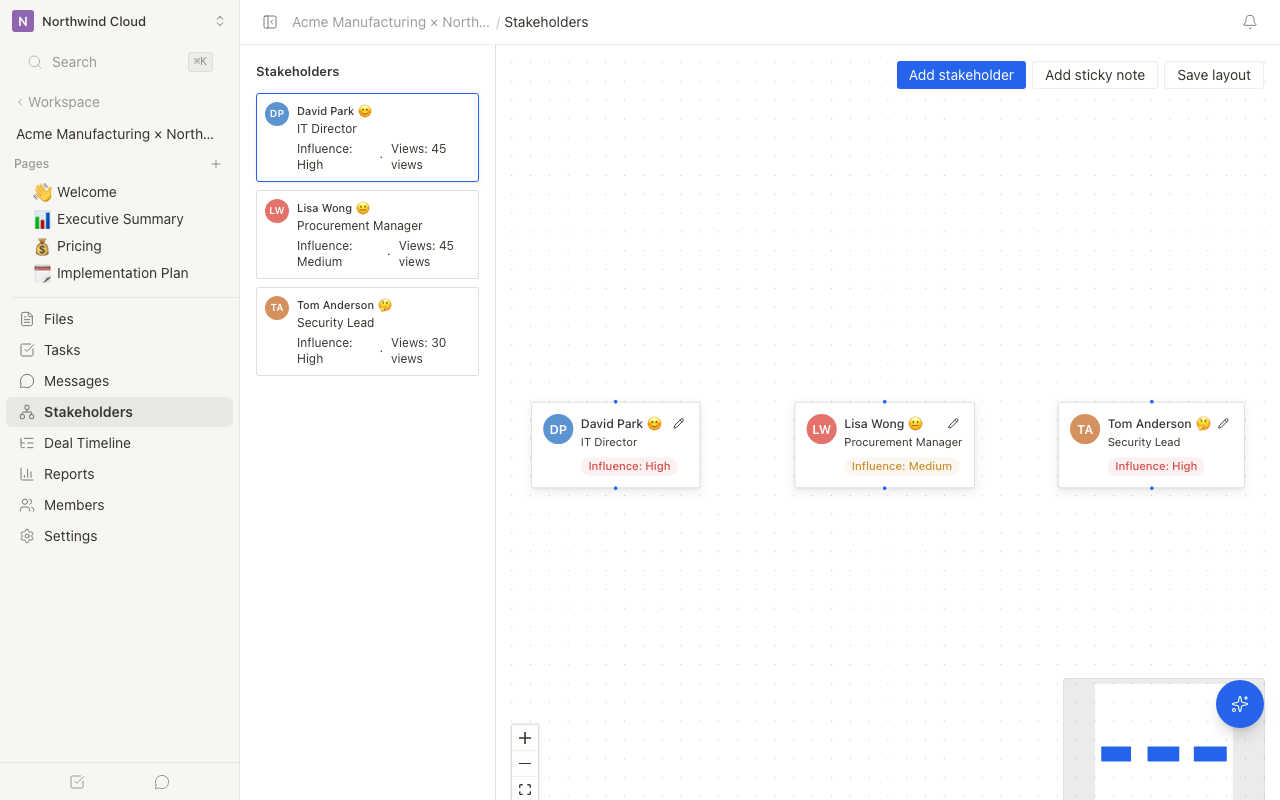
Opening the stakeholder map
- Open "Stakeholders" in the Room left menu
- If nobody is registered yet, the empty guidance appears. Otherwise you see the canvas and the list on the left
Only internal members can view and edit the stakeholder map. It is not shown to external members (customers).
Adding a stakeholder
When the map is empty, start from "Register the first person" in the center. If the Room already has external members, you can also "Import from the Room's external members".
When people already exist:
- Click "Add stakeholder"
- Fill in the member, role, influence, sentiment, job title, department, and notes
- Click "Add". The node appears on the map
Only internal editors or above can edit. Without permission, the reason is shown.
Properties
| Property | Options | Description |
|---|---|---|
| Role | Decision-maker / Influencer / Technical buyer / Economic buyer / Champion / End user / Blocker / Gatekeeper | Their role within the organization |
| Influence | High / Medium / Low | Their influence over the decision |
| Sentiment | Positive / Neutral / Skeptical / Negative | Their attitude toward the proposal |
Relations and sticky notes
Drag from one node to another to create a relation. Use "Add sticky note" for extra context. "Add" becomes available after you type a note. If the note is empty, the screen explains that you can add it after entering a memo.
Editing a node
Select a node or a row in the left list to open the edit panel. Use the named Edit control to change the profile. After moving nodes, click "Save layout". Leaving without saving asks for confirmation.
Generating update suggestions with the AI Agent
The AI Agent can extract candidate stakeholders from submitted information—meeting notes, transcripts, emails, chats, PDFs/PPTX, and more—and suggest updates to the stakeholder map.
- Add a transcript or notes in the right AI sidebar
- Ask it to organize the people and their roles from this content
- Review the name, role, influence, and supporting evidence in the approval card
- Select only the candidates you need and approve them
Stakeholder updates are internal information. They are not shown to external members (customers). For pending proposals across Rooms, use the workspace Agent Inbox.
Embedding in a page
You can also embed a stakeholder map within the page editor.
- Open the slash menu in the page editor
- Type
/stakeholder - Select "Stakeholder map"
Embedding a stakeholder map in a proposal or an internal report page makes it easier to share the full picture of who's involved.
Tips for getting the most out of it
- Kickoff: Start by mapping key people based on the org chart
- Mid-project: Update the influence and sentiment you learn in conversations
- Late: Once the approval path is clear, save it as the relationship diagram
Related articles
- Block Types ReferenceAll the block types available in the editor and how to use them
- Understanding the Engagement ReportHow to use the report to see what customers confirmed, when, and for how long
- Agent InboxHow to approve or reject pending proposals across Rooms from the workspace inbox.
- Feeding External Information to the AI AgentHow to feed transcripts, notes, chats, PDF/PPTX files, and information from Gmail, Meet, Zoom, the Chrome extension, and Slack/Teams into a Room for search, analysis, and proposals