Last updated: 2026-06-04 · 9 min readBusiness〜

Using the AI Agent

The AI agent answers questions based on the current state of a Room and, when appropriate, proposes actions such as creating tasks, drafting materials, and sending messages. Questions, analysis, material intake, and approvals are handled from the AI sidebar on the right side of the Room.

AI agent icon in the bottom-right of the Room

The Room left menu is focused on customer-facing content and deal management. Use the AI sidebar on the right for questions and information intake, and use the Deal Timeline for important deal events and signals.

Opening the AI agent

  1. Open the target Room
  2. Click the blue AI agent icon in the bottom-right of the screen
  3. Ask your question from the sidebar that appears on the right

When you open the AI agent inside a Room, the page you are currently viewing and the Room itself automatically become its context. The agent answers while referencing the deal overview, tasks, messages, stakeholders, viewing activity, and more.

Using the current screen as context

At the bottom of the sidebar, the context passed to the AI agent is shown as small labels (chips).

AI agent sidebar

ActionDescription
Current contextThe Room, page, materials, tasks, and so on that you have open are attached automatically
× buttonRemoves the current context so you can send the question as a general one
Reference the whole RoomReference information from across the entire Room when the current screen alone is not enough

For requests like "Summarize this page" or "Use this document to organize the key points for our next meeting," keeping the current screen context attached improves accuracy.

Attaching text and files

You can attach meeting notes, transcripts, text copied from a PDF, and documents such as PDF/PPTX files to the AI agent on the spot.

Attaching text

  1. Click the clip icon to the left of the input field
  2. Paste text or select a file
  3. Click "Attach"
  4. Send your question with the attachment included

Attached text is treated as context for that conversation. When you no longer need it, you can remove it with the × button on its small label.

You can also attach a file by dragging and dropping it onto the AI sidebar. Drop in meeting transcripts, notes, PDFs, or PPTX files to generate summaries, extract next actions, and create candidates to save to related Pages.

When only an answer is needed vs. when approval is required

The AI agent determines the intent of your input internally. Requests that only need an answer become a normal chat reply, while requests that involve an action become an approval card.

Example inputBehavior
"Summarize the status of this deal"Shows an answer only
"I want to see the trend in task completion rate"Shows analysis including charts or tables
"Create the tasks I need before the next meeting"Shows a pending action
"Send the follow-up message for the customer"Shows a draft and a send action awaiting approval
"Create a deck from these meeting notes"Shows an outline and a creation action awaiting approval
"Update the org chart from this document"Shows add/update candidates awaiting approval

Operations with side effects, such as creating tasks, creating materials, creating Pages, sending messages, updating stakeholders, and updating the deal phase, are not executed until you approve them.

If you want to make the intent of your request clear, slightly adjusting how you phrase the end of the sentence helps.

GoalHow to phrase it
Just want to consult"Give me some ideas," "Organize this," "Analyze this"
Want action candidates"Propose creation candidates," "Suggest this for approval"
Want to execute"Create the task," "Send it," "Create the deck"

Reviewing pending actions

When the AI agent proposes an executable action, the "Needs review" section at the top of the AI sidebar shows the number of pending suggestions and lets you review the cards. If there are pending actions, the section opens automatically.

Pending action

ButtonDescription
ApproveExecutes the proposed action
Request changesAsks the agent to revise the content
RejectWithdraws the action without executing it

Before approving, always review the tasks that will be created, the messages that will be sent, and the content that will be updated.

Approving only some of multiple candidates

When the AI agent proposes multiple tasks or stakeholder updates, you can use the checkboxes in the card to select only the items you need.

  1. Check only the items you want to approve
  2. Click "Approve selected"
  3. Read the confirmation text and click once more to confirm

If you only need 2 of 3 proposed tasks, uncheck the one you do not need before approving. After approval, the applied items are shown within the card.

Reviewing the basis for a proposal

An approval card may show the reasoning and the sources behind a proposal. Sources can include Room messages, intake information, pages, tasks, files, and web search results.

The basis is intended for internal users on the Room-creator side. Internal sources and internal notes are not shown on customer-facing Pages, materials, or messages.

Reviewing pending actions across Rooms

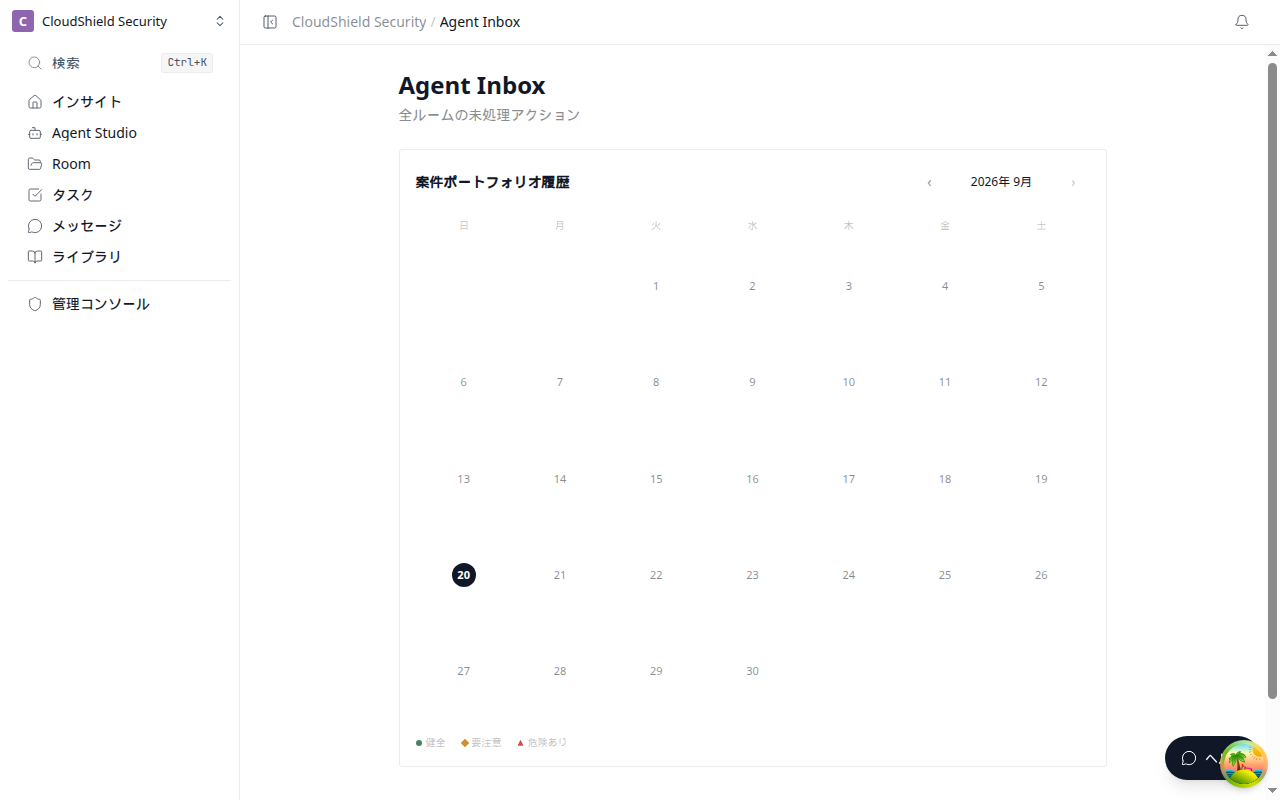
Use the workspace Agent Inbox when you want to review pending actions across multiple Rooms. It is not the primary workflow inside an individual Room; it is for triaging unhandled AI suggestions across the workspace.

SituationWhere to go
Ask AI about the Room or add contextAI sidebar on the right
Approve or reject suggestions for the current Room"Needs review" in the AI sidebar
Review deal signals and customer reactionsDeal Timeline
Review unhandled suggestions across RoomsWorkspace Agent Inbox

Chat history and analysis results

Your conversations with the AI agent are saved as sessions. You can revisit previous questions, answers, the tables and charts shown within those answers, and approval cards later.

The following content is saved.

ContentDescription
Questions and answersThe user's questions and the body of the AI agent's answers
MetricsNumeric summaries such as view rate, task completion rate, and risk
ChartsVisualizations such as task trends and engagement trends
TablesLists such as concerns, next actions, and stakeholders
Approval cardsProposals that require approval, such as creating tasks or sending messages
SourcesThe basis for a proposal. Visible only to internal users

Viewing analysis results

Information-rich answers, such as deal health, risk breakdowns, task trends, and decision notes, are shown not only in the chat body but also as analysis results with tables, charts, and sources inside the AI sidebar on the right.

In a Live Artifact, the AI feeds Room data and sources into display components it has selected, such as metric cards, charts, tables, and timelines. Rather than generating arbitrary HTML or external code, the AI uses only the safe components provided by Terasu.

ActionDescription
Open artifactOpens the analysis result larger in the side panel on the right
Save to RoomSaves the analysis result as a page within the Room
Open pageOpens a saved analysis page
SourceLets you review the pages, tasks, files, messages, and other sources referenced

Even without explicitly saying "show it as a chart," the AI agent automatically chooses a Live Artifact for questions such as task trends, viewing patterns, or risk comparisons where a visualization makes decisions easier.

Tips for getting the most out of it

SituationRecommended way to ask
Want to know deal status"Tell me the specific progress, concerns, and what to do next"
Want to check before a meeting"Organize the points to confirm at the next meeting in priority order"
Want to see numbers and trends"Analyze the cause of any stall based on task completion rate and viewing activity"
Want to create tasks"Propose the tasks needed before next time as creation candidates"
Want to use materials or notesAfter attaching the text, "Extract the key points and actions from this content"
Want to execute only partSelect and approve only the candidates you need within the approval card
Want to check the basisAsk "Also show me the basis for this proposal"

When things don't work as expected

SituationWhat to do
The answer differs from what you expectedCheck whether the current context is correct, and if needed, remove it with × and ask again
Room-wide information is missingTurn on "Reference the whole Room" and ask again
No approval card appearsClearly state the operation you want to perform, such as "Suggest this for approval" or "Create the task"
Want to see signals or customer reactionsOpen "Deal Timeline" from the left menu
Want to contact supportOpen a help article or contact support from the help link inside the AI sidebar

The AI agent's answers are proposals based on the data in the Room and the information you attach. Always have a person review contract terms, outgoing messages, and customer-facing materials before approving.

Using the AI Agent | Help center