Share selected files externally
An external file share link lets you send selected PDFs, PPTX, DOCX, XLSX, images, or CSV files without inviting the recipient to the Room. The recipient screen does not show Room pages, messages, tasks, or analytics. Download stays visible but cannot be pressed, with a spoken reason.
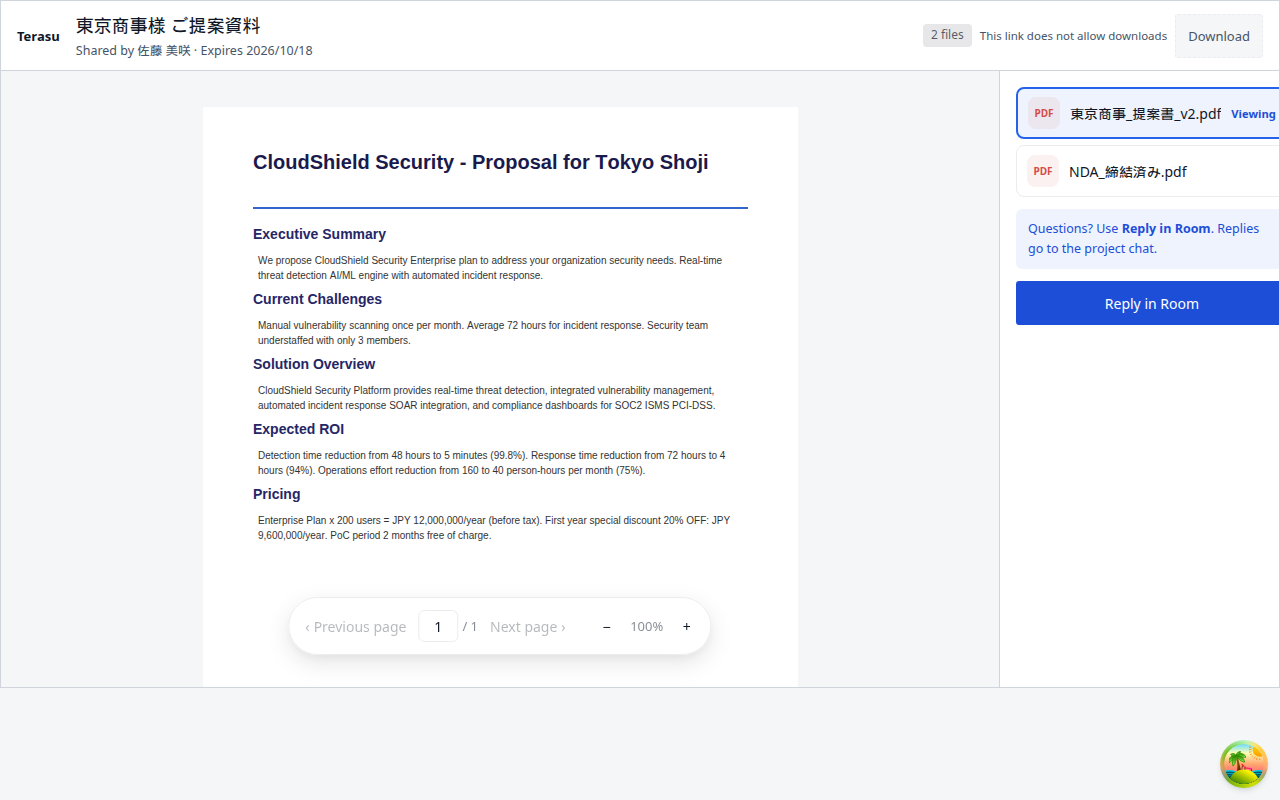
The opening image is the recipient view after the link opens (1280). The header shows the share title, sender, expiration, file count, and Download. Pages sit on the left with floating page controls at the bottom. Shared files and Reply in Room sit on the right.
Create a share link
Owners create the link from Files in the Room.
- Open Files in the Room
- Use the link icon for one file, or select files and open External share link
- In Link settings, set the link name, Who can view, and expiration
- Press Create link and send the URL
- Optionally press Preview as recipient to see the yellow Previewing banner first
You can copy, extend, or revoke an existing link from the same dialog. One link can include several files. The fragment after # is the access secret. Do not post it in a public place.
Who can view
Link settings offers three Who can view options.
| Setting | Recipient gate | Best for |
|---|---|---|
| Ask for an email address (see who opened it) | Verify your email → Enter verification code | Named recipients |
| PIN code | Enter PIN | People who received the PIN |
| Anyone | No gate (anyone with the link) | Low-sensitivity material |
Email verification asks for a six-digit code that is valid for 10 minutes. Add a PIN and expiration when stronger protection is needed.
Links can be forwarded. Disabling Download also cannot completely prevent screenshots or screen recording. For confidential files, avoid Anyone and use email verification, a short expiration, and a hard-to-guess PIN.
How recipients open the link
Recipients do not need a Terasu account. The gate depends on the viewing condition.
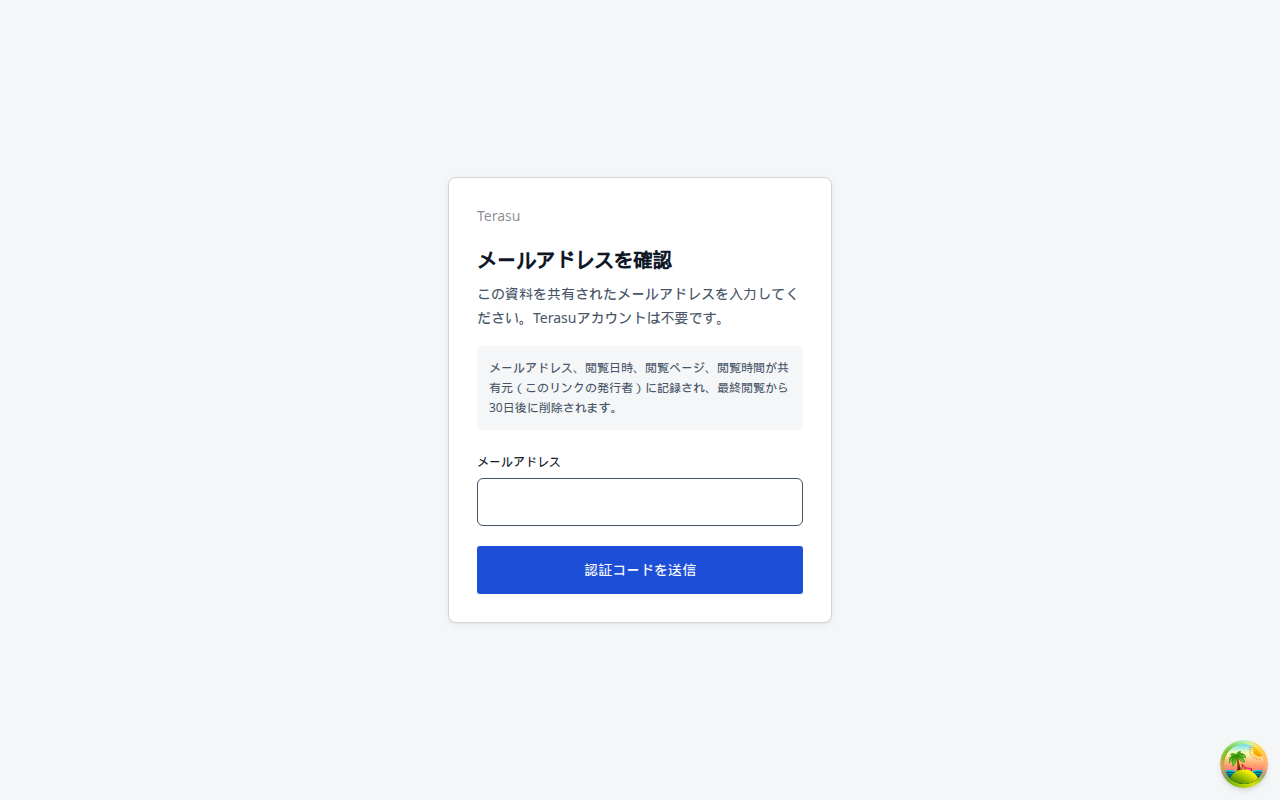
For email verification, the card shows the Terasu brand, Verify your email, the retention notice, and Send verification code.
- Enter the email the file was shared with and press Send verification code
- On Enter verification code, type the six-digit code and press Verify and open file
- After the wait, use Resend verification code, or Change email address for a different inbox
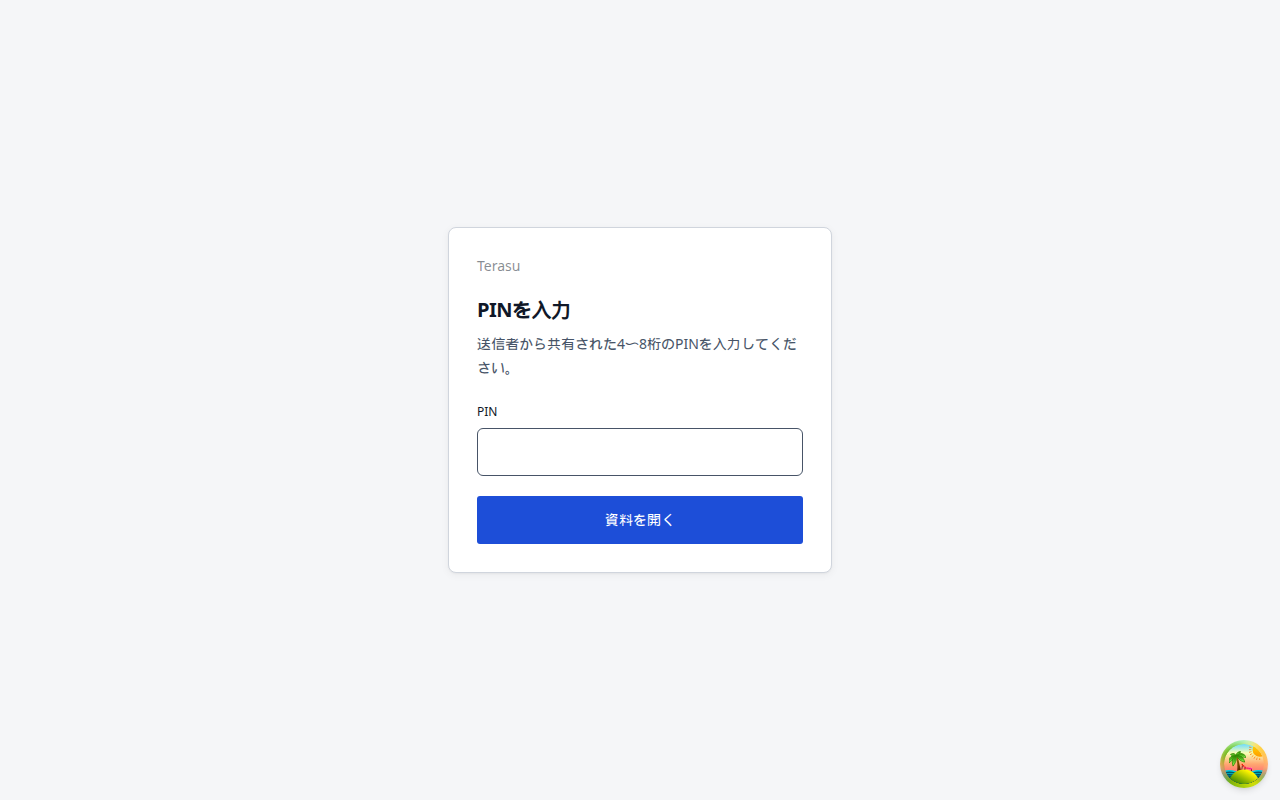
PIN links use the heading Enter PIN and the button Open file. The PIN field is masked and shows a numeric keyboard. A wrong PIN shows The PIN is incorrect. After too many attempts, wait about 15 minutes.
An incorrect, expired, or deactivated link uses the same copy: This share link is unavailable. Retry appears only when the connection fails.
What recipients can do
When the file opens, page controls float at the bottom (previous page, page number, next page, zoom). Download is announced as This link does not allow downloads and cannot be pressed.
Questions go through Reply in Room. Entering an email sends an invitation to the project Room. Previewing does not send mail.
Replacement, analytics, and deactivation
- Replacing shared items updates what the same link displays
- View counts and time are available from file analytics inside the Room. In addition to PDFs, preview-converted PPTX, DOCX, Keynote, and Pages files record per-page viewing time as well
- External viewers only see shared files, never analytics or other Room data
- Revoke the link when sharing ends; access stops immediately
Invite the recipient to the Room instead when you need ongoing collaboration across all Room content. See Managing sharing and notifications for how owners receive view alerts.
Related articles
- Sharing a RoomHow to share a Room with internal members and customers, and the sharing settings
- Managing Content PermissionsHow to properly control view, edit, and delete permissions for files and pages between internal and external members
- Managing sharing and notificationsHow to review and manage notifications, and customize the email notifications sent when sharing