Last updated: 2026-09-20 · 2 min read
Using the Page Editor
Terasu's page editor is a block-based editor. You can build content by combining blocks such as text, headings, lists, and tables.
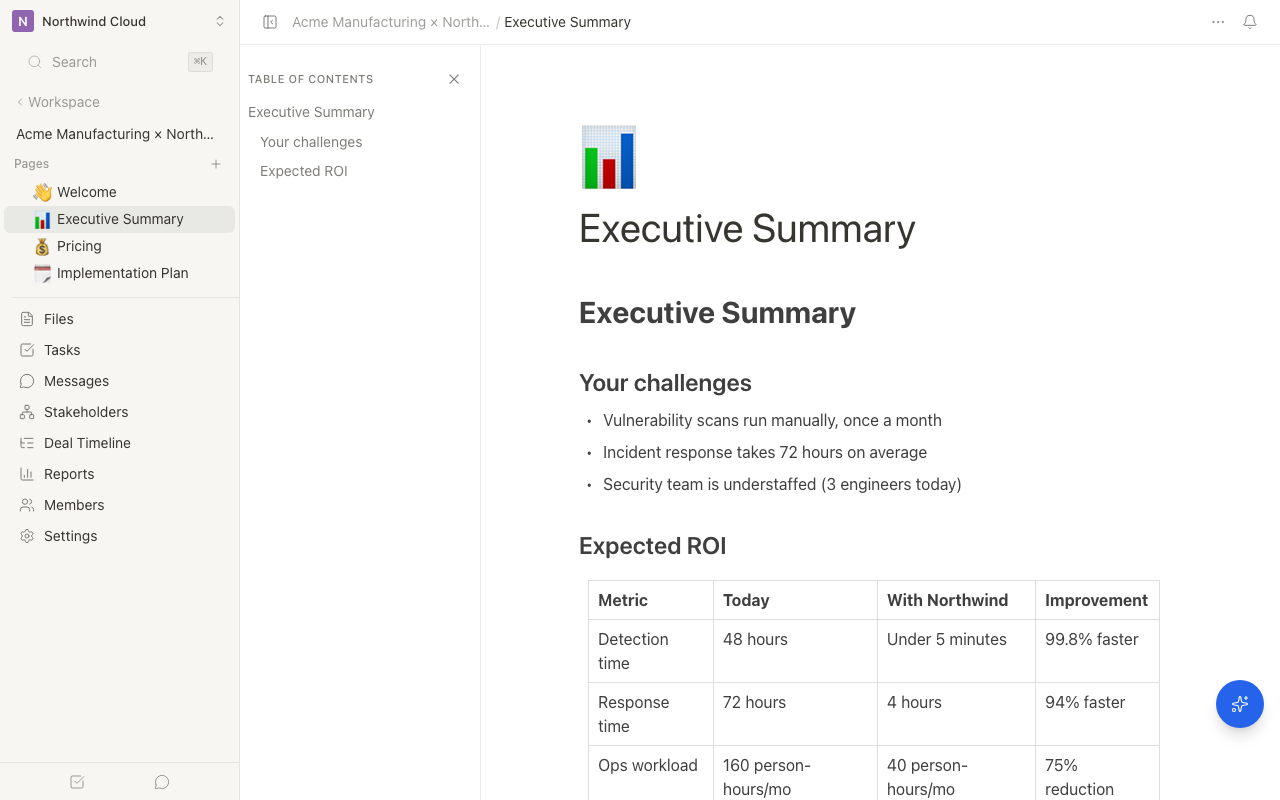
Creating a page
- Click the "Pages" tab in the Room
- Click "New page"
- Enter a title
- Place your cursor in the body area and start entering content
Adding blocks
To add a new block, type / on an empty line. The slash menu appears, and you can choose a block type.
Main block types
| Block | Command | Description |
|---|---|---|
| Heading 1 | /h1 | Large heading |
| Heading 2 | /h2 | Medium heading |
| Bulleted list | /bullet | Bulleted list |
| Numbered list | /numbered | Numbered list |
| Table | /table | Insert a table |
| Image | /image | Embed an image |
You can also open the slash menu with the keyboard shortcut Ctrl+/ (Mac: Cmd+/).
Formatting text
When you select text, a formatting toolbar appears.
- Bold:
Ctrl+B - Italic:
Ctrl+I - Underline:
Ctrl+U - Link:
Ctrl+K - Code:
Ctrl+E
Moving blocks
Drag the handle (⋮⋮) on the left side of a block to reorder it.
Page visibility and editing permissions
For each page, you can set the visibility and editing permissions that apply to external members (customers).
Visibility
- Visible to the whole Room: Both internal and external members can view it (default)
- Internal only: Only internal members can view it. External members can't even see that the page exists
Editing permissions
- Internal members only: Only internal members can edit it (default)
- All members can edit: External members (with editor permission) can also edit it
For pages where you want customers to contribute too—such as Q&A pages or shared meeting notes—set them to "All members can edit." For details, see Managing content permissions.
Related articles
- Uploading FilesHow to upload and share Room files, understand supported AI analysis formats and statuses, retry analysis, and manage permissions
- Block Types ReferenceAll the block types available in the editor and how to use them
- Managing Content PermissionsHow to properly control view, edit, and delete permissions for files and pages between internal and external members