Share link settings
Share links have four controls that keep a document from taking on a life of its own once it leaves your company. Combine them based on the recipient and the content.
PIN, expiry, and email verification become available after you sign up for a free account. While using the trial without an account, you can create share links and see reading activity.
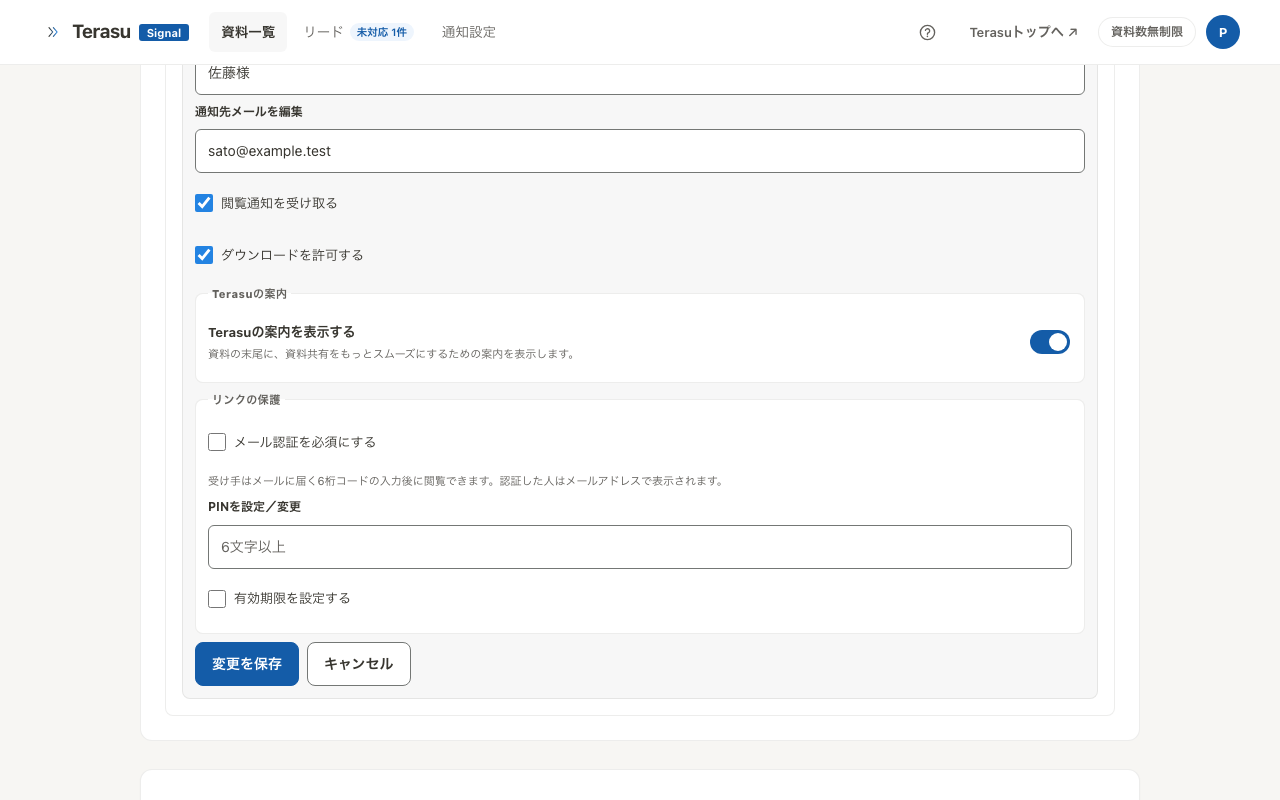
PIN (optional)
Requires a passcode to open the link. Even if the URL is forwarded, anyone without the PIN is locked out.
Deliver the PIN through a different channel than the link — send the URL by email and the PIN by phone or chat.
Expiry (optional)
After the date and time you set, the link stops opening. Useful when a proposal has a fixed review window, or when you send time-limited pricing.
An expired link can no longer be opened, but the view history collected until then remains.
Allow downloads
Turn this off and recipients can read the document but not save the file.
Blocking downloads does not prevent screenshots or printing. It assumes you have already decided not to put truly sensitive material in the document.
Stopping a link
If you decide after sending that a link should no longer work, stopping it closes access immediately.
Anyone holding the stopped URL can no longer open the document. To share with the same person again, create a new link.
A stopped link stays in the list marked as stopped, and the view history collected until then remains.
Choosing settings
| Recipient | Suggested settings |
|---|---|
| Active deal contact | Named link, no restrictions |
| Quotes and pricing | Set an expiry |
| Untested contacts, wide distribution | PIN, or email verification |
| Published on your website | Form link, no restrictions |
When you need to know exactly who read it, use email verification rather than a PIN.
Changing settings later
Once you have signed up, PIN and expiry can be changed from the document detail screen after a link is created. URLs you already sent keep working, so there is no need to resend.
Related articles
- Getting started with Terasu SignalShare a PDF without signing up and see when, by whom, and how far it was read
- Identify readers with email verificationVerify an email address before the document opens, so you know who read it — including people it was forwarded to
- When notifications do not arriveCheck notification timings, per-link settings, and email or Slack delivery