Uploading Files
Upload files to a Room to share them with your team and customers.
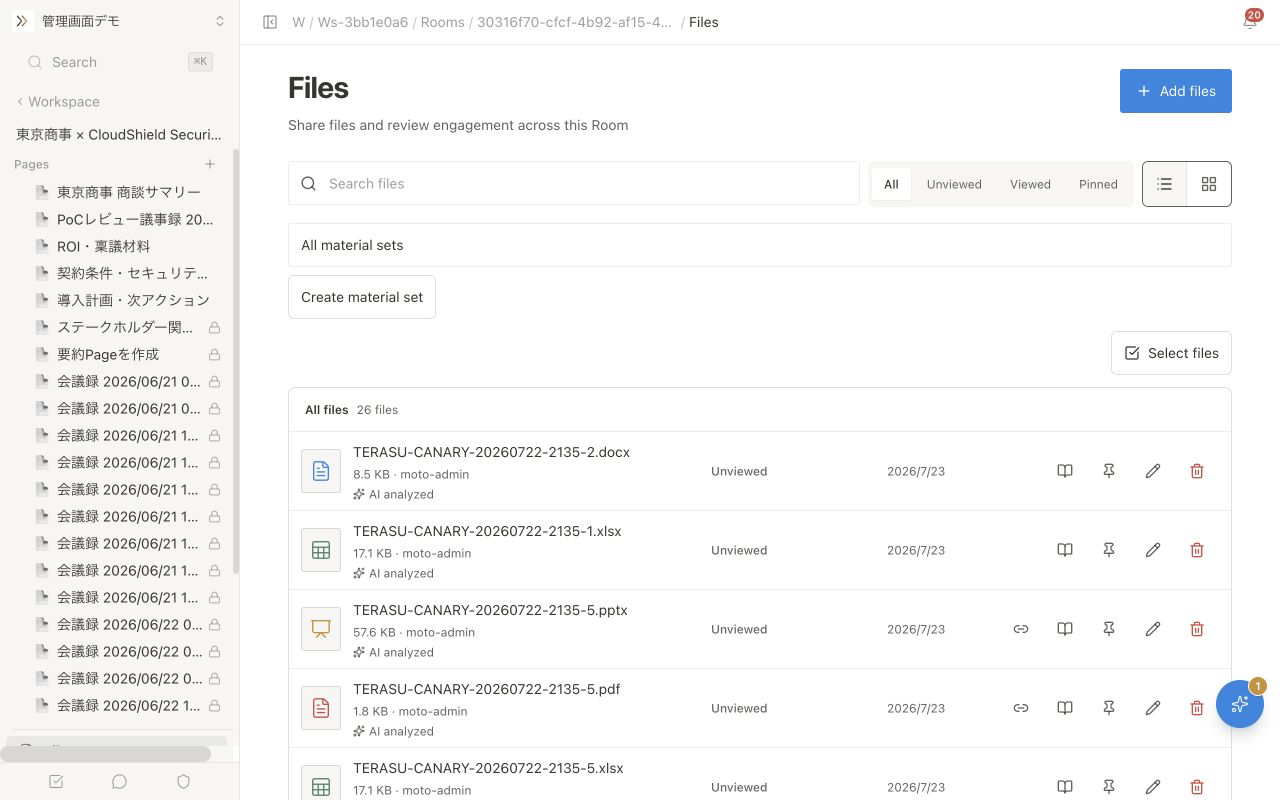
Supported file formats
| Category | Formats | AI analysis in the file list |
|---|---|---|
| Documents | PDF, DOCX, PPTX, XLSX | Supported |
| Data | CSV | Not supported |
| Images | PNG, JPG, GIF, SVG, WebP | Not supported |
| Videos | MP4, WebM | Not supported |
Images, videos, and CSV files are not analyzed by AI, but you can still preview and share them after upload.
How to upload
Drag and drop
- Open the "Files" tab in the Room
- Drag a file onto the browser window
- Drop the file when the drop zone appears
Upload with the button
- Click "Add files" on the "Files" tab
- Choose a file in the file selection dialog
- The upload starts automatically
Automatic virus scan after upload
Every uploaded file is automatically scanned for malware. The scan usually finishes within a minute, and previewing and creating external share links wait until it completes.
- Files judged safe proceed to preview, sharing, and AI analysis as usual
- Files judged dangerous are quarantined and can no longer be viewed or shared
- Files whose scan could not complete are kept unavailable for safety. Please re-upload them after a while
AI analysis after upload
PDF, DOCX, XLSX, and PPTX files can be analyzed by AI up to 30 MB per file. This limit is separate from your plan's upload limit. Files over 30 MB can still be uploaded and shared, but they are not analyzed by AI.
When you upload PDF, DOCX, XLSX, and PPTX files, Terasu automatically analyzes their content in the background. Progress appears in the Room's file list.
| Status | Meaning |
|---|---|
| Analyzing | Terasu is reading the file contents |
| AI analyzed | Analysis is complete and the AI Agent can reference the material |
| AI analysis failed | Terasu could not complete the analysis |
| Not supported | The format, such as an image, video, or CSV file, is not supported for automatic analysis |
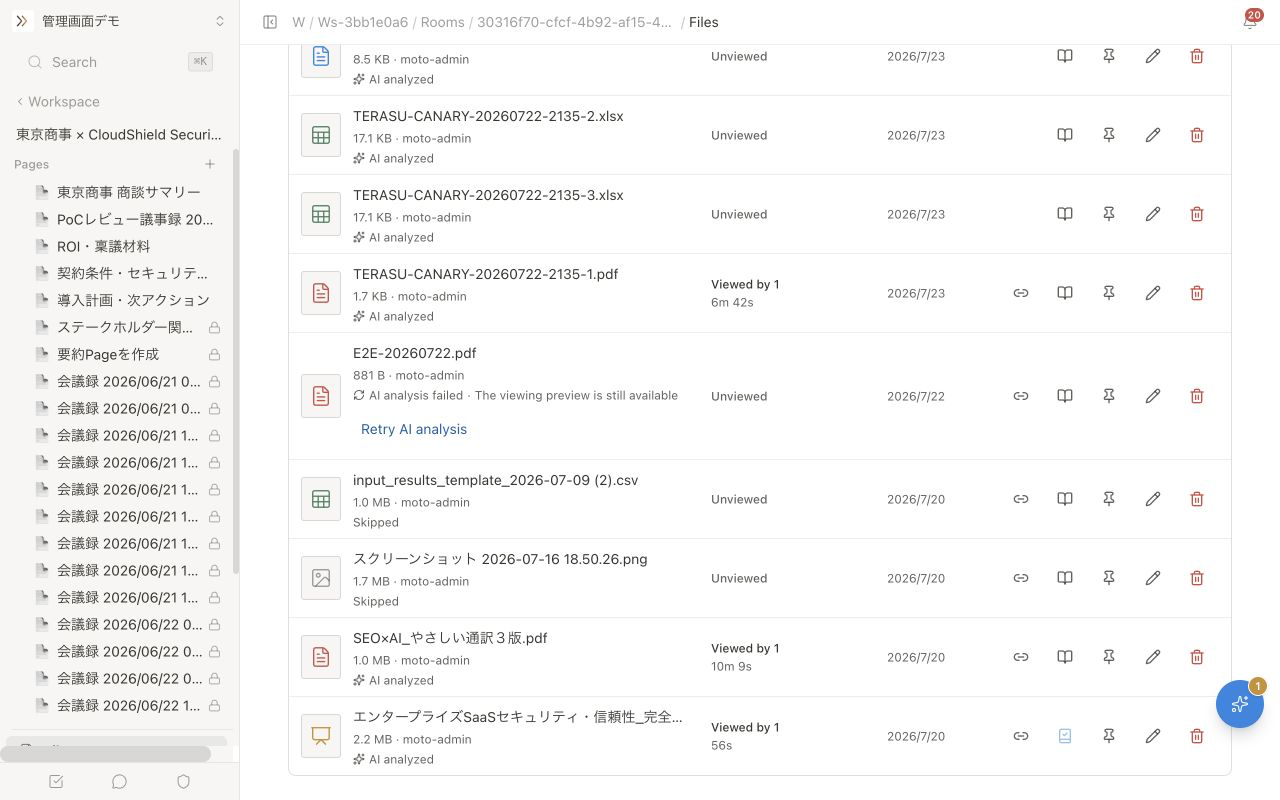
If you see "AI analysis failed," internal members with edit access can retry from the file list. If it fails again, check that the file is 30 MB or smaller, is not corrupted, and is not password-protected.
Analysis status and retry controls are internal management information. External members and share-link viewers do not see them. Previewing and sharing are separate from AI analysis, so supported files can still be viewed and shared when analysis fails or is not supported.
AI analysis makes file content available to the AI Agent. It is different from viewing analytics, which records who viewed a file and how long they spent on each page. See File Viewing Analytics for viewing activity.
Each successfully analyzed file consumes one AI credit. Failed, unsupported, or interrupted analyses do not consume a credit.
Submitting files to the AI Agent
PDFs, PPTX files, videos, transcripts, and similar files can be uploaded not only as shared files but also as analysis material for the AI Agent.
- Open the AI Agent in the bottom-right of the Room
- Drag and drop a file onto the sidebar, or choose one with the clip icon
- Ask it to "summarize this material," "organize it into related Pages," "extract next actions," and so on
Originals submitted to the AI Agent are saved so you can verify the underlying source later. Approval is required before reflecting them in customer-facing materials or Pages.
Per-page viewing tracking
When an uploaded PDF is viewed in the viewer, the time spent on each page is recorded. This lets you analyze which pages a customer is paying attention to.
Viewing tracking is supported for PDF and video files, as well as PPTX, DOCX, Keynote, and Pages files viewed through a PDF-converted preview. For details, see File viewing analytics.
File size limits
| Plan | Per file | Total storage |
|---|---|---|
| Free | 10MB | 1GB |
| Starter | 50MB | 10GB |
| Business | 100MB | 100GB |
Once you reach your storage limit, you can no longer upload new files. Delete files you no longer need, or upgrade your plan.
File permissions
The scope for editing (renaming) and deleting files differs between internal members and external members (customers).
- Internal members: Can edit and delete any file in the Room
- External members: Can edit and delete only the files they uploaded themselves. Files uploaded by internal members are view-only
Only internal members can change a file's download permission setting. For details, see Managing content permissions.
Deleting a file
- Open More actions for “filename” on the file row
- Choose Delete
- In the confirmation dialog, choose Don't or Delete. Focus starts on Don't. There is no close (×). Esc also dismisses it
Related articles
- Using the Page EditorHow to create and edit pages with the block editor, plus page visibility and editing permissions
- File Viewing AnalyticsHow to use PDF and video viewing analytics, heatmaps, AI viewing insights, and distinguish them from file-list AI analysis
- Managing Content PermissionsHow to properly control view, edit, and delete permissions for files and pages between internal and external members
- Feeding External Information to the AI AgentHow to feed transcripts, notes, chats, PDF/PPTX files, and information from Gmail, Meet, Zoom, the Chrome extension, and Slack/Teams into a Room for search, analysis, and proposals