Decision Timeline
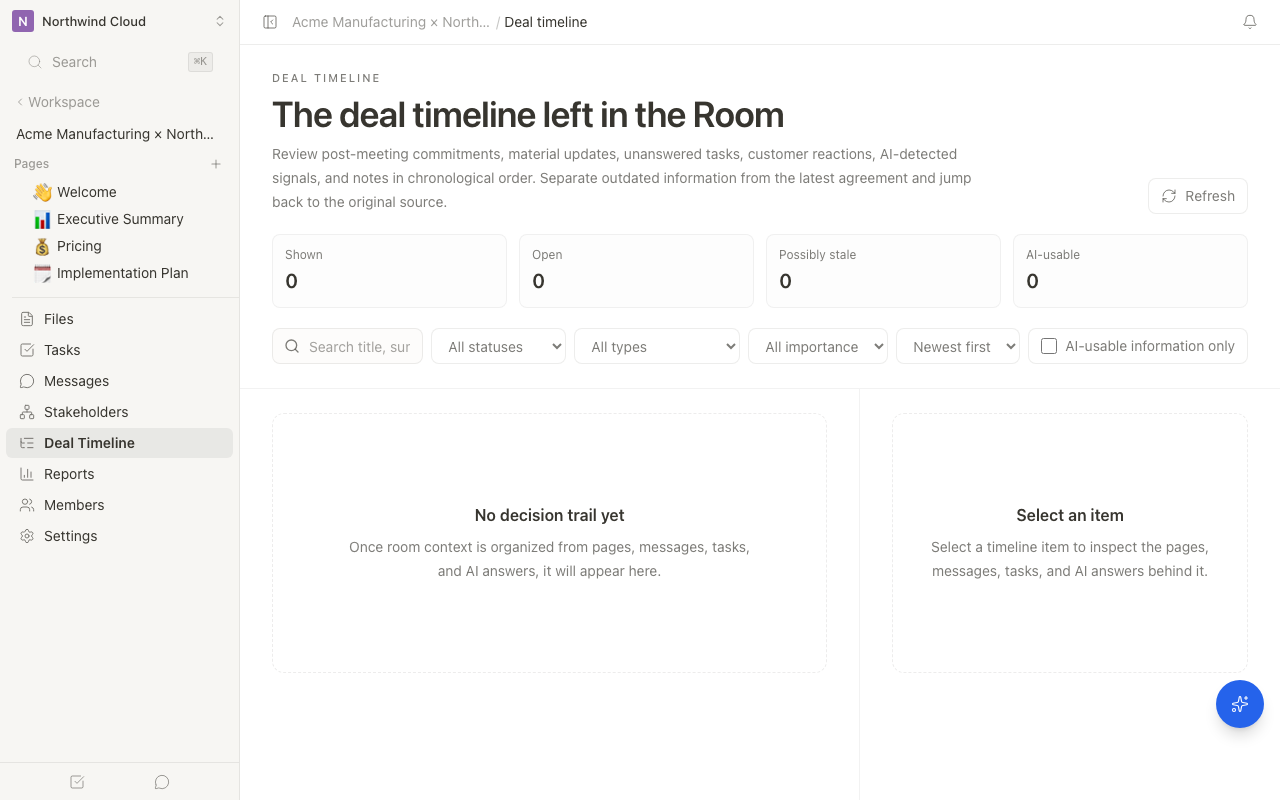
The Decision Timeline is where you review the events that matter for a client project in chronological order. It is not a raw activity log; it brings together decisions, risks, questions, customer confirmations, AI signals, and important notes.
What to use it for
| What you want to know | Where to look |
|---|---|
| A customer viewed an important file or pricing page | Decision Timeline |
| AI detected a risk or a change in interest | Decision Timeline |
| You want to judge the current project status | Decision Timeline |
| You want to ask AI a question or add notes/materials | AI sidebar on the right |
| You want to approve or reject an AI suggestion | Needs review in the AI sidebar. For triage across Rooms, use the workspace Agent Inbox |
| You want the full access history | Reports |
The Room Activity screen remains as a detailed log, but it is not the daily entry point. Use the Decision Timeline for day-to-day review. The Room agent inbox is also not the daily entry point; ask questions and approve work from the right AI sidebar and the workspace Agent Inbox.
Opening the Decision Timeline
- Open the target Room
- Click "Decision Timeline" in the left menu
- Use the filters or search at the top to narrow down the events you want to review
The Decision Timeline is for internal users. It is not shown to external members.
Selecting an item opens its detail on the right. Previous and next move to adjacent events. When there is no neighbor, the controls say there is no previous or next item.
What appears in the timeline
| Type | What it means |
|---|---|
| Decisions | Agreements, assumptions, and decisions made by the customer or team |
| Risks | Stall factors, competitor, budget, legal, or other concerns |
| Questions | Customer questions, unanswered topics, and points to confirm next time |
| Stakeholders | Changes involving decision-makers, champions, or concerned stakeholders |
| AI answers | Important analysis results organized by the AI sidebar |
| AI signals | Interest, risk, or stakeholder changes detected from customer behavior |
| Customer reactions | Room and file views that matter for judgment |
| Notes | AI summaries or manual notes worth keeping in the project context |
Using filters
| Filter | How to use it |
|---|---|
| Status | Narrow by open, updated, resolved, stale, and similar states |
| Type | Narrow by risk, question, AI signal, customer reaction, and more |
| Importance | Show only important events such as high or critical items |
| AI usable | Show only information AI can use for answers and suggestions |
| Search | Find items by customer name, file name, topic, and more |
Before a standup or a meeting, filter to high-importance AI signals, customer reactions, and risks to quickly see what changed.
How it differs from the AI sidebar
The Decision Timeline is where you see what is happening. The AI sidebar is where you ask questions, add information, and approve executable suggestions.
| Goal | Recommended place |
|---|---|
| Review the latest customer reactions | Decision Timeline |
| Ask AI about the background of a signal | Open the timeline item, then ask in the AI sidebar |
| Add meeting notes or materials and summarize them | AI sidebar |
| Execute task creation or message sending | Approve it in needs review in the AI sidebar |
| Triage pending AI suggestions across Rooms | Workspace Agent Inbox |
How it differs from detailed logs
Detailed logs are closer to raw history, such as Room entries, file views, and notes. The Decision Timeline extracts the events that matter for judgment and shows them in the context of the decision.
| Screen | Role |
|---|---|
| Decision Timeline | Chronological view for judgment, next actions, and risk review (daily entry) |
| Detailed Activity log | Detailed review of AI summaries, manual notes, and view logs. Not the daily entry |
| Audit log | Admin-facing evidence of workspace-wide operations |
The Decision Timeline supports judgment. Always have a person review contract terms, outgoing messages, and customer-facing materials before making final decisions.
Related articles
- Agent InboxHow to approve or reject pending proposals across Rooms from the workspace inbox.
- Signal DetectionThe types of client-project signals the AI agent detects automatically, and how to act on them
- Client-project portfolio intelligenceHow to check which Rooms need attention and project health from Insights and the digest calendar.