Last updated: 2026-03-20 · 3 min read

Setting Up LINE Integration

When you integrate with a LINE Official Account, you can receive messages directly from LINE and manage them as threads in Terasu. This adds a channel where customers can reach out easily and helps prevent missed responses.

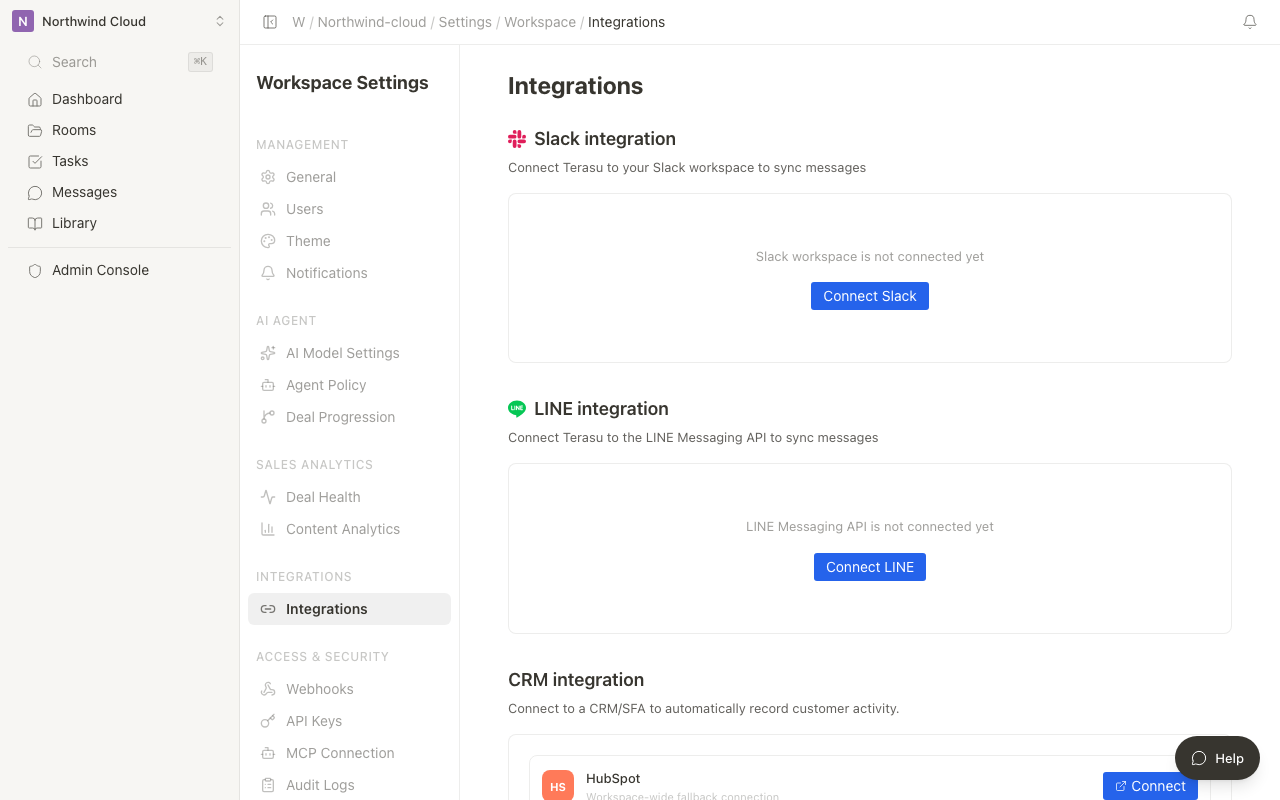
LINE integration settings screen

What you can do with LINE integration

FeatureDescription
1:1 direct chatReceive messages from LINE as Terasu threads
Welcome messageAn automatic reply when a new friend adds your account
Default Room assignmentAutomatically link DMs from LINE to a specified Room
Auto-register external usersAutomatically register LINE users as external members

Prerequisites

LINE integration requires configuration in the LINE Developers Console.

  1. Log in to LINE Developers
  2. Select a provider (or create a new one)
  3. Create a "Messaging API" channel
  4. From the channel basic settings, note the following:
    • Channel ID
    • Channel secret
    • Channel access token (long-lived)

If you already have a LINE Official Account, you can use your existing Messaging API channel.

Connect with Terasu

  1. Click the workspace name at the top of the sidebar to open the menu
  2. Select "Settings"
  3. From the settings page sidebar, open "Integrations"
  4. Click the "Connect" button for "LINE Integration"
  5. Enter the channel ID, channel secret, and channel access token
  6. Click "Connect"

Set the Webhook URL

Once the connection is complete, Terasu generates a Webhook URL. You need to set this URL in LINE Developers.

  1. Copy the "Webhook URL" shown in the "LINE Integration" section of the "Integrations" page
  2. In the LINE Developers Console, open the channel's "Messaging API settings"
  3. Paste it into "Webhook URL" and save
  4. Turn on "Use webhook"

The Webhook URL is unique to each workspace. You cannot use the same LINE channel across multiple workspaces.

Set up a welcome message

You can configure a message that's sent automatically when a new user adds your LINE Official Account as a friend.

  1. Click the workspace name at the top of the sidebar to open the menu
  2. Select "Settings"
  3. From the settings page sidebar, open "Integrations"
  4. Enter the message content in "Welcome message" in the "LINE Integration" section
  5. Click "Save"

Set a default Room

You can automatically link 1:1 messages from LINE to a specific Room. Specifying the Room your sales team handles in advance makes incoming messages easier to manage.

  1. Click the workspace name at the top of the sidebar to open the menu
  2. Select "Settings"
  3. From the settings page sidebar, open "Integrations"
  4. In "Default Room" in the "LINE Integration" section, choose the Room to link messages to
  5. Click "Save"

Once you set a default Room, new messages from LINE are automatically created as threads within that Room.

Disconnect the integration

  1. Click the workspace name at the top of the sidebar to open the menu
  2. Select "Settings"
  3. From the settings page sidebar, open "Integrations"
  4. Click "Disconnect" for "LINE Integration"
  5. Click "Disconnect" in the confirmation dialog

Disconnecting the integration stops receiving messages from LINE. Past message history remains in Terasu.

Setting Up LINE Integration | Help center