Last updated: 2026-09-21 · 2 min read
Theme and Usage
The image at the top is Theme in settings. Usage is a separate item in the same settings sidebar.
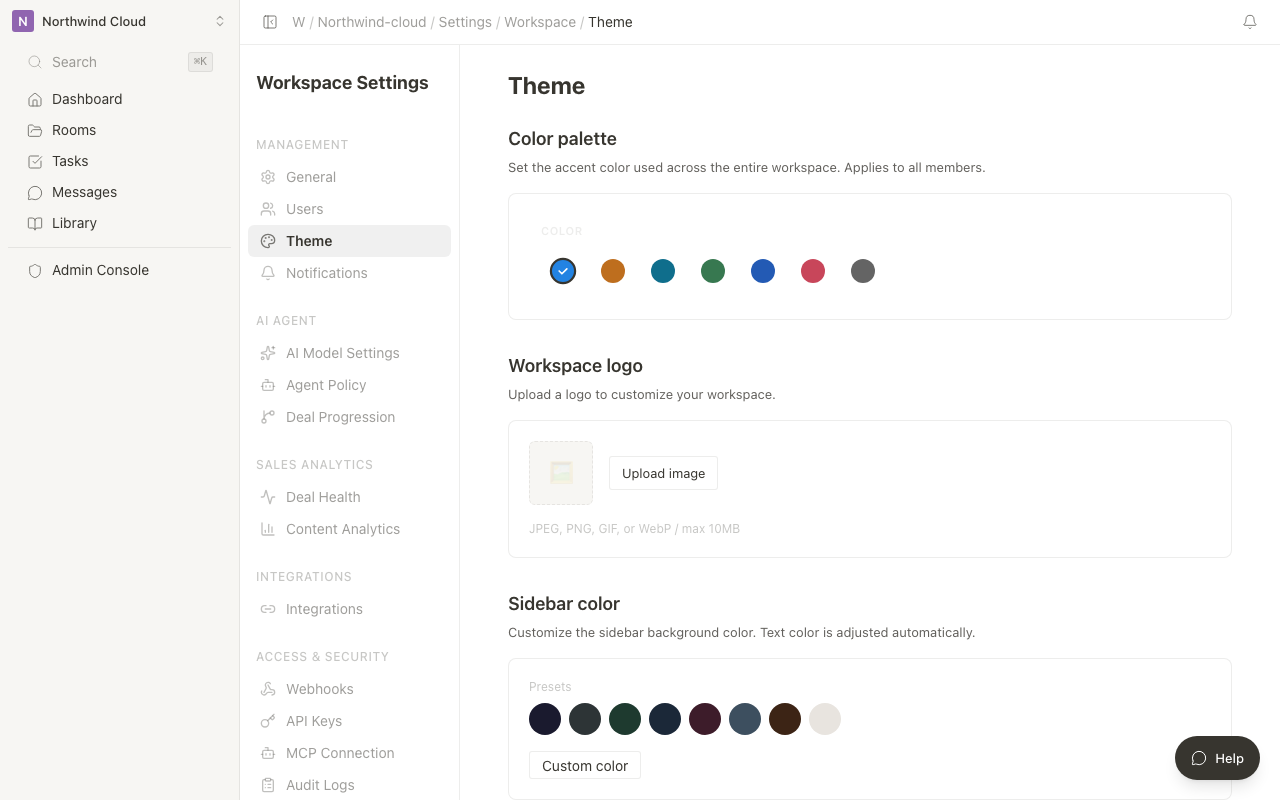
Theme
Set the accent color and logo for the whole workspace. The change applies to every member. Personal light / dark is on the profile page.
- Open Theme from the settings sidebar
- Choose a color palette (it saves as soon as you press it)
- Upload a logo if you need one
- Choose a sidebar color preset, or enter a hex value under Custom color and save
What this screen can do
| Item | Description |
|---|---|
| Color palette | Workspace accent color |
| Workspace logo | JPEG / PNG / GIF / WebP, up to 10MB |
| Sidebar color | Presets, or a custom hex value |
| Custom accent color | A specific color instead of the palette |
| Slide generation theme | Brand for AI decks (default theme, secondary color, font) |
Switch light and dark from My page (profile). Workspace theme is the shared color and logo for the team.
Check your usage
Resource usage against the current plan is on Usage.
- Open Usage from the settings sidebar
- Check usage and limits for each resource
Metrics you can check
| Item | Description |
|---|---|
| Rooms | Created Rooms / plan limit |
| Members | Current members / plan limit |
| Storage | Used capacity / plan limit |
| AI credits | Remaining credits and usage this month |
When usage reaches the plan limit, creating new Rooms can be restricted. As you approach the limit, consider upgrading your plan.