Managing sharing and notifications
This article explains how to review notifications and how to customize alerts for Room sharing and external file-share views.
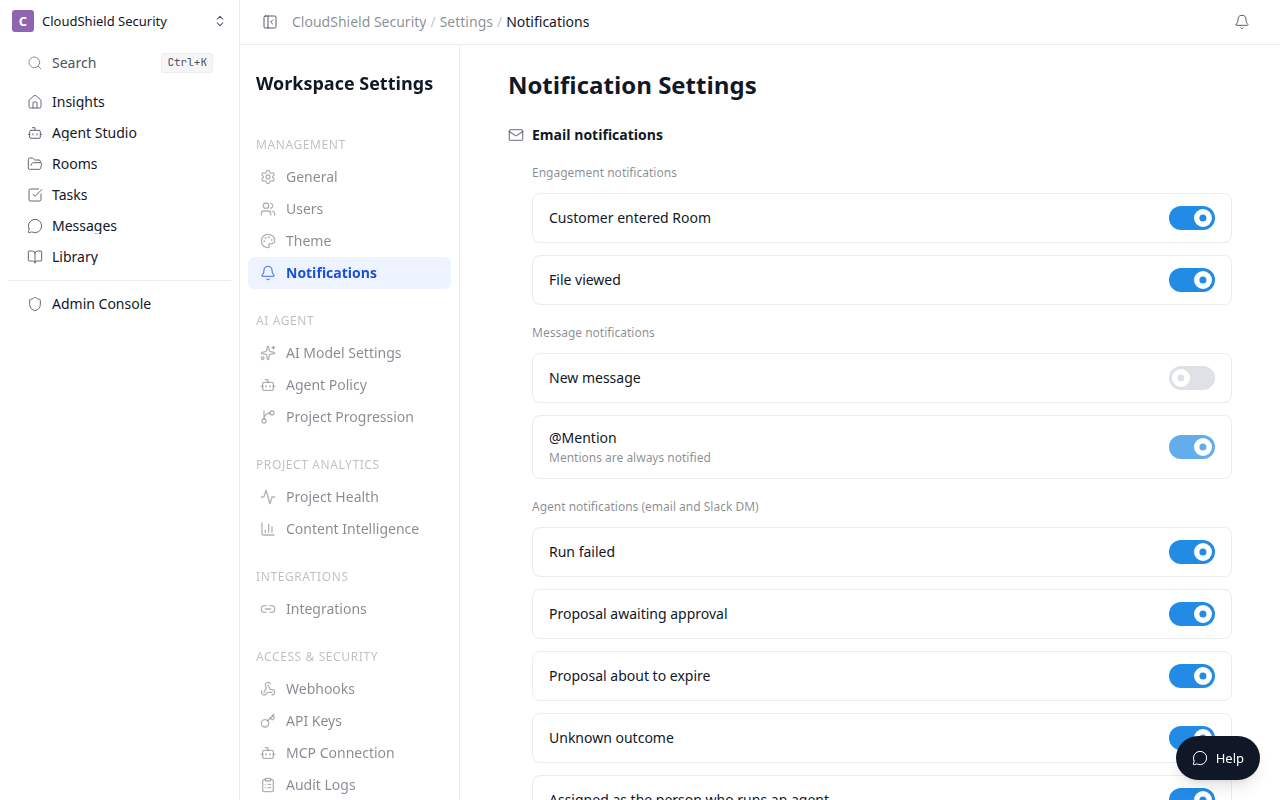
The opening image is workspace Notification settings (1280). You toggle email for engagement, messages, and Agent events. @mentions always notify and cannot be turned off.
Reviewing notifications
Open the bell in the top-right to see unread notifications. A count badge appears when there is unread mail.
Notification types include the following.
| Notification type | Content |
|---|---|
| Customer entered Room | When an external member enters the Room |
| File viewed | When a Room file or an external share-link file is viewed |
| New message | When a new message is posted to a thread |
| @Mention | When you are mentioned in a message or page comment |
Marking as read
- Opening a notification marks it as read and takes you to the relevant page
- To mark them all at once, press Mark all as read at the top of the dropdown
A notification that cannot be opened shows This notification can't be opened because the Room is missing.
Customizing notification settings
From Notifications in workspace settings, you control email for each event.
- Open Settings → Notifications in the sidebar
- Toggle email on or off for Customer entered Room, File viewed, New message, and other events
- Press Save settings. Save stays unpressable until something changes
@mentions always notify and cannot be turned off.
Turn off email for New message only if you want mention mail without routine thread mail. Views of external share links are included in File viewed.
Invitation email content
When you invite a member, an email is sent with:
- The inviter's name
- The Room name
- A custom message, if one was set
- An access link to the Room
Recipients who use Reply in Room on an external share link also receive an invitation to the project Room. See Share selected files externally for that flow.
Notification timing
| Event | Internal members | External customers |
|---|---|---|
| Customer entered Room | In-app + email | |
| File viewed | In-app + email | |
| New message | In-app + email | Email (when configured) |
| @mention | In-app + email |
Room-level notification settings
You can also toggle notifications on or off on a per-Room basis.
- Open the Notifications section in Room settings
- Toggle each notification type on or off
- Changes are saved automatically
Turning off notifications for a Room whose project has been completed helps cut down on unnecessary notifications.
Related articles
- Sharing a RoomHow to share a Room with internal members and customers, and the sharing settings
- Messages and CommentsHow to communicate with your team and customers using the messaging features inside a Room
- Share selected files externallySend selected files through a secure link without exposing the whole Room