Project Progression Settings
The settings sidebar item Project Progression opens a page titled Project Process Settings. There you manage the criteria the AI uses to judge the current phase, what is missing to move on, and which actions close those gaps.
Phase edits save automatically. The top-right of the page shows Saving... and Saved. There is no Save button at the bottom of the page.
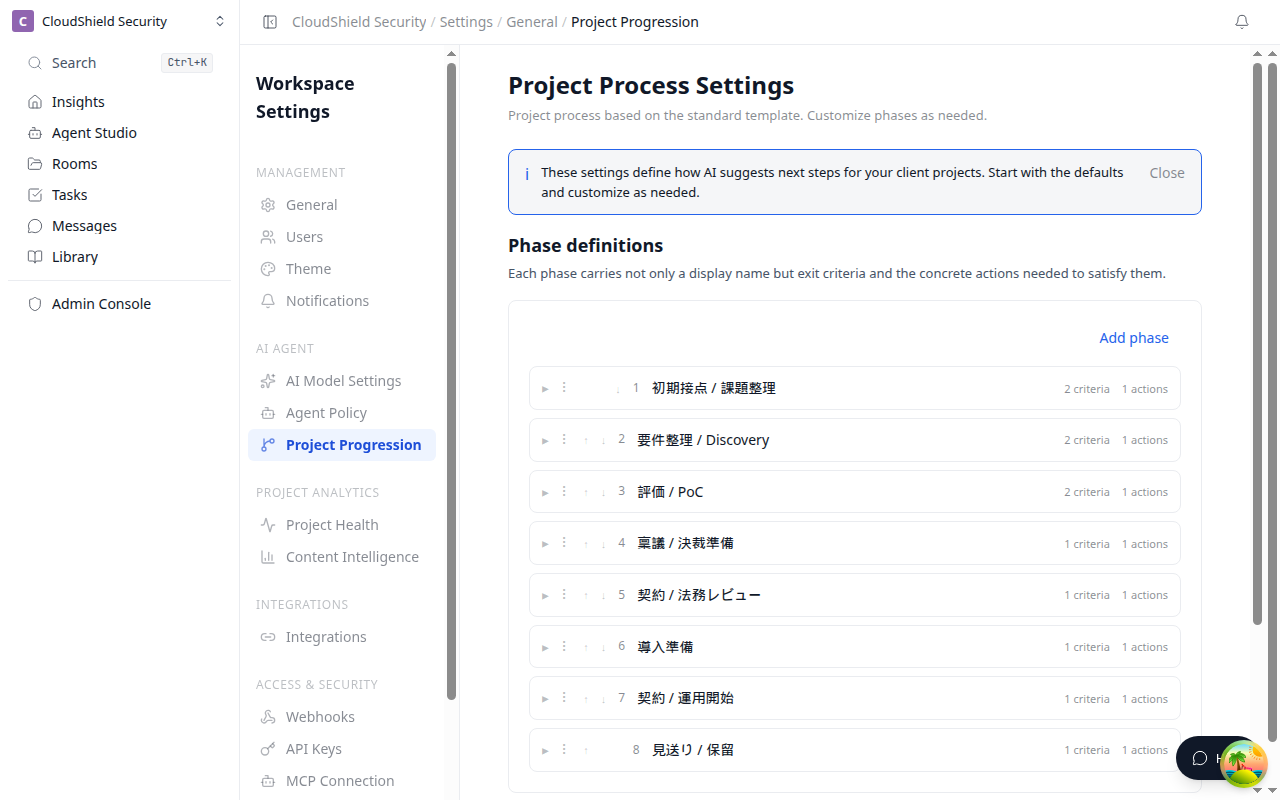
Open the settings screen
- Click the workspace name at the top of the sidebar to open the menu
- Select Settings
- Under AI Agent, choose Project Progression
Only workspace admins can open this page. If loading fails, use Retry.
Phase definitions
Each phase is a row. Open completion criteria and suggested actions with the detail control on the left. Reorder by dragging or with Move up / Move down.
| Action | Where |
|---|---|
| Open details | Left end of the row |
| Drag to reorder | Handle to the right of details |
| Move up / Move down | To the right of the handle |
| Phase name | Input in the row |
| Delete | Right side of the row. A confirm banner appears |
Add phase appends a row. On delete confirm, Stop is focused first. Escape also cancels. After delete, Undo is available for a short time.
Completion criteria and suggested actions
When details are open, every completion criterion is labeled Required. Criteria and actions have named remove buttons. Reset to default restores criteria and suggested actions and keeps the phase name. A confirm banner appears first.
Advanced settings
- Click Open advanced settings
- Edit CRM stage mapping, actions that need approval, and AI custom rules if needed
- Click Close advanced settings to hide the panel
These edits save automatically, same as phases.
CRM stage mapping
Map CRM stage names to Terasu phases in a table. Add a row, then remove it by row.
Actions that need approval
Choose actions the AI must not run without a person. Customer-visible actions default on. Internal actions default off.
AI custom rules
You usually do not need to change these. Open them only to override how promises and requests are extracted, or how suggestion priority is ranked. Empty fields keep the default rules.
When save fails
The top-right shows the failure. After repeated failures, Download draft appears. If someone else saved first, use Load latest. If a local draft exists, choose Restore or Discard.