Last updated: 2026-03-20 · 2 min read
Managing External Members
The member management screen in your workspace settings gives you a single view of all the external members (customers and partners) you have invited to your Rooms.
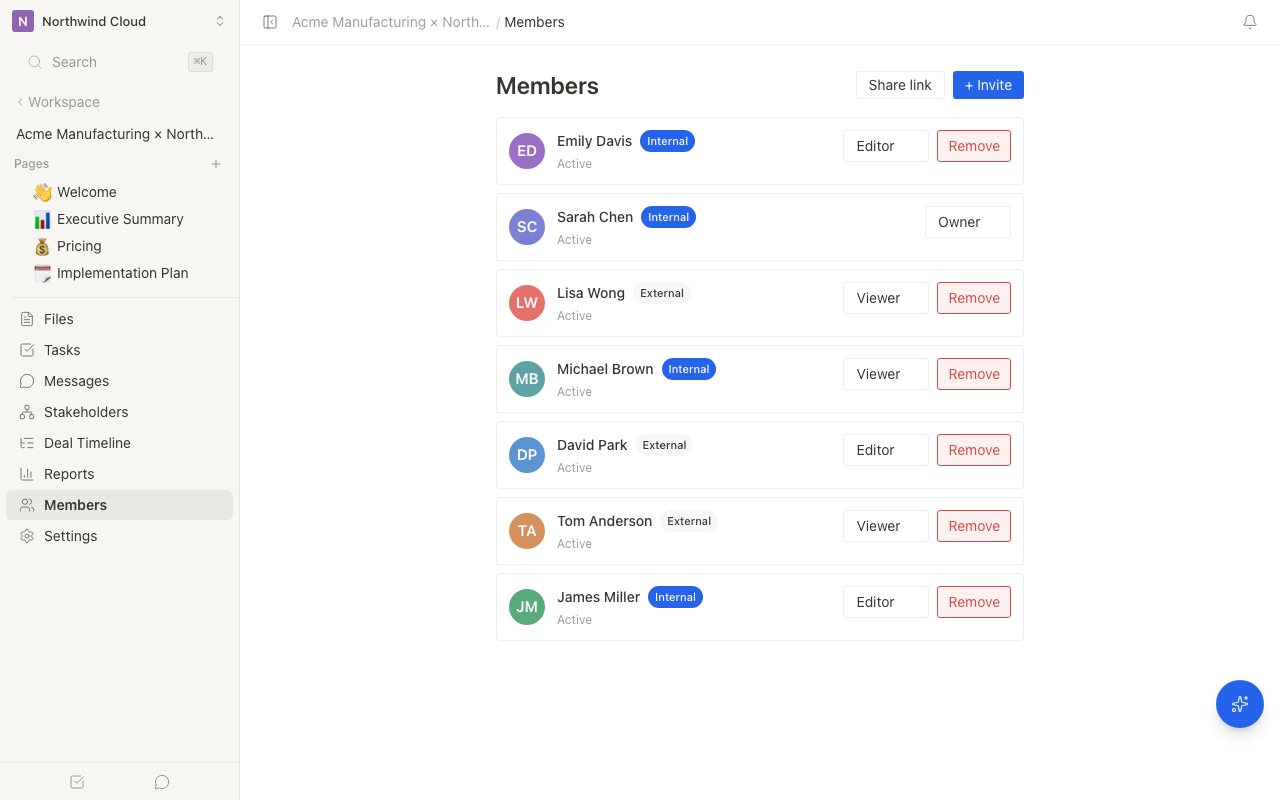
Opening the External Members List
- Click "Settings" in the sidebar
- Open "Members"
- Switch to the "External Members" tab
Information You Can Review
Each member shows the following information.
| Field | Description |
|---|---|
| Name | The member's display name |
| Email address | The email address used for the invitation |
| Rooms joined | A list of the Rooms the member currently belongs to |
| Last activity | The date and time the member last viewed a Room |
Searching and Filtering
As the number of external members grows, you can search by name or email address.
External members are automatically added to your workspace's member list the moment they are invited to a Room. There is no need to add them to the list manually.
Managing Members at the Room Level
To manage the members of a specific Room, you can review and make changes from the "Members" tab inside that Room. For more details, see Managing Room Members.