Last updated: 2026-09-21 · 2 min readStarter〜
Setting Up Slack Integration
Workspace Settings → Integrations connects your Slack workspace to Terasu. After it is connected you can sync messages, and you can reconnect from the same screen if a Room reports a missing permission.
The screenshot is the administrator view. Connect, disconnect, and auto-registration are available to workspace admins only.
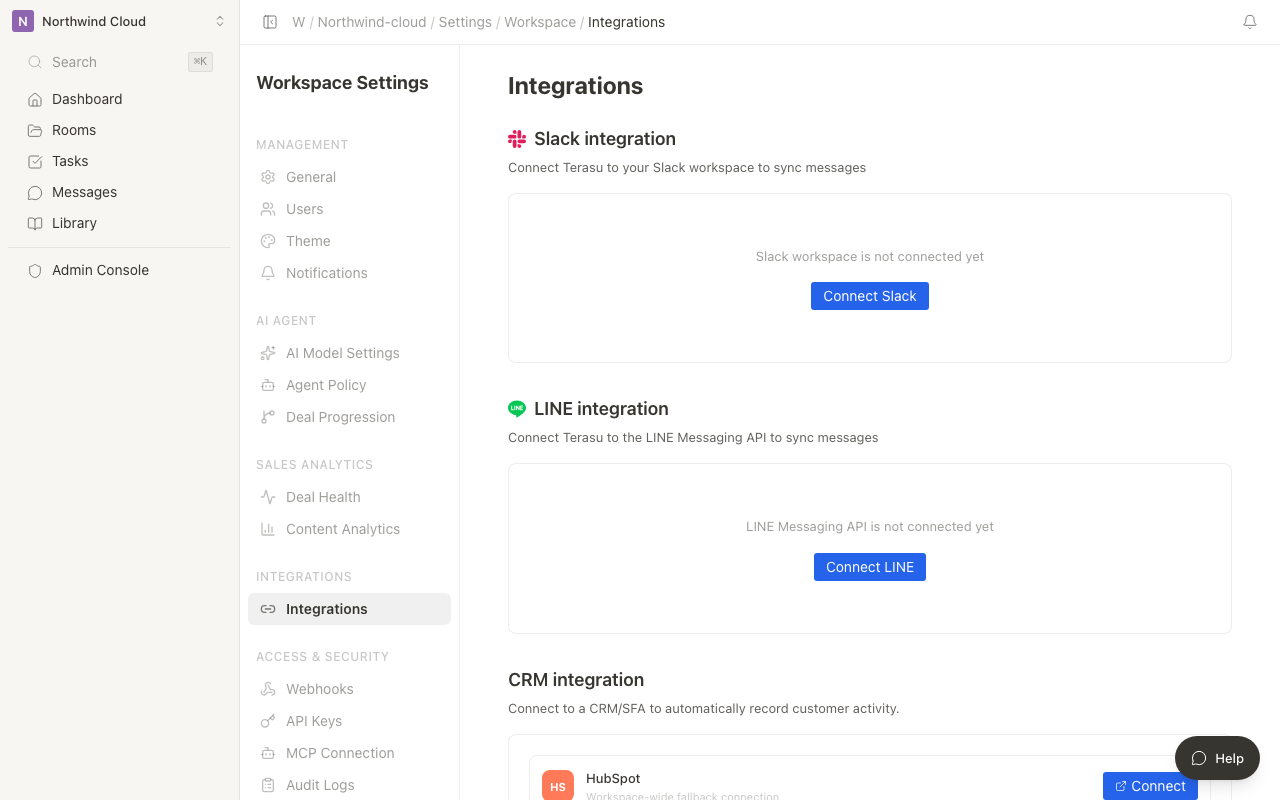
Open the screen
- Click the workspace name at the top of the sidebar
- Choose Settings
- Under Integrations, open Integrations
- Find the Slack integration section
Connect Slack
When Slack is not connected, Connect Slack is shown.
- Click Connect Slack
- Choose the Slack workspace on the authorization screen
- Grant the permissions Terasu requests
Connecting Slack requires admin permission in that Slack workspace. Ask a Slack admin if you do not have it.
While connected
The row shows status (Connected / Error), Team ID, and the connection date.
| Action | What it does |
|---|---|
| Reconnect Slack | Use this when a Room reports a missing Slack permission. Existing settings and Room channel links stay |
| Channels open to every Room | A list of those channels. Turn the setting on from a Room's settings |
| Auto-register external users | Register Slack senders as external users |
Disconnect
- In Slack integration, click Disconnect
- Confirm with Disconnect (or Cancel)
Disconnecting removes the workspace Slack connection. To stop only one Room, change that Room's channel settings instead.