Last updated: 2026-09-21 · 1 min read
Using the Library
The library holds files shared across the Workspace. Adding a file to a Room makes a Room copy so customer viewing is recorded there.
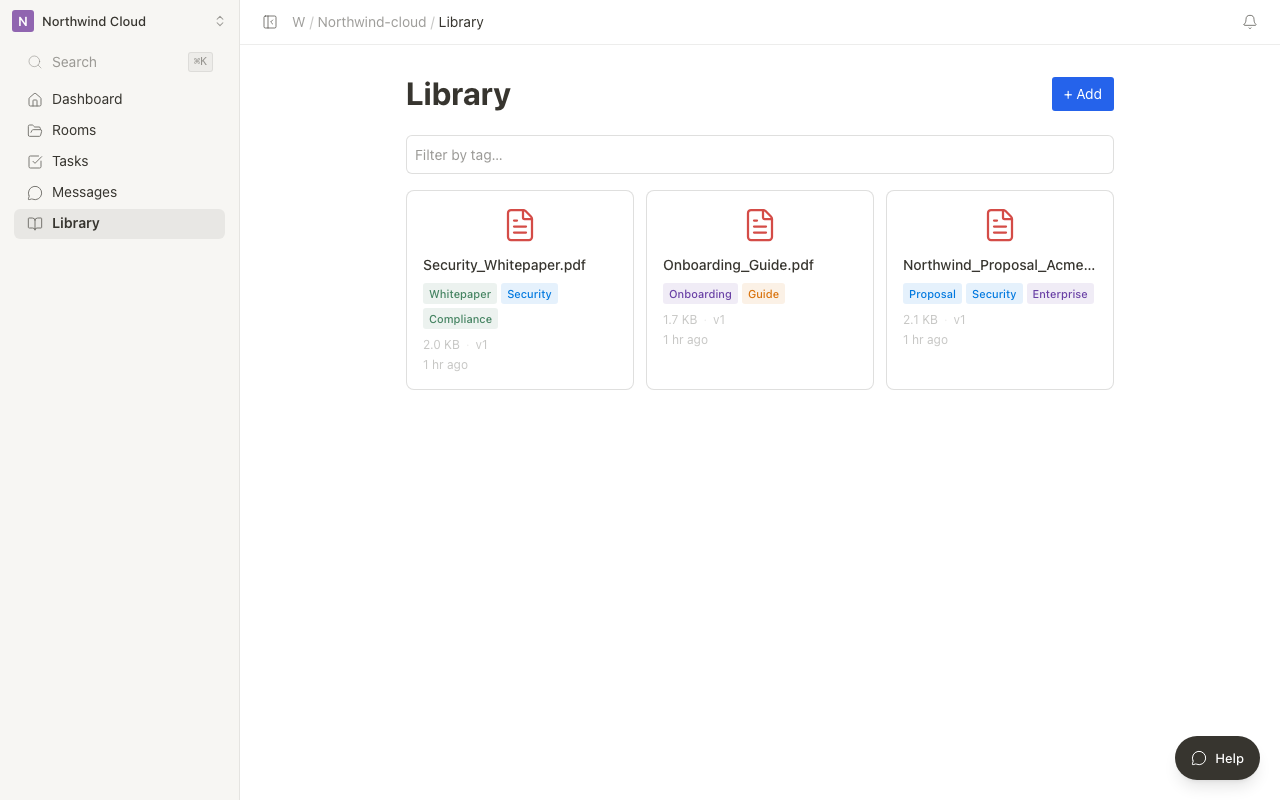
The hero image is the workspace library in card view at 1280.
Opening the library
Choose Library in the sidebar. You can search, filter by type, sort, and switch list or cards.
Adding a file
- Press Add.
- Choose a file.
- Add tags if you need them.
The primary action is Add, not Upload.
Adding to a Room
Add to Room includes the filename in its accessible name. More actions covers edit tags and delete. Delete confirms with Don't and Delete. Focus starts on Don't. There is no close (×). Esc also dismisses it. Copies already in Rooms stay.
- Press Add to Room on the asset.
- Choose the Room.
The search field is labelled Search by file name or tag.