Last updated: 2026-09-21 · 2 min read
Create a Room
A Room is a shared space for each customer or project. You can bring proposals, materials, progress tracking, and more together in one place to share.
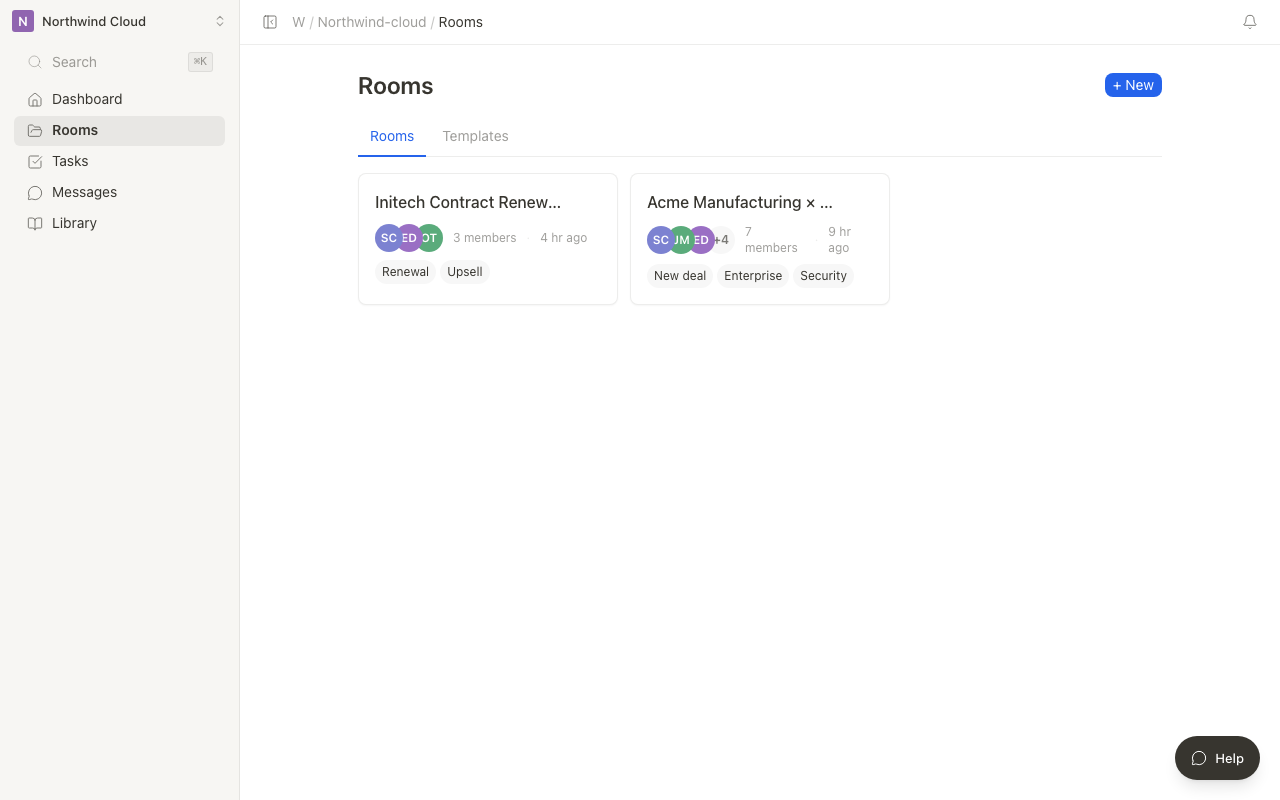
Create a new Room
- Open "Room" in the sidebar and click "New Room"
- Enter a title (a customer or client-project name is common)
- Add tags (optional)
- While the title is empty, the dialog shows "Enter a title to create the room" and Create stays inactive
- Click "Create"
You can change the Room name later. Feel free to create it with a temporary name first and rename it to the official one afterward.
What a Room is made of
You can add the following elements to a Room you've created.
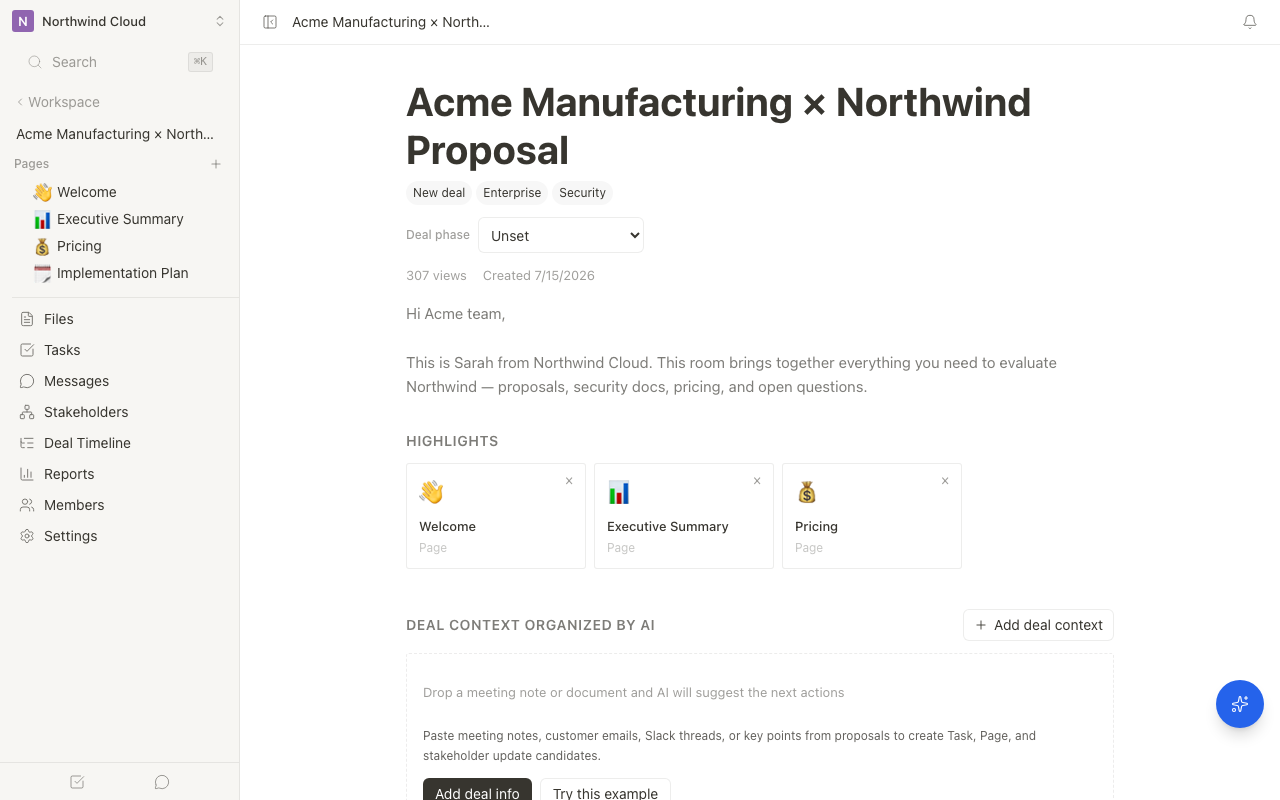
| Element | Description |
|---|---|
| Pages | Content you can freely edit with the block editor |
| Files | Uploaded files such as PDFs, images, and videos |
| Tasks | To-do management and milestone tracking |
Viewing your Rooms
The Rooms you create appear in the list on your dashboard.
- Recent Rooms: Sorted by most recently accessed
- All Rooms: A list of every Room in the Workspace
- Search: Filter by Room name
Deleting a Room also deletes all the pages, files, and tasks it contains. Be sure to back up any data you need before deleting.