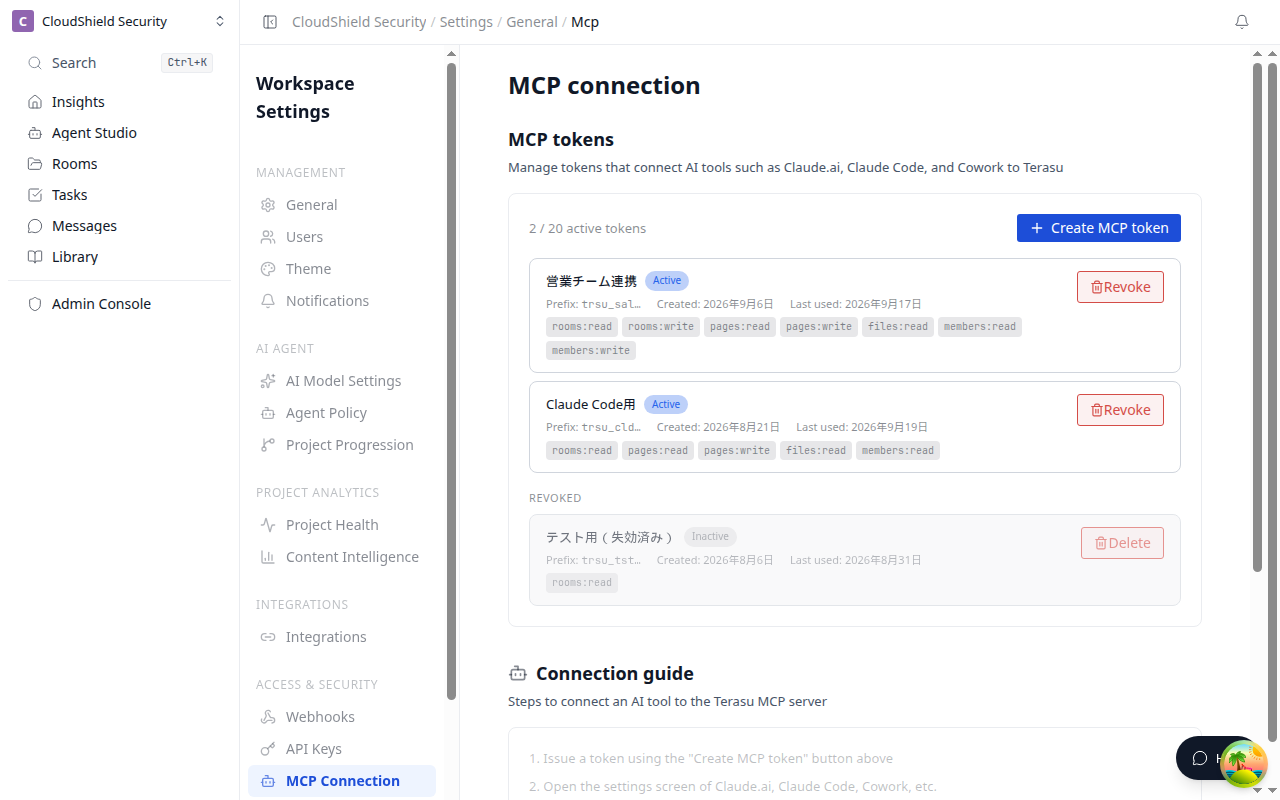
MCP Connection (AI Tool Integration)
With MCP (Model Context Protocol), you can operate Terasu's Rooms, pages, files, tasks, messages, and AI agent from AI tools such as Claude.ai, Claude Code, and ChatGPT.

MCP connections are available on the Business plan and above. The AI tool's support status and settings screens may change.
Quick start
- Open workspace settings → "MCP Connection"
- Click "Create MCP token"
- Enter a token name
- Select the scopes required for the operations you want
- Click "Create token"
- Register the displayed MCP server URL and Bearer token in your AI tool
The Bearer token is shown in full only at creation time. Since it cannot be displayed again later, store it in a safe place.
What you can do with MCP
| Feature | Available operations |
|---|---|
| Room management | View, create, update, and delete Rooms |
| Member management | View, invite, and remove Room members |
| File management | List files, view metadata, upload, and delete |
| Page management | List pages, view content, create, and update |
| Messages | View and create Room messages |
| Tasks | View, create, and update tasks |
| Stakeholders | View, create, and update contacts |
| AI agent | Answer questions, analyze, and create/operate pending approval Actions |
| Pipeline | View the deal pipeline |
| Workspace | View and update workspace settings |
Scope list
You can control the access range per token. Grant only the minimum necessary scopes.
| Scope | Description |
|---|---|
rooms:read | View Room lists and details |
rooms:write | Create and update Rooms |
rooms:delete | Delete Rooms |
members:read | View member lists |
members:write | Invite and remove members |
files:read | View file lists and metadata |
files:write | Add, update, and delete files |
pages:read | View page lists and content |
pages:write | Create and update pages |
messages:read | View Room messages |
messages:write | Create Room messages |
tasks:read | View tasks |
tasks:write | Create and update tasks |
stakeholders:read | View stakeholders |
stakeholders:write | Create and update stakeholders |
workspace:read | View workspace settings |
workspace:write | Update workspace settings |
agents:read | AI agent answers and analysis |
agents:write | Create, approve, reject pending Actions, and request material creation |
pipeline:read | View pipeline information |
Recommended scopes by use case
| Use case | Scopes to select |
|---|---|
| Just trying it out | rooms:read, pages:read, files:read |
| Have AI analyze a Room | rooms:read, pages:read, files:read, messages:read, tasks:read, stakeholders:read, agents:read |
| Go as far as creating pending Actions | The above + agents:write, tasks:write, pages:write, messages:write, stakeholders:write |
| Operate Rooms from external tools | Add the necessary read/write scopes individually |
| Full management for admins | All scopes |
When in doubt, start with read scopes and create a new token once the operations you need become clear.
Restrict to specific Rooms
By specifying a Room scope when creating a token, you can limit which Rooms it can access. Separating tokens by customer, deal, or external tool makes auditing and revocation easier.
Use with Claude.ai
You can connect to Terasu from the web version of Claude.ai.
- Log in to Claude.ai
- Open Settings → Integrations
- Add a custom integration
- Enter
Terasufor Name and the Terasu MCP server URL for URL - Set
Bearer <copied token>in the Authorization header - After saving, check that the Terasu tools appear in the chat screen
Use with Claude Code
Add it in the terminal as follows. Replace the URL and token with the values you copied from Terasu's MCP connection screen.
claude mcp add terasu \
--transport http \
--url "<Terasu MCP server URL>" \
--header "Authorization: Bearer <copied token>"
To verify the connection, run /mcp in Claude Code.
> /mcp
terasu: connected
Use with ChatGPT
To use MCP with ChatGPT, register the remote MCP server on the ChatGPT Developer mode or Apps/Connectors side.
- Enable Developer mode in ChatGPT settings
- Create a custom MCP app from the Apps/Connectors settings
- Register the Terasu MCP server URL
- Set a Bearer token as the authentication method
- Check that the Terasu tools appear in ChatGPT
ChatGPT's Developer mode and custom MCP are powerful, but write operations carry risk. If you allow customer-facing messages, deletions, or updates, keep the scopes and agent policy on the Terasu side at minimum privilege.
Token management
You can review created tokens on the "MCP Connection" settings page.
| Item | Description |
|---|---|
| Token name | The identifier given at creation |
| Prefix | The leading identifying string of the token |
| Status | Active / Inactive |
| Scopes | The permissions granted |
| Created | When the token was created |
| Last used | When it was last used |
Revoke any unnecessary tokens or tokens that may have been leaked immediately.
- Open the "MCP Connection" settings page
- Click "Revoke" for the target token
- If needed, create a new token and update the settings on the AI tool side
Security
- Tokens are hashed and never stored in plaintext
- A token can access only the workspace it was issued for
- You can narrow the access range with Room restrictions and scopes
- All tool calls are recorded in the audit logs
- You can revoke a token at any time
If the AI tool includes information other than Terasu in the conversation, that information may be passed during MCP tool calls. When handling highly confidential information, limit the connection target, scopes, and users.
Frequently asked questions
I connected, but the AI won't use Terasu's tools
Check the following.
- Is the token active?
- Are the scopes required for the operation granted?
- Are there any extra spaces or line breaks in the MCP server URL or Bearer token?
- Did you reload the tool list on the AI tool side?
- If you set a Room restriction, is the target Room allowed?
I lost my token
Tokens cannot be displayed again. Revoke the lost token and create a new one.
Can I use the same token across multiple AI tools?
Yes. However, separating tokens by tool makes it easier to track via last-used time and audit logs, and lets you revoke only the connections you no longer need.