Last updated: 2026-09-20 · 2 min read
Change Room settings
Basic information, sharing, and integrations are changed from "Settings" in the left menu. Each item in the left nav matches one panel on the right.
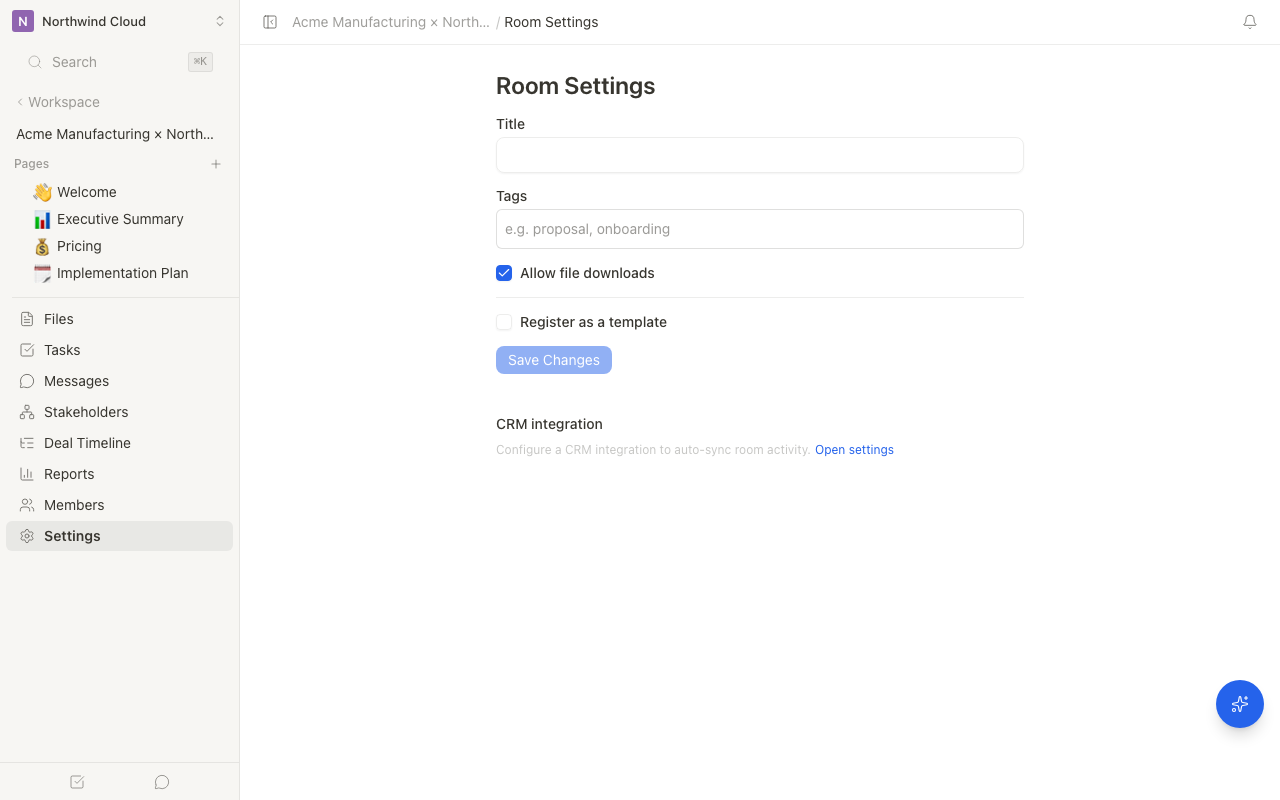
Settings sections
| Section | What you can do |
|---|---|
| Basic | Edit the Room name and welcome message, then save |
| Tags | Add tags used for grouping in lists |
| Sharing & download | Download permission and other sharing options |
| Integrations (Slack / CRM) | Link a Slack channel or a CRM record |
| AI & intake | Intake that used to live on Home, such as meeting notes and email |
| Danger zone | Delete the Room. This cannot be undone |
Only an internal owner can change Room settings. Save is unavailable without permission.
Save basic information
- Open "Settings" in the Room left menu
- Confirm "Basic" is selected in the left nav
- Edit "Room name" and the welcome message
- Click "Save". On success the screen shows "Saved"
Tags live under "Tags". Download permission lives under "Sharing & download". Move from the Basic panel to those sections.
Delete a Room
- Open "Danger zone" in the left nav
- Choose "Delete Room"
- Type the title to confirm, then delete
The Room and its pages, files, and messages cannot be restored.