Last updated: 2026-09-21 · 2 min read
Managing Webhooks and API Keys
Use Webhooks to send events outward and API keys for programmatic access. Both screens are workspace-admin only. Anyone else sees that they cannot open the page.
If loading fails, use Retry. When you are at the limit, Create stays inert and the reason is shown above the button.
Webhooks
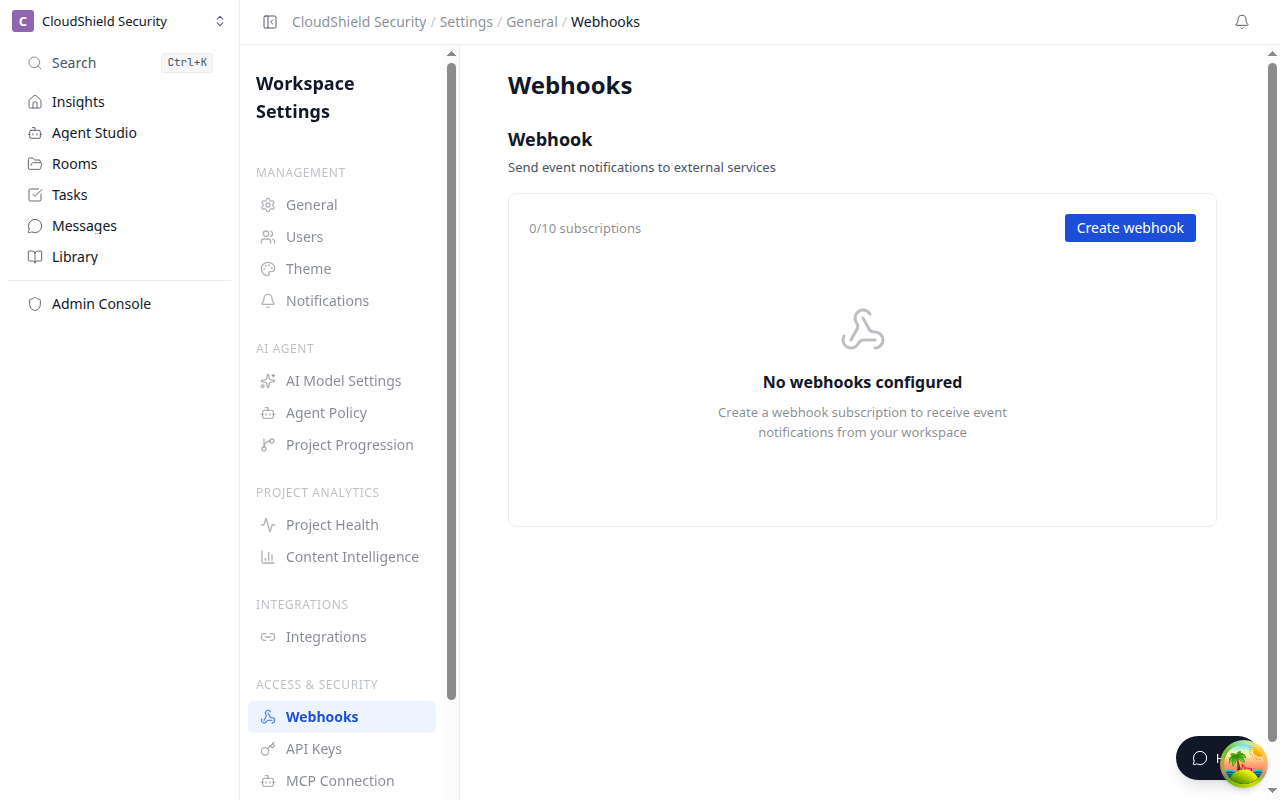
- Click the workspace name at the top of the sidebar
- Choose Settings
- Under Integrations, open Webhooks
- Click Create webhook
- Enter an HTTPS endpoint URL
- Select at least one event type
- Optionally add a description and click Create
Row actions include the URL: Test “URL” and Delete “URL”. Confirm delete with Cancel and Delete.
The URL must use HTTPS. Select at least one event type.
You can create up to 10 subscriptions per workspace.
API keys
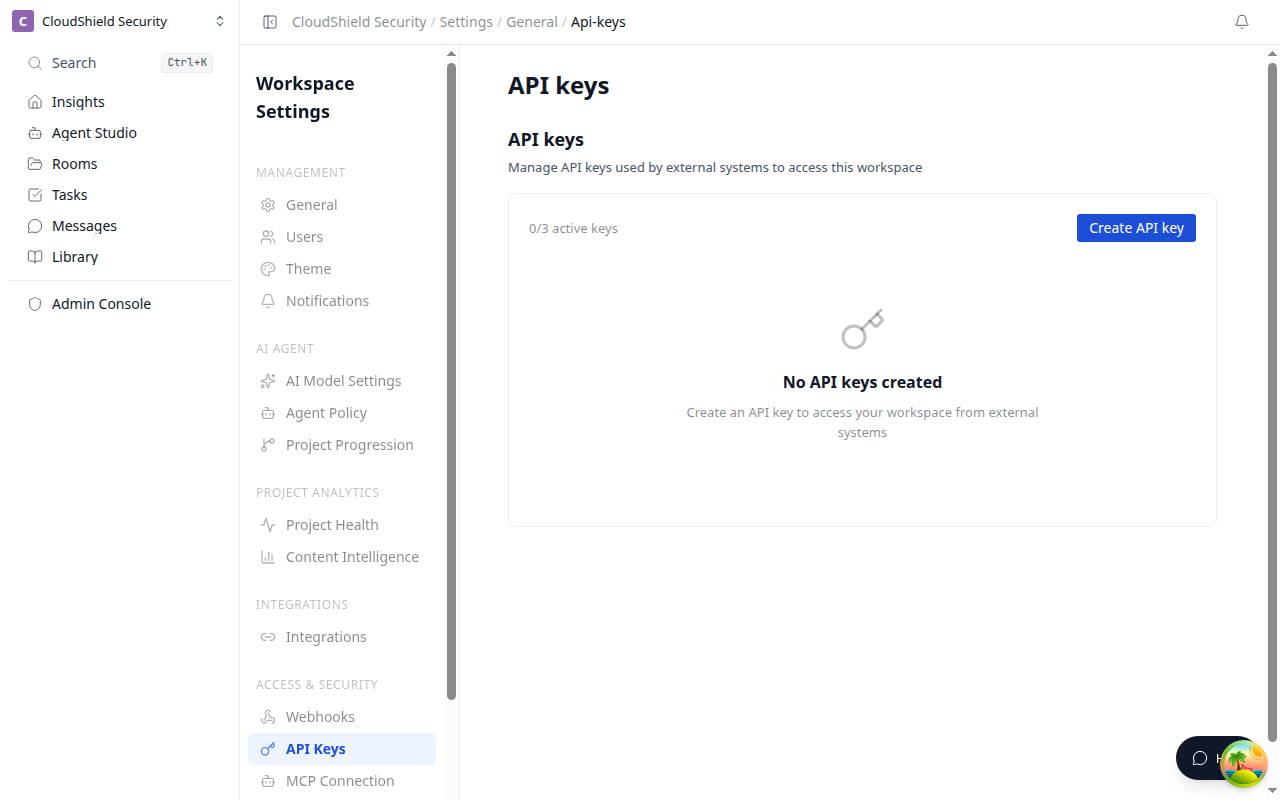
- Under Integrations, open API keys
- Click Create API key
- Set the name and scopes
- Click Create
- Copy the full key and store it safely
The full key is shown only at creation time. You cannot view it later.
Revoke is named Revoke “name”. Confirm with Cancel and Revoke. Only the prefix is listed. Up to 3 active keys.