Last updated: 2026-09-21 · 2 min read
Using Today
Today shows that day's meetings and todos on one screen. When the sidebar includes Today, this is the morning landing screen.
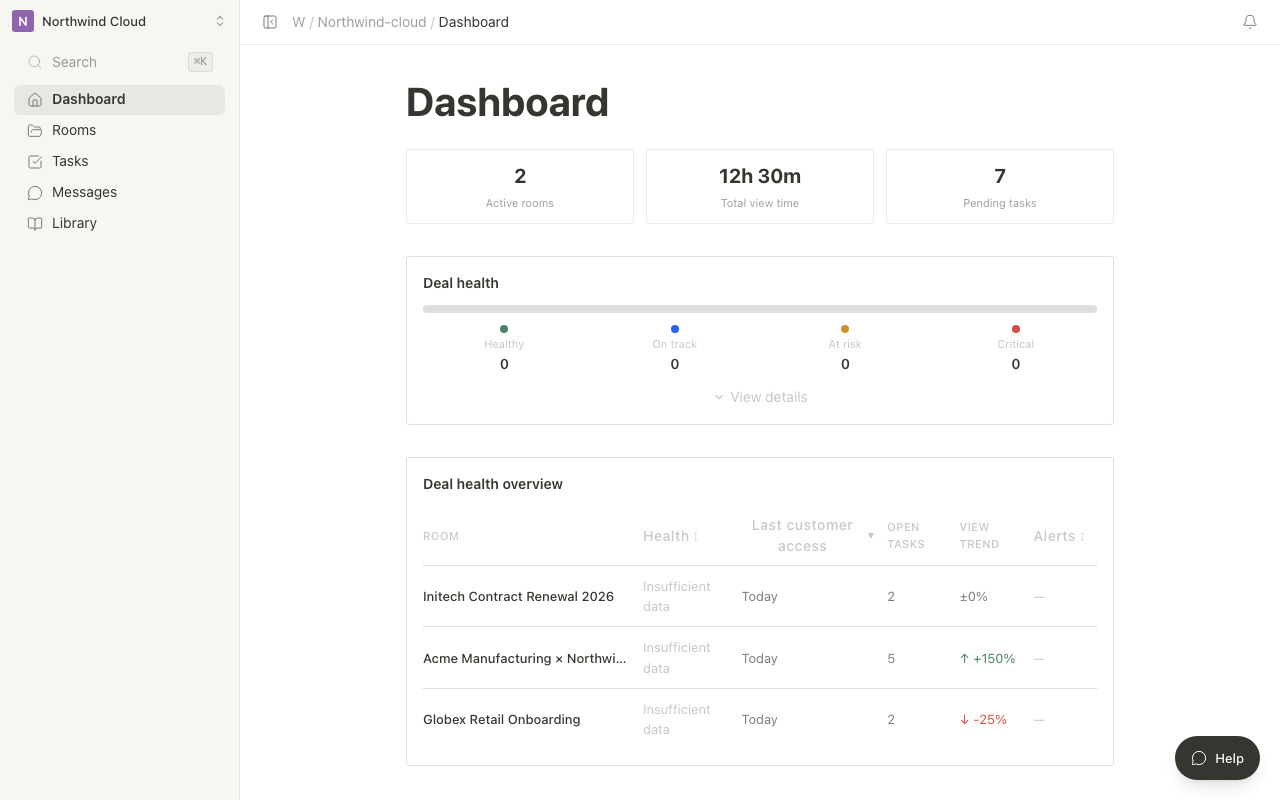
The hero image is workspace Today at 1280. Overall numbers and rooms that need attention live on Insights.
Some workspaces only show Insights in the sidebar. In that case, start from Insights.
Layout
Sections appear in this order and cannot be rearranged.
| Section | Content |
|---|---|
| Heading | Today and the date. Time / Room toggle |
| Next action | The next meeting or the first task |
| Schedule | Today's and tomorrow's meetings. Ended meetings stay, with quieter color |
| Todos | Near-term tasks. Complete and assign include the title |
| Room activity | Rooms that moved, such as customer viewing |
On an empty day, only todos and Room activity remain.
Actions
| Action | Meaning |
|---|---|
| Minutes | Named with the meeting title. Opens the Room minutes page |
| Open Room | Named with the Room title |
| Assign / Undo | Named with the task title. Undo keeps focus |
Minutes and Open Room include the target name so a screen reader can tell which one you are activating.