Ask and Approve the AI Agent from Slack
Mention @Terasu in a Slack channel and the AI Agent of the Room linked to that channel replies in the thread. Replies include sources (links to Room tasks and pages), and requests such as "create a task" arrive as an approval card. Approving the card applies the change to the Room.
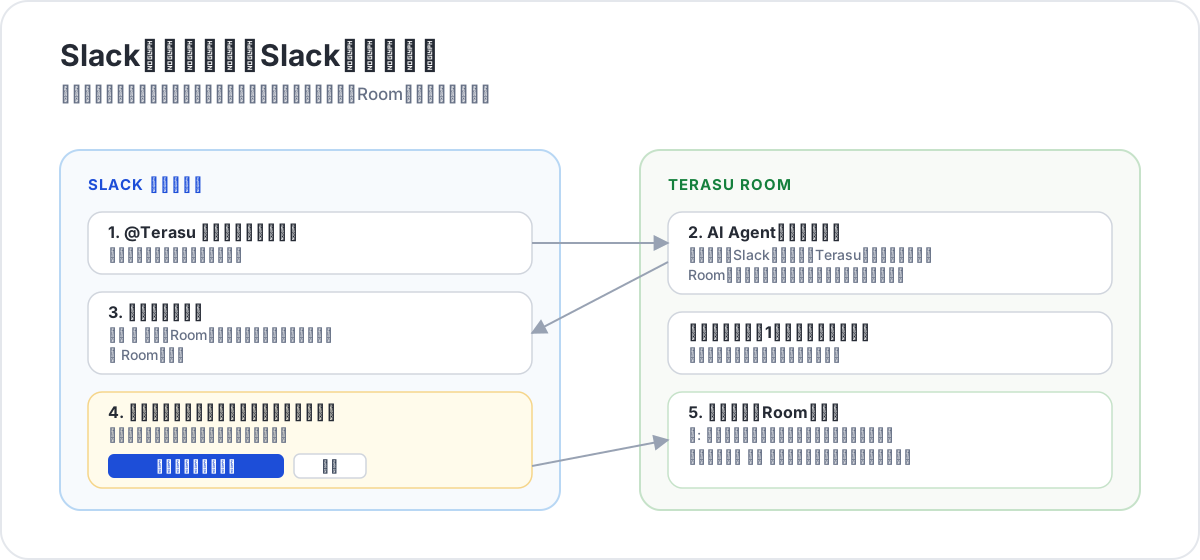
For using the AI Agent inside a Room (sidebar, context, attachments), see Using the AI Agent. This article covers usage from Slack only.
Requirements
| Item | Condition |
|---|---|
| Plan | A plan that includes the Slack integration (Starter or higher). Generating replies consumes AI credits |
| Slack integration | Slack is connected to the workspace and the mention permission has been granted (see "Reconnect Slack" below) |
| Slack account | A regular member of the connected Slack workspace. Guest and external (Slack Connect) accounts cannot use this feature |
| Email address | The email on your Slack profile must match the email of an internal Terasu member |
| Room permission | Any Room member can ask questions. Approving or rejecting a proposal requires the editor level or higher |
Everyone in a linked channel can read the AI Agent's replies. Do not link channels that include people who are not Room members. Channels shared with external organizations cannot be linked.
Reconnect Slack (one time)
Workspaces that already have Slack connected need to reconnect once so the app can receive mentions.
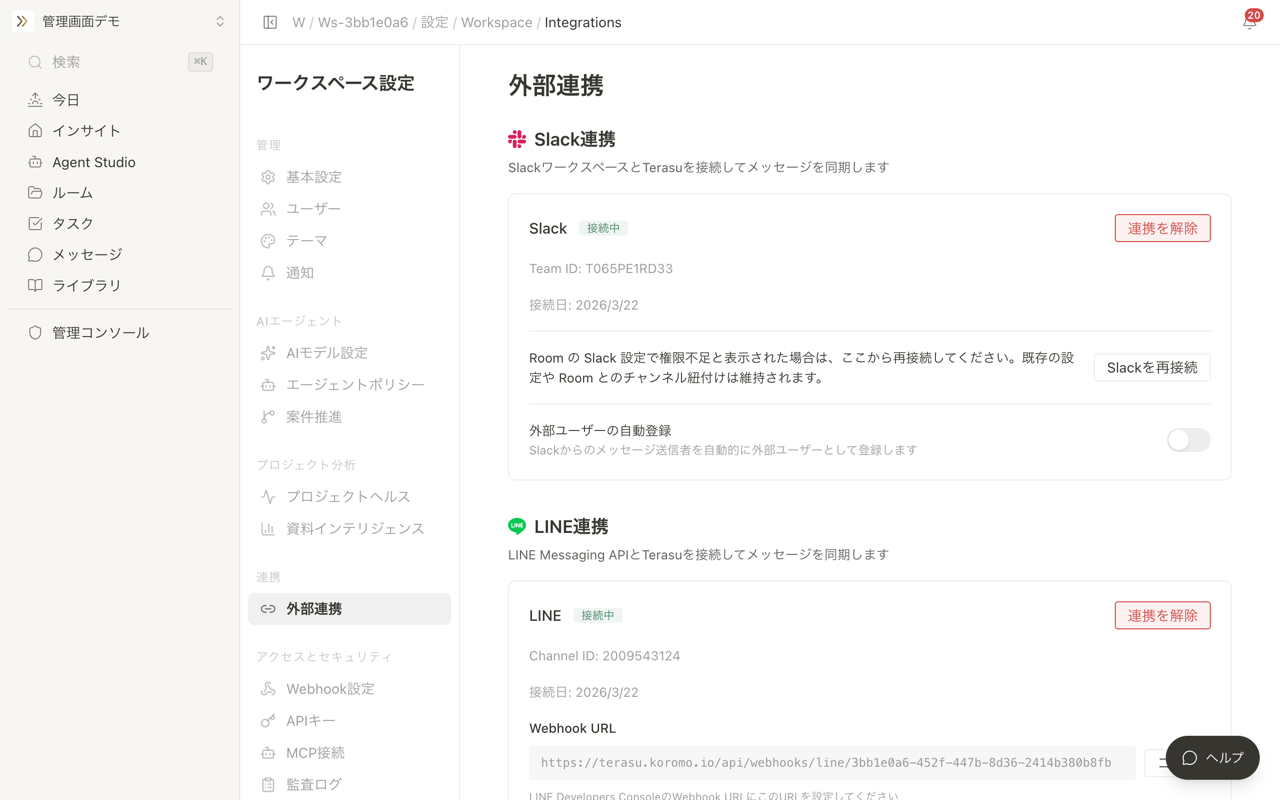
- Click the workspace name at the top of the sidebar and choose "Settings"
- Open "Integrations" in the settings sidebar
- Click "Reconnect Slack" in the Slack section
- On Slack's authorization screen, choose the workspace that is already connected and click "Allow"
- You are returned to the integrations page. "Slack connected" confirms the reconnection
Do not click "Disconnect". Disconnecting removes the channel links and thread sync settings of your Rooms. "Reconnect Slack" keeps all existing settings.
Reconnecting requires workspace admin permission. Without it you will see "Workspace admin permission is required to manage the Slack connection"; ask an admin to reconnect. Choosing a different Slack workspace than the connected one is rejected.
Link a channel to a Room
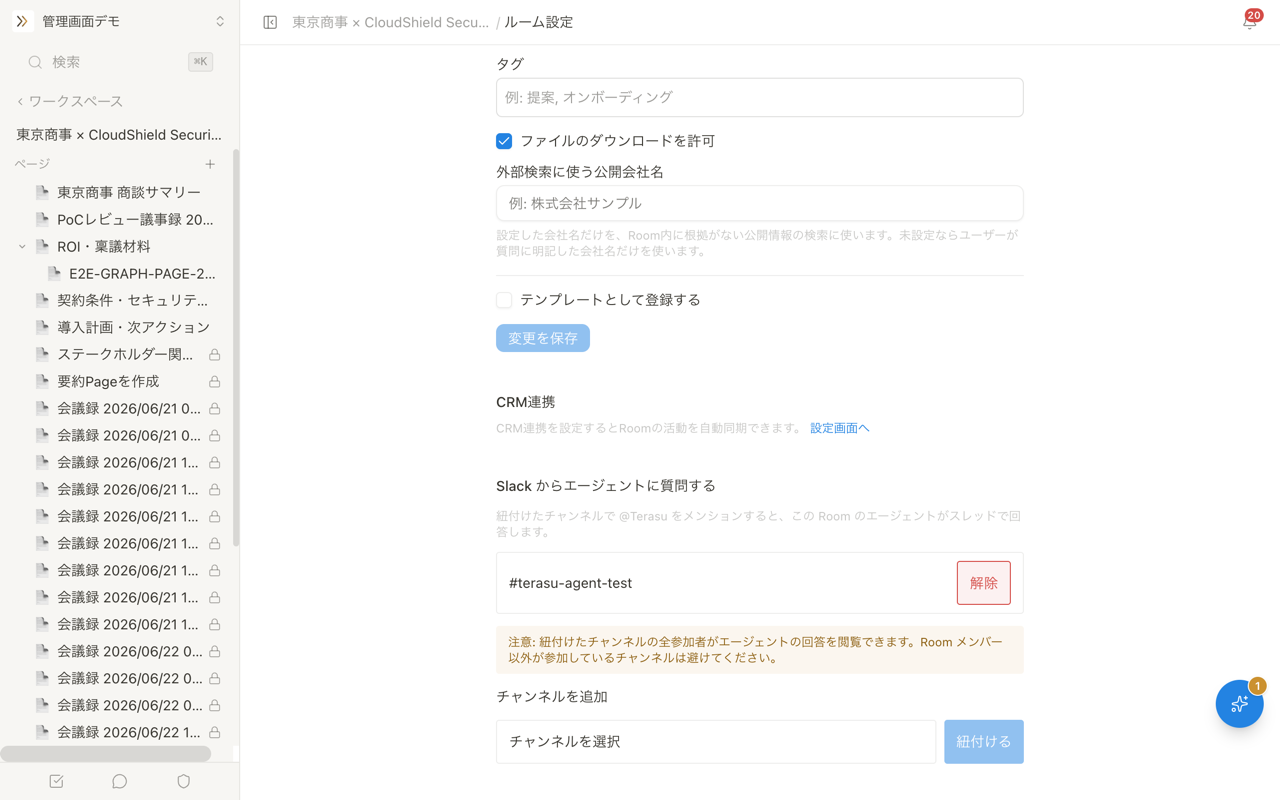
- In Slack, invite the Terasu app to the channel (for example
/invite @Terasu Integration) - In Terasu, open the Room and then "Room settings"
- In the "Ask the agent from Slack" section, pick the channel under "Add a channel"
- Click "Link"
- The channel appears under "Linked channels" (use "Unlink" to remove it later)
| Message | Meaning |
|---|---|
| "The Slack app cannot receive mentions yet. Reconnect Slack." | The workspace has not been reconnected yet. Follow the link to the integrations page and click "Reconnect Slack" |
| "Channels shared with external organizations cannot be linked." | Slack Connect channels are not supported |
| "This channel is linked by another Workspace." | A different Terasu workspace is using this channel. Other Rooms in the same workspace can still be added (see "Use one channel for several Rooms" below) |
If the app is not a member of the channel, mentions never reach Terasu. Always invite the app before linking.
Use one channel for several Rooms
The same channel can be linked to several Rooms: add it from each Room's settings. Linked channels show "N other Rooms also use this channel".
You do not have to type a Room name in every question. The Room is chosen once, at the start of a thread, and the whole thread stays with that Room. In a new thread (a new message) the Room is chosen in this order:
| Step | Check | Result |
|---|---|---|
| 1 | You are a member of only one linked Room | That Room answers (no picker) |
| 2 | AI decides which Room the question is addressed to | If the question is about a specific Room's project (for example "What are the open points for the next Acme meeting?"), that Room answers. Spelling variations and nicknames are handled |
| 3 | A default Room is set | The default Room answers |
| 4 | Nothing decides | A Room picker that only you can see is posted |
The AI looks only at the addressee of the question. When a Room name appears merely as context (a comparison, an example, or a past reference such as "in the same format as Acme"), it is not treated as the addressee and the default Room or the picker is used instead. When in doubt the picker is used, so a Room is never picked silently by mistake.
When the picker appears, choose a Room. That Room answers and the thread stays with it. The picker is visible only to you and must be used within 30 minutes of the question. "Cancel" closes it.
In channels with several candidate Rooms, every reply shows which Room answered: "Thinking… (Room)" and "Answered from Room".
Set a default Room
In Room settings, click "Make default" on a linked channel to make this Room the channel's default (a "Default" badge appears). The default Room answers when a mention does not name a Room. Each channel has at most one default; clicking "Make default" in another Room moves it. "Remove default" clears it.
Allow questions from every Room (admins only)
Workspace admins can turn on "Allow questions from every Room" on a linked channel. Every Room in the workspace (including Rooms created later) then becomes a candidate without linking it individually, and the picker shows only the Rooms the person asking belongs to. The channel gets an "All Rooms" badge.
Once this is on, everyone in the channel can read answers from every Room in the workspace. Use it only in channels where that is acceptable, such as a channel for the whole company.
Turn it off from the Room settings ("Stop questions from every Room") or from workspace settings under "Integrations" → "Slack" → "Channels open to every Room" → "Turn off". Only individually linked Rooms remain candidates afterwards.
What happens when you unlink
- Unlinking one Room leaves the other Rooms' links in place
- Unlinking the last Room releases the channel so another workspace can use it
- Unlinking the default Room clears the default
- While "Allow questions from every Room" is on, the first linked Room cannot be unlinked. Turn the setting off first
Ask a question from Slack
- In the linked channel, post
@Terasufollowed by your question (for example@Terasu What was decided this week?) - A "Thinking…" message appears in the thread
- Within seconds to a few minutes, the reply replaces it in the same thread
A reply contains:
| Element | Content |
|---|---|
| Body | The answer, based on the Room's tasks, pages, messages, and decisions |
| Sources | Links to the Room tasks and pages the answer is based on |
| Open in Room | A link to the Room. You can continue in the AI sidebar there |
Mentioning @Terasu again in the same thread continues the conversation. The thread is shared by everyone in the channel, and the conversation history records who said what. Start a new message (new thread) for a different topic.
Questions are limited to 2,000 characters. Longer questions are truncated to the beginning and you are notified.
Approve a proposed action
When you ask for something like "create a task" or "tell the customer that…", the AI Agent does not act immediately. It posts an approval card in the thread.
- Read the full text shown under "Proposed action"
- Click "Reviewed, approve" to execute it right away (for example, the task is created in the Room)
- After execution, the buttons are replaced by a "✅ (member name) approved and it was executed" notice (the answer and its sources stay in place)
- To cancel, click "Reject" and confirm in the dialog
The content of an approval card is visible to the customer. As the notice says, "This content is visible to the customer. Review the full text before approving." Only Room members at the editor level or higher can approve or reject.
| Display | Meaning |
|---|---|
| "Approve in Room" | The proposal is too long or cannot be fully shown in Slack. Review and approve it in workspace Agent Inbox |
| "This proposal changed since the card was posted or cannot be fully reviewed in Slack." | The proposal was modified after the card was posted. Review the latest content in the Room |
| "This proposal has already been approved or rejected." | Another member decided first, in the Room or in Slack |
| "⌛ This proposal has expired" | The approval deadline passed. Ask again if still needed |
Approved proposals are also recorded in workspace Agent Inbox. See Agent Inbox for approvals.
Reply language
The language of a reply from Slack is decided by the language setting of the Slack account that mentioned the agent. Terasu's display language, the workspace's location, and the client used to post (Slack app, browser, or an integration) do not matter.
| Slack language setting | Reply language |
|---|---|
| 日本語 (Japanese) | Japanese |
| English (for example en-US) | English |
| Any other language, or unavailable | Japanese |
If you want Japanese replies but receive English ones, change Slack's Preferences → Language & region → Language to 日本語. The next mention uses the new setting.
Within one thread, each person receives replies in their own language setting. If a Japanese-setting member and an English-setting member ask in the same thread, each gets a reply in their own language.
Troubleshooting
These messages are shown only to you (other channel members do not see them).
| Message | What to do |
|---|---|
| This Slack account could not be verified as a regular member of the connected workspace | Guest and external accounts cannot use this feature. Ask from a regular member account |
| This Slack account is not linked to a Terasu member | Make the email on your Slack profile match your Terasu email, or ask to be invited to Terasu with that email. Accounts are never created automatically |
| You are not a member of this Room, or the link was removed | You are not a member of the Room this thread is bound to, or that Room was unlinked. Ask the Room owner for an invitation, or start a new thread |
| You are not a member of any Room linked to this channel | Ask the owner of the Room you want to ask for an invitation |
| Which Room is this question for? (picker) | Choose a Room. Only Rooms you belong to are listed. If yours is missing, mention the agent again with the Room name in the question |
| The selection has expired. Mention the agent again | Choose a Room within 30 minutes of the question |
| This thread is bound to a different Room | A thread cannot switch Rooms. Start a new message to ask another Room |
| This channel is not linked to a Room. Link it from the Room settings | Link it under "Ask the agent from Slack" in Room settings |
| This channel is shared with an external organization, so the agent cannot answer here | Shared channels are not supported. Use an internal-only channel |
| No agent is configured for this Room | Enable the AI Agent in Room settings |
| The previous answer is still being generated | Wait until the previous reply in the same thread finishes |
| AI credits are exhausted | Top up AI credits in workspace settings |
| The answer did not finish in time. Continue in the Room | Happens under heavy load. Continue in the AI sidebar via "Open in Room", or ask again later |
| Your Workspace plan does not include the Slack agent | Upgrade to a plan that includes the Slack integration |
| Nothing happens after mentioning | The app may not be in the channel. Invite it with /invite @Terasu Integration. Mentions are also not delivered until the workspace has been reconnected |
Limitations
- One thread is answered by one Room. Start a new message to ask another Room
- The Room picker lists at most the 100 most recently updated Rooms. Include the Room name in your question if yours is not listed
- Slack Connect (shared channels), guest accounts, and Enterprise Grid (org-wide installs) are not supported
- Slack questions and replies are not copied into Room messages. Continue the conversation in the Room's AI sidebar
- Disconnecting Slack at the workspace level disables the channel links of every Room
Related articles
- Agent InboxHow to approve or reject pending proposals across Rooms from the workspace inbox.
- Setting Up Slack IntegrationConnect a Slack workspace to Terasu and manage reconnect and auto-registration
- Agent PolicyHow to manage the AI agent's autonomy level, built-in skills, and web search
- Change Room settingsHow to change the Room name, tags, sharing and download, integrations, AI intake, and deletion