Ask Terasu AI right away (the bottom-right input)
On Room and workspace screens, an input for Terasu AI sits at the bottom right. Start typing a question without opening the panel.
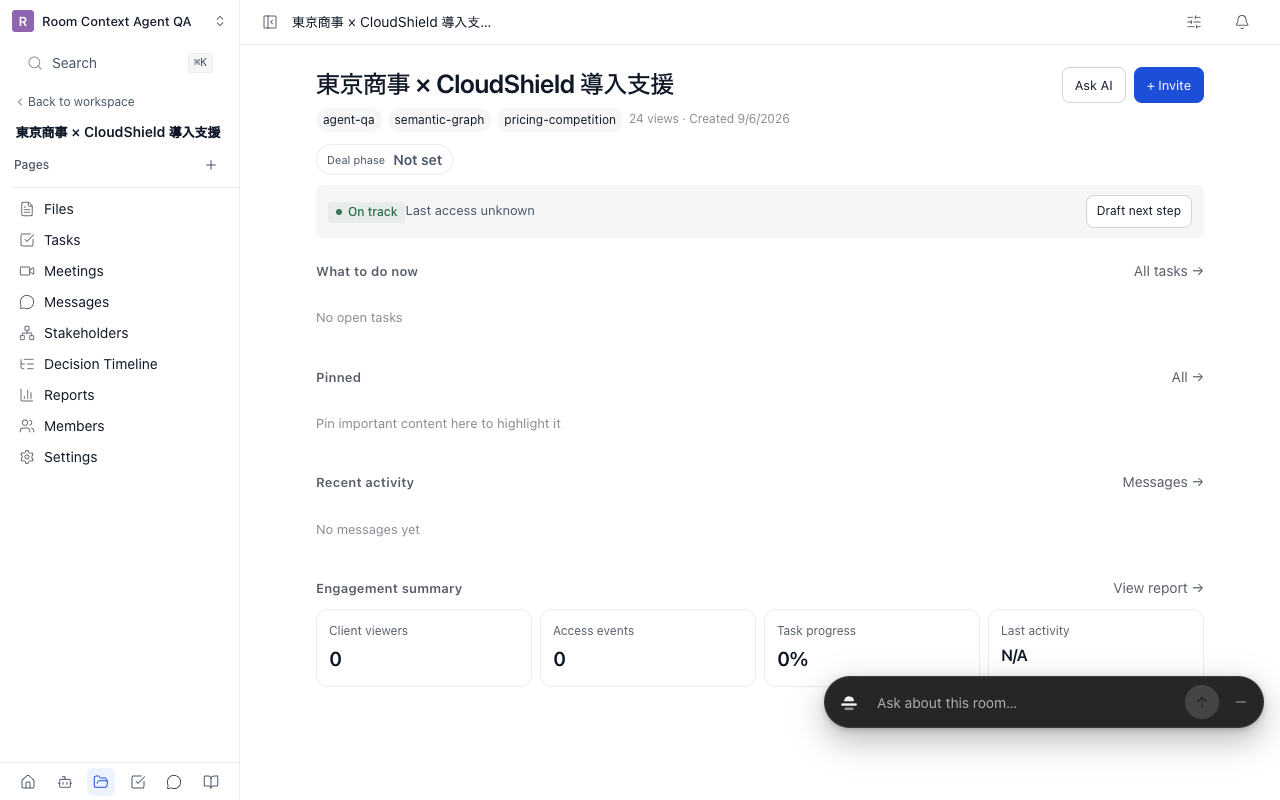
Ask from the input
- Click the bottom-right input and type your question
- Press Enter (or use the send button)
- The Terasu AI panel opens on the right and shows the answer
What you ask about depends on the screen.
| Screen | Asks about | After sending |
|---|---|---|
| Room | That Room | Starts a new chat. The conversation stays in the Room |
| Workspace (Today, Insights, and so on) | All the Rooms you have joined (how to use Terasu when you have joined none) | Answers as a one-off question. The conversation is not kept |
To attach files, switch what you ask about, or see past conversations, use the panel that opens after you send.
When the input does not appear
In these cases a round button (or a pill) appears instead of the input. The round button opens the panel as before.
| Situation | What you see |
|---|---|
| The window is narrow (under 640px, such as a phone) | Round button |
| Your plan or permissions do not include Terasu AI | Round button (help and contact) |
| You have hidden the input | Round button. See "Restore the input" below |
| An answer is being written or is ready, or there are pending approvals or a reply from support | A pill that shows the status. The input returns once you have checked it |
| You are editing the body of a page | Round button. The input returns when you leave the body |
While you are typing in the input, it stays even if the situation changes.
Hide the input
Press "−" (Hide the input) at the right end of the input. Only the round button remains at the bottom right. Your browser remembers this, so the round button stays next time too.
Restore the input
You can bring the input back from any of these three places.
| Where | How |
|---|---|
| Right after hiding it | Press "Undo" in the notice at the bottom right (shown for about 5 seconds) |
| Display settings | Open the slider icon (Display settings) at the top right and choose "Show" under "Bottom-right input" |
| The panel | Open the panel with the round button, then choose "Keep the input open" from "…" at the top right |
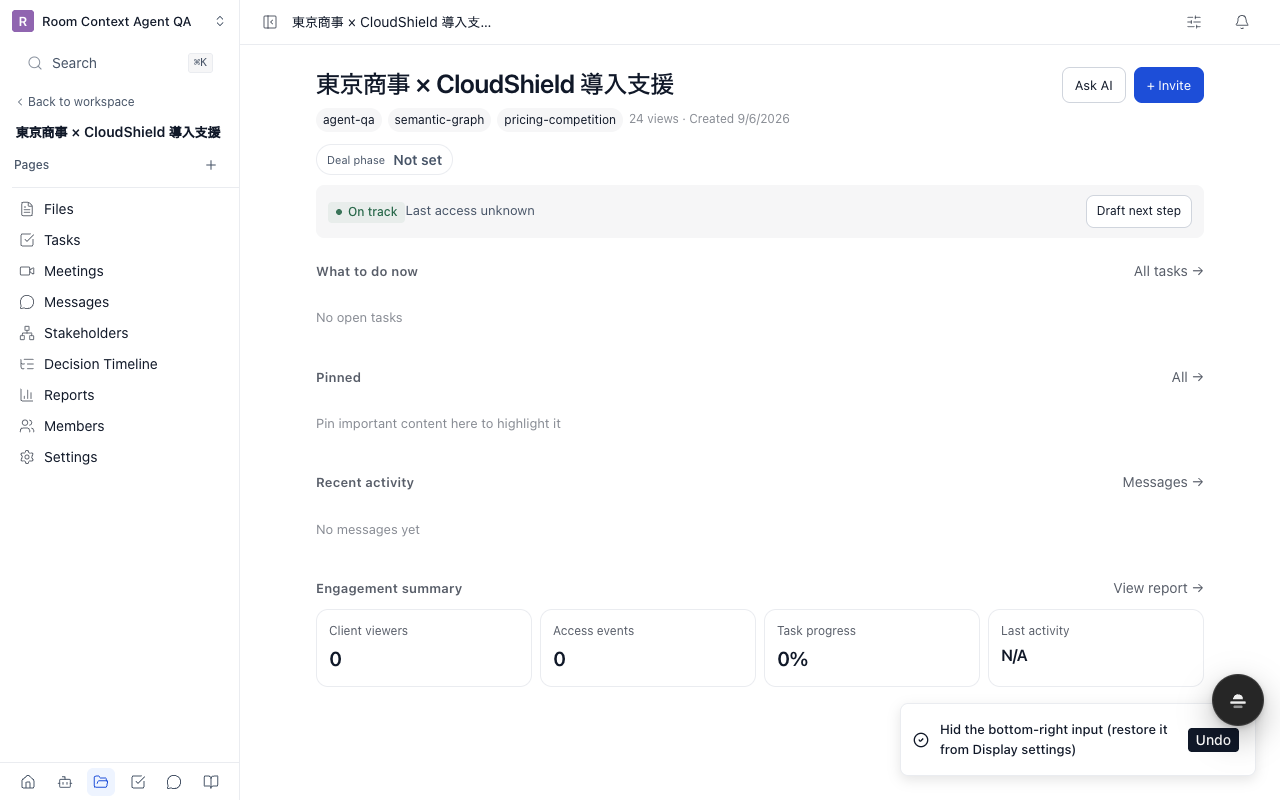
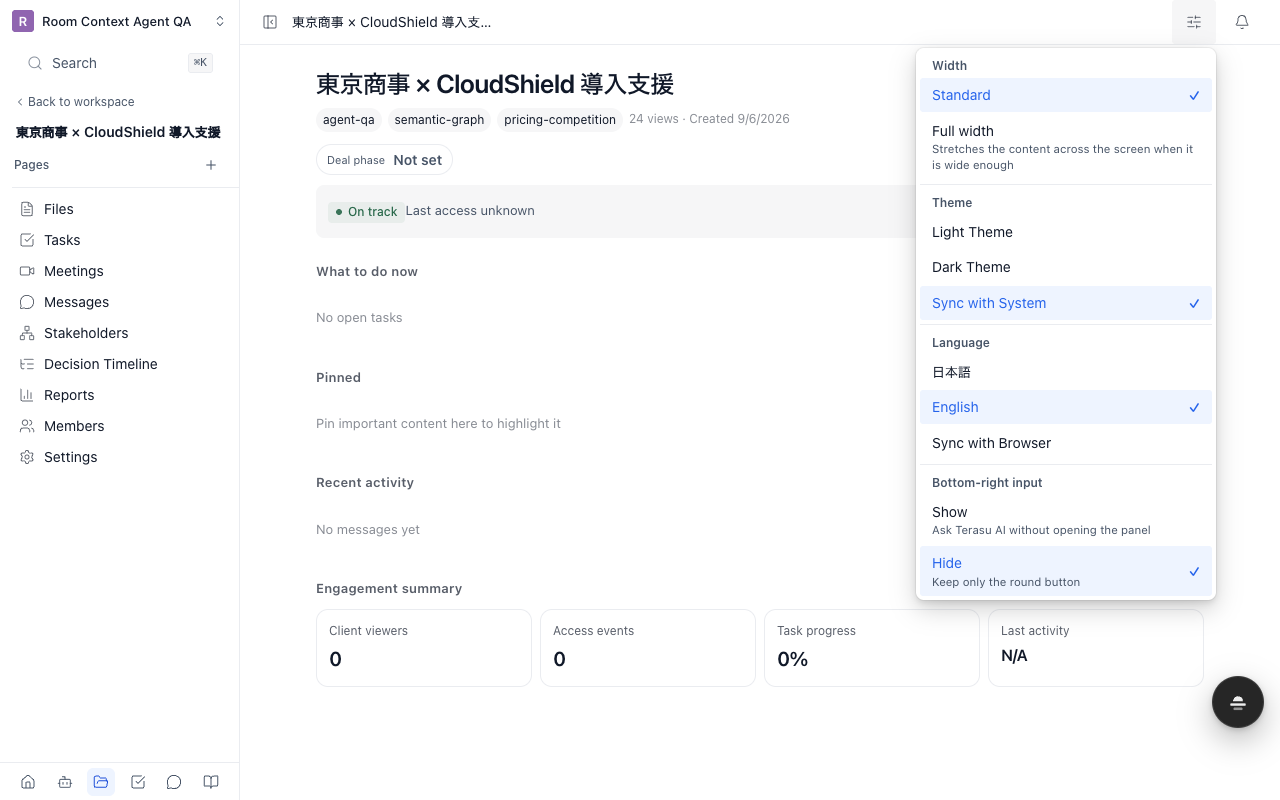
"Bottom-right input" appears in Display settings only on screens that can show the input (Rooms and the workspace). The hidden state is remembered per browser, so another browser or computer shows the input from the start.
Related articles
- Agent States and ManagementWhere to check pending proposals, the decision timeline, and errors.
- Agent InboxHow to approve or reject pending proposals across Rooms from the workspace inbox.
- Feeding External Information to the AI AgentHow to feed transcripts, notes, chats, PDF/PPTX files, and information from Gmail, Meet, Zoom, the Chrome extension, and Slack/Teams into a Room for search, analysis, and proposals