Project Health
Project Health uses AI to automatically score the state of each Room and detect stalls and risks early. It does not add a new sidebar menu; it appears inside Insights, the Room report, and workspace settings.
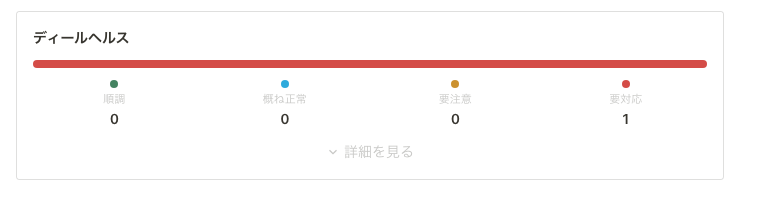
Health Levels
Each Room is evaluated across the following four levels.
| Level | Meaning |
|---|---|
| On track | The project is progressing actively |
| Mostly healthy | No major issues, but worth watching |
| Needs attention | Signs of stalling; follow-up recommended |
| Action required | The project is likely in a critical state |
Calculating a score requires a certain amount of viewing data. Rooms with insufficient data are classified as "Insufficient data."
Reviewing on Insights
The "Project Health" table on Insights shows health across the workspace.
- Status chips: Smooth / mostly fine / watch / needs attention
- Action-required Rooms: The hero card lists Rooms that need a reply or are stalled
- Next action: Each row has a next step such as sending a message
Reviewing in the Room Report
On each Room's "Reports" page, project health appears in the status summary and in "Alerts". Trend and breakdown open from "Trend and project health" when you need them.
| Item | Description |
|---|---|
| Health gauge | The current score and evaluation level |
| Score breakdown | Access, replies, task progress, and decisions |
| Score trend | Shown as a line after the first calculation |
| Alerts | Risk signals that currently need attention |
Responding to Alerts
In "Alerts," you can review severity (Critical / High / Medium / Low), status, detected time, evidence, and suggested action.
| Action | Description |
|---|---|
| Draft AI action | Uses the alert and Room context to create an action proposal |
| Mark done | Marks the alert as handled and removes it from the current attention list |
"Draft AI action" turns a detected risk into the next step. For triage across Rooms, use the workspace Agent Inbox.
How Scoring Works
Project Health is evaluated across the following five axes. You can change the weight of each axis in the settings.
| Axis | What it evaluates | Default weight |
|---|---|---|
| Activity | Access frequency to the Room and recent activity | 30% |
| Engagement | File viewing time and page reach rate | 25% |
| Stakeholders | How involved the decision-makers are | 20% |
| Momentum | The project's momentum (trend of access increasing or decreasing) | 15% |
| Response speed | How quickly messages are replied to | 10% |
Types of Alerts
An alert is triggered when the following conditions are met.
| Alert | Default condition |
|---|---|
| Ghosting | No access for a specified number of days (default: 7 days) |
| Engagement drop | Engagement falls by a specified percentage or more (default: 30%) |
| Unread material | Material remains unread for a specified time after upload (default: 72 hours) |
| Champion disengagement | A key stakeholder has not accessed for a specified number of days (default: 14 days) |
Customizing Settings
You can customize the following from Workspace settings → Project analytics → Project Health. Only workspace admins can open this page. If loading fails, use Retry.
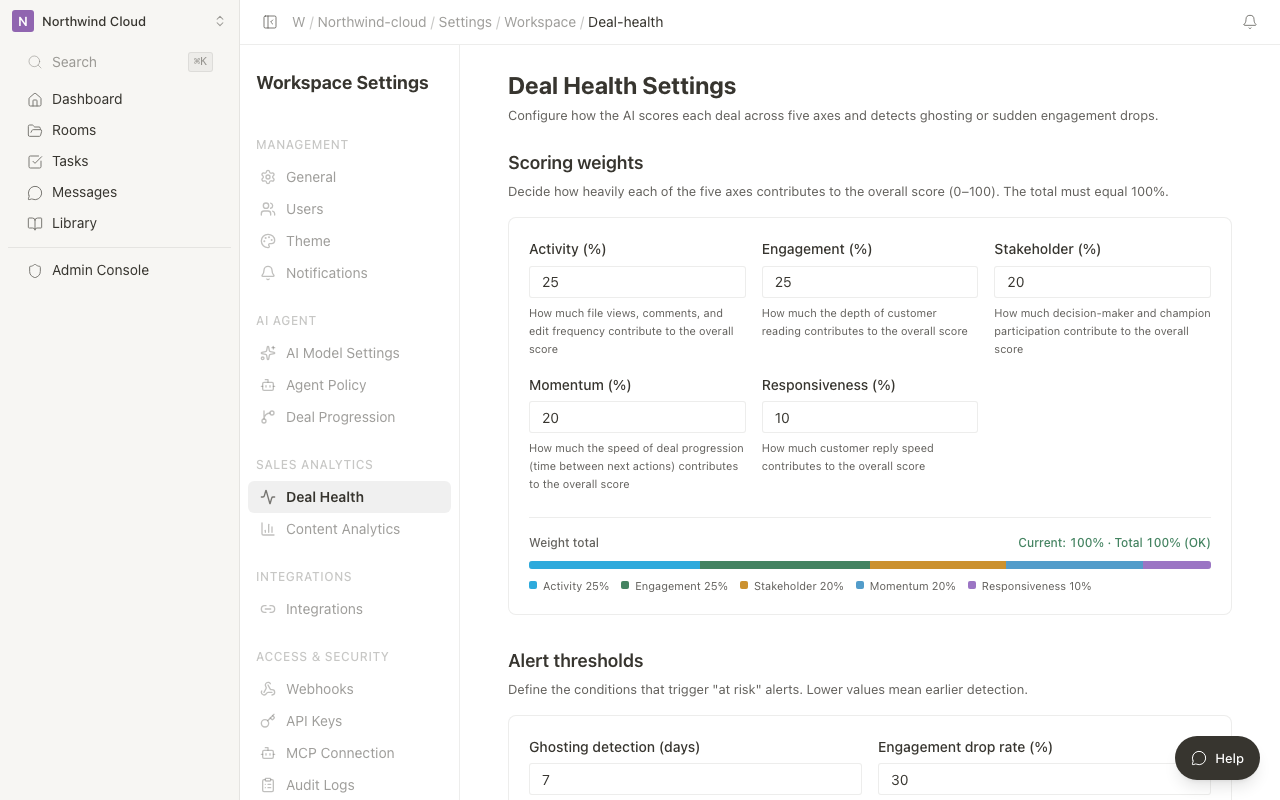
Scoring Weights
Set the weight of the five axes as percentages. Adjust them so the total adds up to 100%.
Alert Thresholds
You can change the conditions (days, hours, percentages) that trigger each alert.
Score Range Boundaries
| Boundary | Default value |
|---|---|
| Lower bound for On track | 80 points |
| Lower bound for Mostly healthy | 60 points |
| Lower bound for Needs attention | 40 points |
Notification Settings
You can set the notification recipients when an alert occurs (Room owner / all members) and which severity levels to notify about.
After you change a value, Save settings becomes available. When nothing has changed, the reason "Make a change to save" is shown. Reset to default opens a confirm banner with Stop focused first.