Messages and Comments
With the messaging features inside a Room, you can communicate right next to your content—without having to switch over to email.
Sending a Message
- Open the "Messages" tab inside the Room
- Type your text into the message input field
- Send it with the
Enterkey or the send button
Drafting Messages with the AI Agent
The AI Agent can draft customer-facing messages based on the Room's status, the customer's viewing activity, tasks, and the information you've provided.
- Open the AI Agent in the bottom-right corner of the Room
- Ask it to "Write a follow-up message to send to the customer"
- Review the message, recipients, and reasoning on the approval card
- Request revisions if needed, and approve once everything looks good
Do not include internal reasoning or internal notes in messages that are shown to the customer. The AI Agent's suggested message is not sent until you approve it.
Organizing Conversations with Threads
When you want to discuss a specific topic, make use of threads.
- Click "New thread"
- Enter a title for the thread
- Type your message and send it
Using threads keeps multiple topics from getting mixed together and makes it easier to trace the history later.
Reacting with Emoji
You can add emoji reactions to messages to give quick feedback.
- Hover over a message to display the action menu
- Click the emoji icon
- Choose a reaction from the emoji picker
Reactions appear below the message, and the number of people who added the same emoji is counted. Click your own reaction again to remove it.
Editing and Deleting Messages
You can edit or delete your own messages after sending them.
- Hover over one of your own messages
- Select "Edit" or "Delete" from the action menu
- If editing, revise the content and save
Deleted messages cannot be restored. Confirm with Don't and Delete. Focus starts on Don't. There is no close (×).
Notifying People with Mentions (@)
Type @ followed by a member's name within a message to send that person a mention notification.
- Type
@in the message input field - Select a member from the suggestions
- Type your message and send it
The mentioned member receives a notification, which is handy when you want to ask someone to take a look.
Reviewing Everything in the Inbox
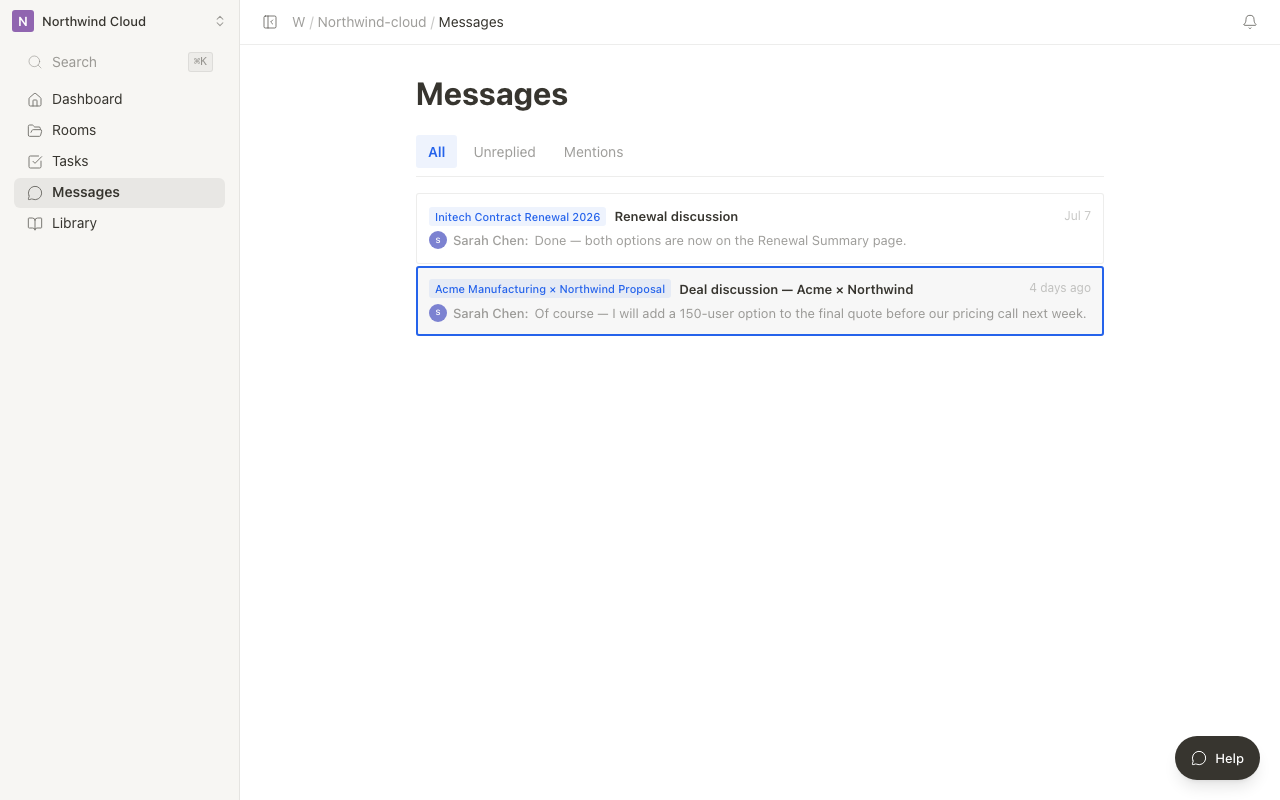
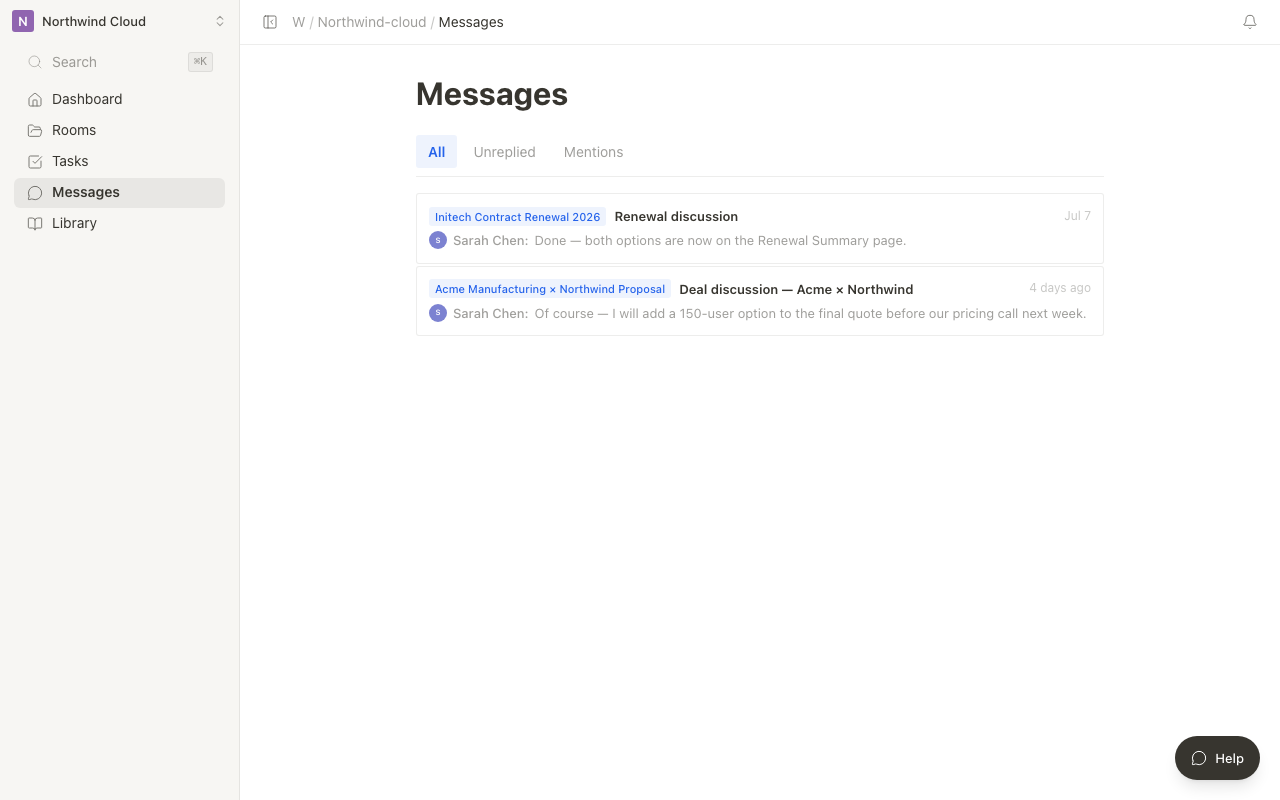
From the "Messages" menu in the sidebar, you can review messages from all of your Rooms in one place.
Filter Types
| Filter | Description |
|---|---|
| All | Shows all threads |
| Unreplied | Threads you have not yet replied to |
| Mentions | Threads where you have been mentioned |
This helps you avoid missing responses when you're juggling several client projects at once.
Message Notifications
When you receive a message, you are notified in the following ways.
| Notification method | Timing |
|---|---|
| In-app notification | Appears on the bell icon when a message is received |
| Email notification | When there are unread messages (depending on your settings) |
You can change your notification settings from "Managing Sharing and Notifications."
Messages are also visible to external members (customers). Please be careful not to write internal-only content in messages. Use internal-only pages for that instead.
Related articles
- Sharing a RoomHow to share a Room with internal members and customers, and the sharing settings
- Managing sharing and notificationsHow to review and manage notifications, and customize the email notifications sent when sharing
- Page CommentsHow to create comment threads on a page and discuss them with your team
- Agent InboxHow to approve or reject pending proposals across Rooms from the workspace inbox.