Tasks across Rooms
Open Tasks in the sidebar to see incomplete tasks from every Room you belong to on one screen. Assigned to me is selected first, and tasks are grouped by due date.
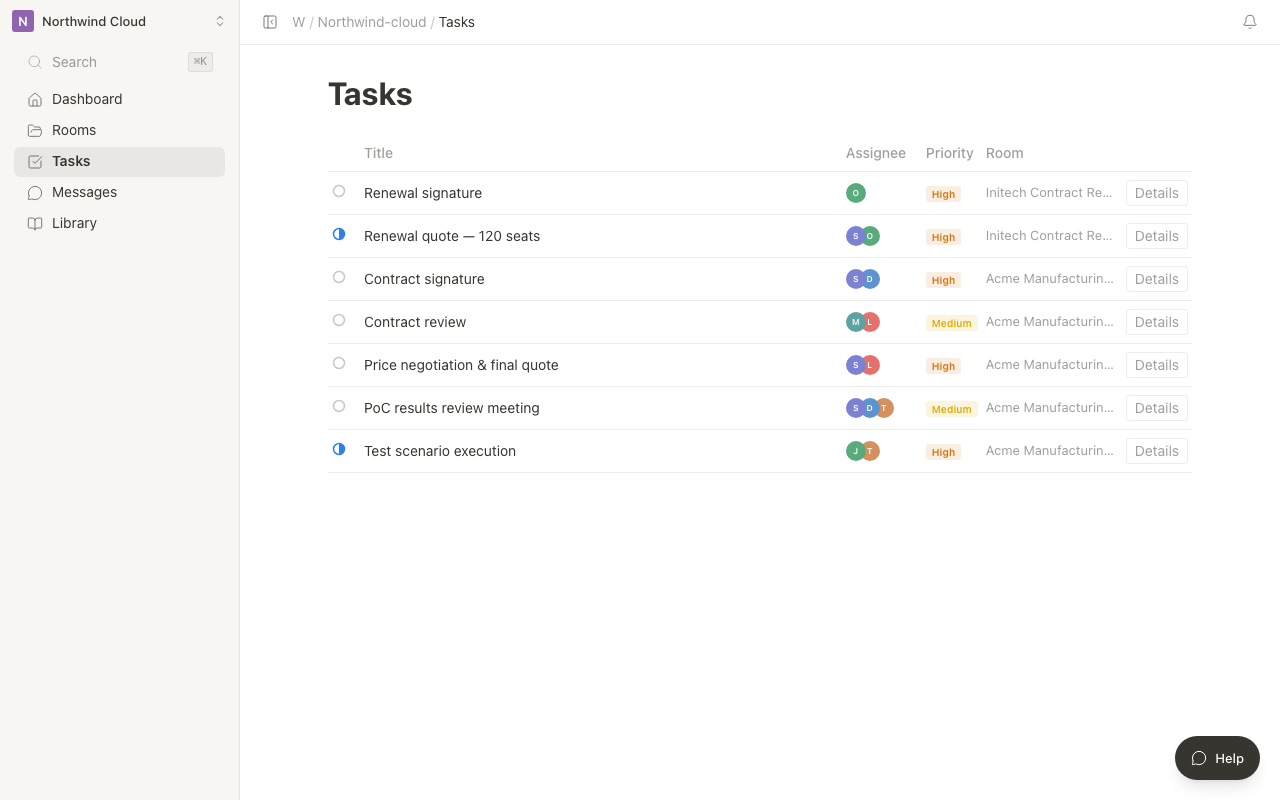
To create tasks inside a Room or organize them with categories and the Gantt chart, see Task Management.
Which tasks appear
| Scope | Content |
|---|---|
| Rooms | Rooms you are a member of |
| Tasks | Incomplete (To do / In progress) top-level tasks. Subtasks are not included |
| Internal-only tasks | Shown to internal members only |
Filter by assignee
Use the switch next to the search box. The numbers are the counts.
| Switch | Tasks shown |
|---|---|
| Assigned to me | Tasks where you are an assignee |
| All | Every task in scope |
| Unassigned | Tasks with no assignee |
You can narrow further with Status and Room. The search box matches task titles and Room names. The filter icon (three horizontal lines) at the right end of the search box lets you set priority and assignee.
| Status | Tasks shown |
|---|---|
| Status: Incomplete | To do and In progress tasks (the default) |
| To do / In progress | Tasks in that status |
| Done | Only tasks you just completed on this screen. The same applies when Show completed is on |
Switch the view
Switch the view with By due date, By Room, and Board at the top of the screen.
| View | Content |
|---|---|
| By due date | Groups tasks into Overdue, Today, This week, Later, and No due date. "This week" runs from tomorrow through six days ahead |
| By Room | Groups tasks by Room |
| Board | Shows To do, In progress, and Done columns |
Complete and edit tasks
- Click the checkbox of a task to complete it. Click Undo right after to revert
- Click a task row to open Task details
- Change status, assignee, due date, priority, and description in Task details. Changes are saved immediately
- To work on the task in its Room, click Open ↗ in the details, or click … → Open Room task on the row
In By due date, the No due date heading has Add due date. Click it to open the first task without a due date and set one.
You can use the keyboard too: j / k to move, Enter to open details, and x to complete (press again to undo).
Add a task
- Click Add task
- In Choose a Room for the task, select a Room and click Continue
- In New task, enter a title, set a due date, assignees, and other fields if needed, and click Create
Check through MCP
To get the same list from an external AI tool, use the MCP tool list_my_cross_room_tasks. For the required permissions and scope, see "Check your actions and tasks across Rooms through MCP" in MCP operations and limitations.
Related articles
- Task ManagementHow to create, assign, and manage the status of tasks, and visualize client project progress with a Gantt chart
- Using TodaySee today's meetings, near-term tasks, and Rooms with activity on one screen.
- MCP operations and limitationsAvailable AI-tool operations, token scopes, file uploads and uncertain-outcome checks