Capture replies with your Gmail connection
Each Room has its own BCC address. Add it to the BCC of an email you send, and the email body is saved to the Room. If you also connect your Gmail, replies to those emails are captured automatically, so the history of the client project stays in the Room without forwarding replies by hand.
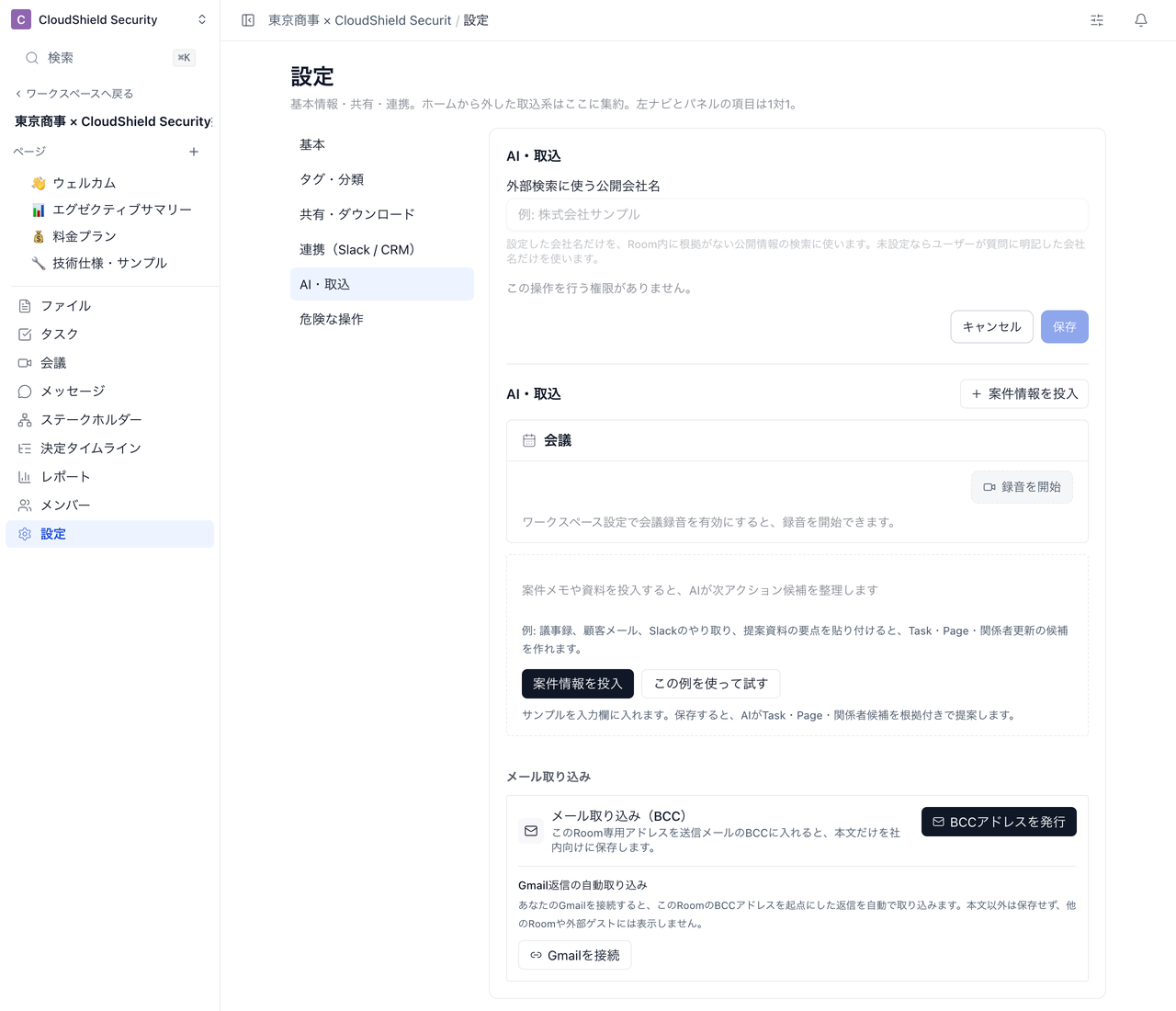
Email capture (メール取り込み) and the Gmail connection appear only when they are available in your workspace. If Room settings show neither メール取り込み nor Gmail返信の自動取り込み, you cannot use them. This section is currently displayed in Japanese only. Below, on-screen labels are quoted in Japanese with English translations in parentheses.
Who can use it
| Condition | Details |
|---|---|
| User type | Internal members |
| Room access | An active member of the Room with edit access (owner or editor) |
| Connection scope | Your connection belongs to you within the workspace, not to a single Room. Connecting from one Room also applies to other Rooms in the same workspace |
What is captured
| Item | Details |
|---|---|
| Target | Replies to emails you sent with the Room's BCC address |
| What is stored | The email body only. Attachments, HTML, and subject lines are not stored |
| Visibility | Internal only. Not shown in other Rooms or to external guests |
| Retention | Deleted after a set retention period |
Replies are not captured when Terasu cannot tell which email they answer, or when they reply to an email that included the BCC addresses of more than one Room.
Issue a BCC address
Reply capture starts from the BCC address, so issue the Room's BCC address first.
- Open Settings from the Room's menu
- Select AI & intake from the settings sections
- Under email capture (メール取り込み(BCC)), click BCCアドレスを発行 (Issue BCC address)
- Copy the address shown with コピー (Copy) and add it to the BCC of the email you send to the client
The BCC address has an expiry date, shown on screen. When it is close, a reissue button (BCCアドレスを再発行) appears. If the address leaks, use the revoke-and-reissue button (漏えい時に失効して再発行) to invalidate the old address.
Connect Gmail
- In the same section, under automatic Gmail reply capture (Gmail返信の自動取り込み), click Gmailを接続 (Connect Gmail)
- On the Google screen, choose the account to connect and allow Gmail read access
- After you return to the Room, open Settings → AI & intake again and confirm it says Gmail is connected (Gmailを接続済みです。)
The Google screen asks for permission to read all of your Gmail. Terasu stores only the bodies of replies that start from the BCC address.
Connect with your own Google account while signed in to Terasu as yourself.
Disconnect
Gmail接続を解除 (Disconnect Gmail) disconnects immediately when you click it. It applies to all of your reply capture in the workspace, not just that Room. Pending capture work is cancelled. Records already captured are not deleted.
- Open Settings from the Room's menu and select AI & intake from the settings sections
- Under Gmail reply capture, click Gmail接続を解除 (Disconnect Gmail)
Messages you may see
| Message | What to do |
|---|---|
| It still shows Gmailを接続 after you return | Allow Gmail read access on the Google screen and connect again |
| The status could not be loaded (Gmail接続の状態を取得できませんでした。) | Reload the page |
| Gmail access has expired (Gmailへのアクセスが失効しました。もう一度接続してください。) | Connect again with Gmailを接続, or disconnect if you no longer need it |
| The Gmail connection is paused (Gmail接続は停止中です。既存の接続だけを解除できます。) | The workspace has stopped offering the Gmail connection. You can still remove an existing connection with Gmail接続を解除 |
| Disconnecting failed (Gmail接続の解除に失敗しました。もう一度解除を実行してください。) | Click the retry button (Gmail接続の解除を再試行) |
| The connection could not start (Gmail接続を開始できませんでした。時間をおいて再試行してください。) | Wait a while, then click Gmailを接続 again |
Check or disconnect through MCP
From an external AI tool, use get_my_room_gmail_connection to check your status, and prepare_disconnect_my_room_gmail_connection → disconnect_my_room_gmail_connection to disconnect. MCP cannot connect Gmail or give consent for you. For the required permissions and steps, see "Your Gmail connection in Room settings" in MCP operations and limitations.
Related articles
- Feeding External Information to the AI AgentHow to feed transcripts, notes, chats, PDF/PPTX files, and information from Gmail, Meet, Zoom, the Chrome extension, and Slack/Teams into a Room for search, analysis, and proposals
- Change Room settingsHow to change the Room name, tags, sharing and download, integrations, AI intake, and deletion
- MCP operations and limitationsAvailable AI-tool operations, token scopes, file uploads and uncertain-outcome checks