Record Pages
A record page shows one record, such as a contract or a client company. Check values in the highlights below the heading, the tabs on the left, and the details on the right, and edit them in place.
In this article: Reading the page / Edit values / Link records / Configure the page / Archived records / Internal-only items on a Room home
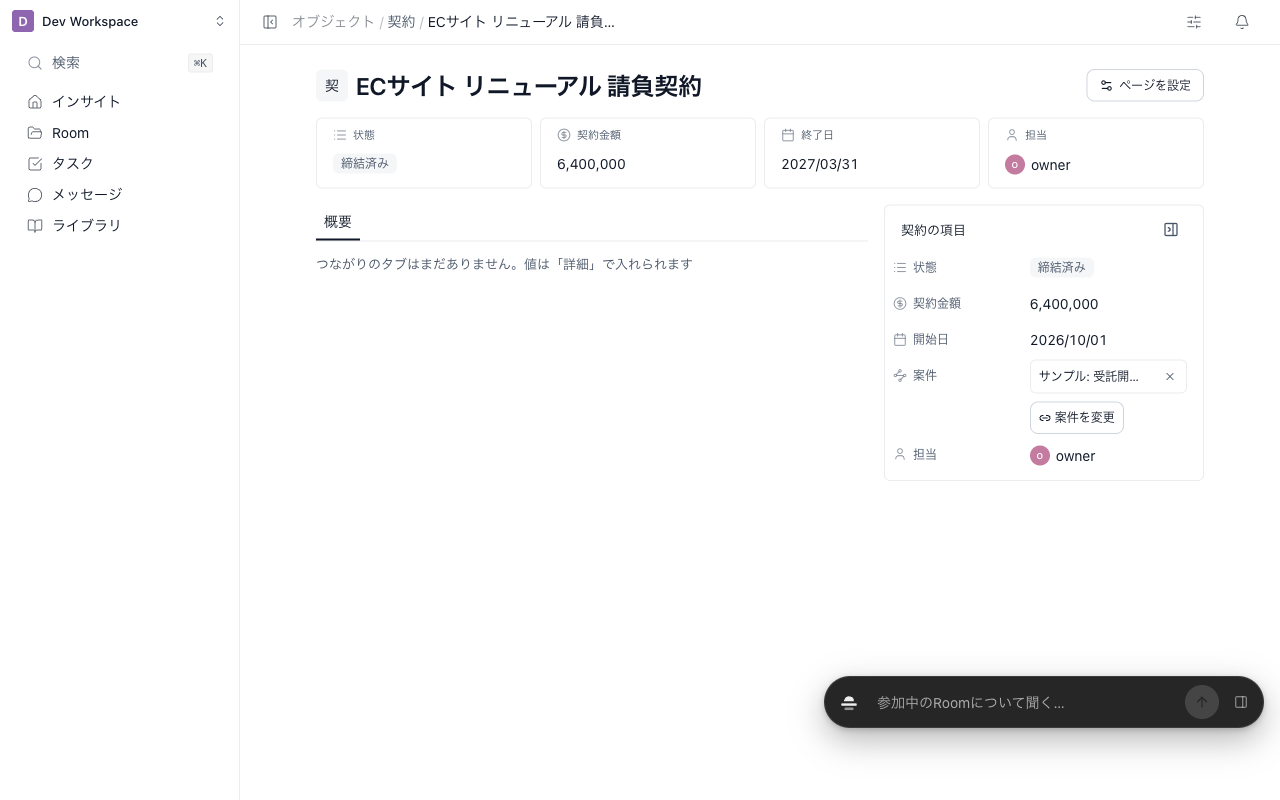
Reading the page
| Area | Contents |
|---|---|
| Heading | Icon, record name, and status chip |
| Highlights | Cards below the heading showing up to six key items |
| Left tabs | Overview and one list per relationship (the "many" side) |
| Right details | The list of items, editable in place |
Collapse the details with the button at their top right (Close details / Open details). The open or closed state is remembered per person in this browser. On narrow screens, the details become a single Details tab.
Click a record name in a table to open this page (Record Tables and Views).
Edit values
- Click a value in the details or highlights (empty items show a faint Empty)
- An input that fits the type opens: a menu for selects, a calendar for dates, and the record picker for members and relationships
- Press Enter to save, or Esc to cancel
Press Tab to move to the next field. A field turns faint while saving, and invalid values show the reason below the field. If the connection drops, the value is restored and a notice appears.
If someone else changed the same value first, the latest value is loaded and Re-apply my input appears right below the field.
Link records
Relationship items show linked records as chips. Click a chip to open that record (for a Room, the Room home), and click its × to unlink it. Right after unlinking, the notice offers Undo.
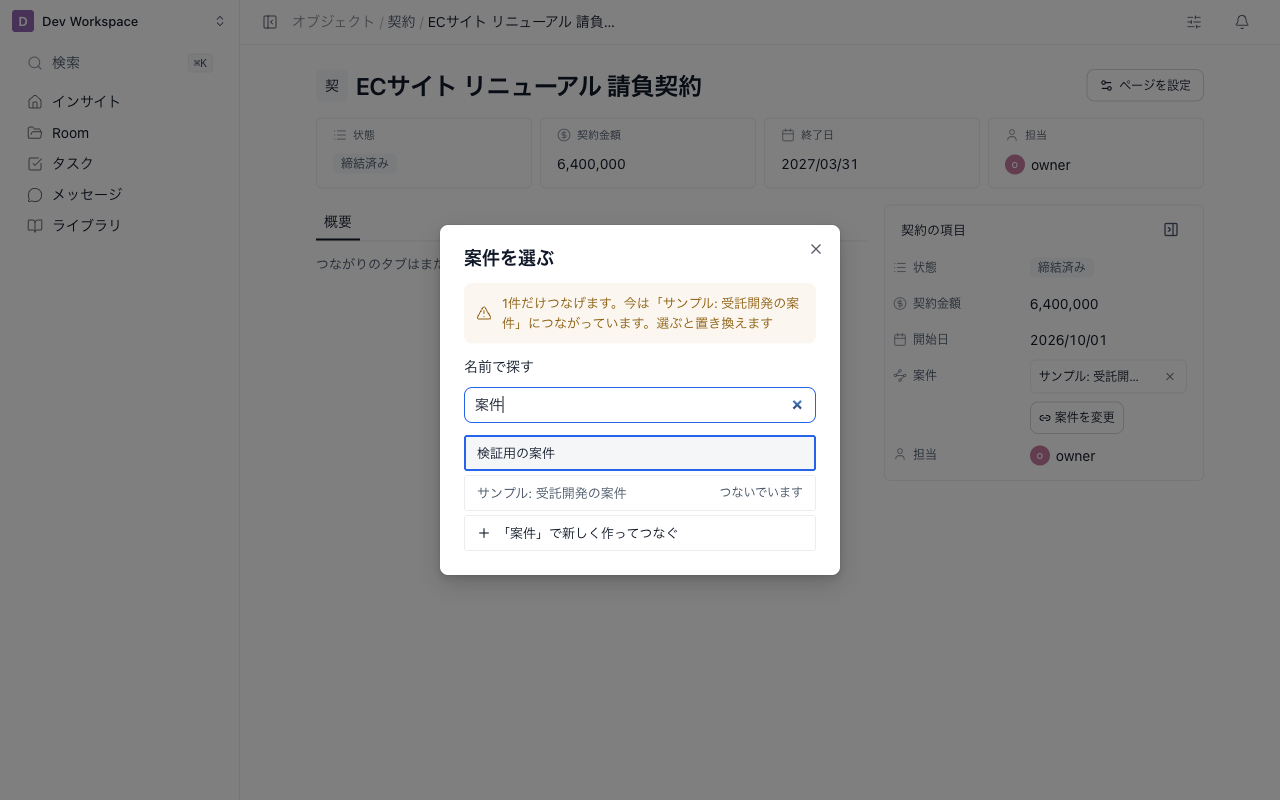
- Click Link on the relationship field (Change on a "one" side that is already linked)
- Type in Search by name. With an empty search, the most recently updated records are listed
- Use ↑↓ to move between candidates and Enter to link (or click). Esc closes the picker
- If the record is not listed, use Create "" and link at the end of the list to create it and link it in one step. Creating a Room is subject to your plan's Room limit. When a candidate with the same name already exists, this row is not shown so you do not create duplicates.
- Click Load more to see more candidates. Archived records are not listed.
- On a "many" side, you can pick several records in a row.
- On a "one" side that is already linked, a notice inside the picker says that choosing replaces the current link. The notice after replacing offers Undo to restore the previous link.
If a record is linked to a Room you cannot read (a Room you have not joined; workspace admins can read every Room), the Room is shown as Room you cannot view without its name. You cannot link Rooms or contacts you cannot read.
Configure the page (admins)
Workspace owners and admins see Configure page at the right of the heading. It sets the layout of every record page of that object. Members do not see this button.
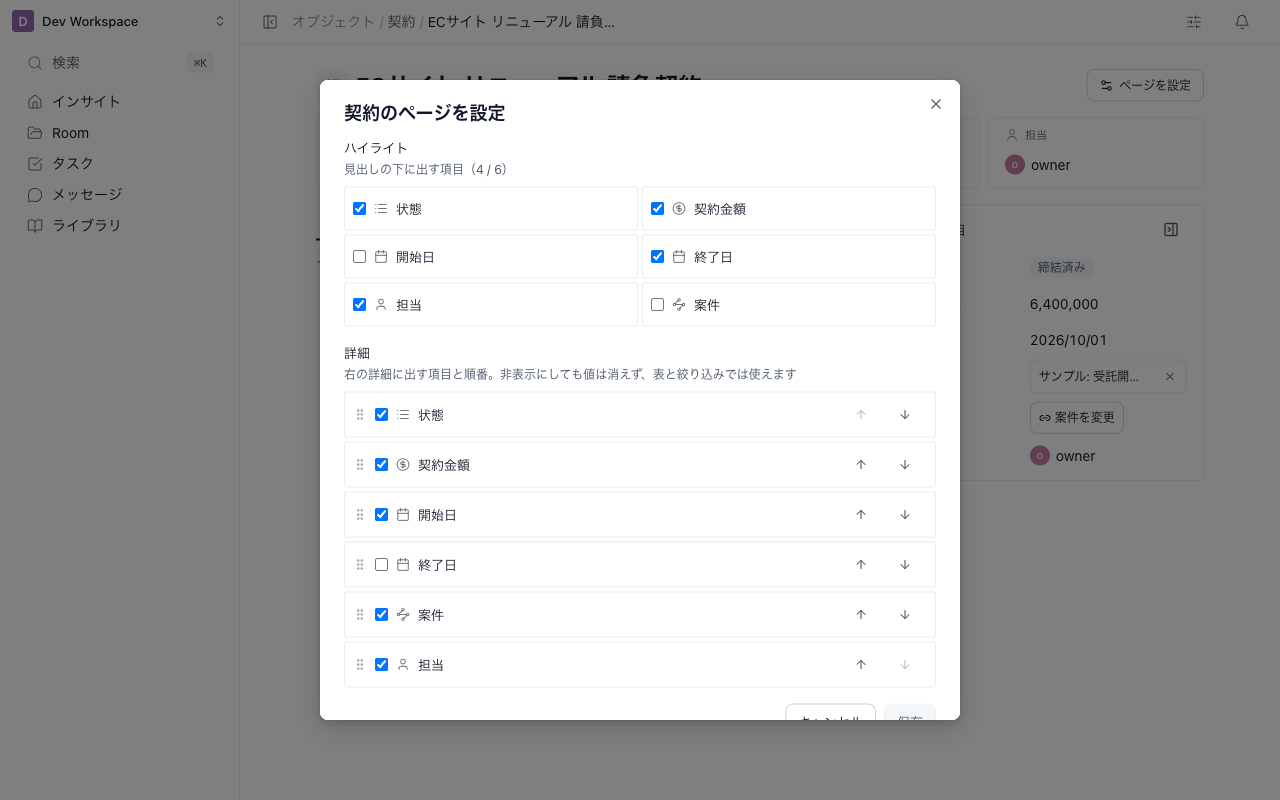
| Setting | What it controls |
|---|---|
| Highlights | Items shown below the heading. Up to six |
| Details | Items in the right details and their order. Uncheck an item to hide it |
| Tab order | The order of relationship tabs after Overview |
Reorder with the up and down buttons on each row. Click Save to apply the same layout to every record page of the object.
- Hiding an item in details keeps its values, and it can still be used as a table column or filter.
- Archived items are removed from the layout.
- If you try to close without saving, you are asked Close without saving?
- If another admin changed the configuration first, the latest configuration is loaded. Check it and save again.
Archived records
When you open an archived record, or a record of an archived object, the heading shows an Archived chip and a banner, and the page is read-only (you cannot edit values or link records).
Owners and admins see Restore in the banner. When the whole object is archived, Restore "" restores the object.
Internal-only items on a Room home
A Room (client project) is a built-in object too, so when internal members open a Room, its home takes the form of a Room record page.
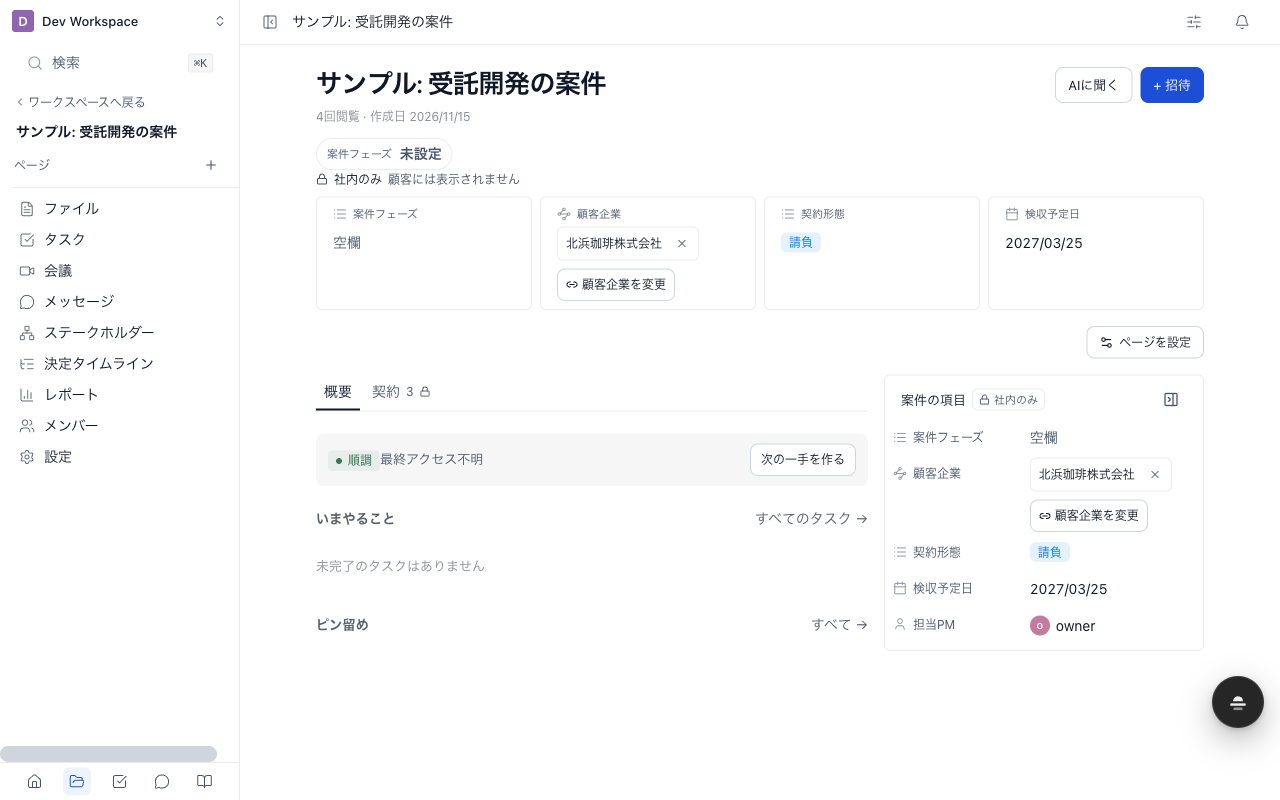
- Highlights labeled Internal only — Not shown to clients appear below the heading.
- The Overview tab shows the home you already know (to-dos, pins, recent activity, and so on).
- Relationships to the Room, such as contracts, become their own tabs with a lock icon (internal only).
- Edit values such as client company and contract type in the right details. Only editors or above of that Room can edit them.
- Admins can use Configure page to set the Room's highlights, details, and tabs.
When clients (external members) open a Room, none of the highlights, relationship tabs, or details are shown, and the home stays as before. They never appear in public Rooms either.
If your workspace has not added any items or relationships to Rooms (only the original project phase and client company), highlights and details are not shown and the home stays as before.
Related articles
- Record Tables and ViewsHow to work with Rooms (client projects), contracts, and other records in tables and kanban boards, and save filters, sorting, and columns as named views
- Objects and ItemsHow to create objects, items, and relationships that fit your work, such as contracts or invoices, and link them to Rooms (client projects)
- Create Client Companies from a DomainHow to fill a client company's name and logo from its public website using the domain, and what happens when they cannot be filled