Record Tables and Views
Records of an object (Rooms, client companies, and custom objects such as contracts) can be listed as a table or a kanban board. You can edit table cells in place and save a combination of filters, sorting, and columns as a named view.
In this article: Open a table / Edit cells / Filter, sort, and columns / Save a view / Kanban / Views in the Room list / On a phone / Try with a sample project
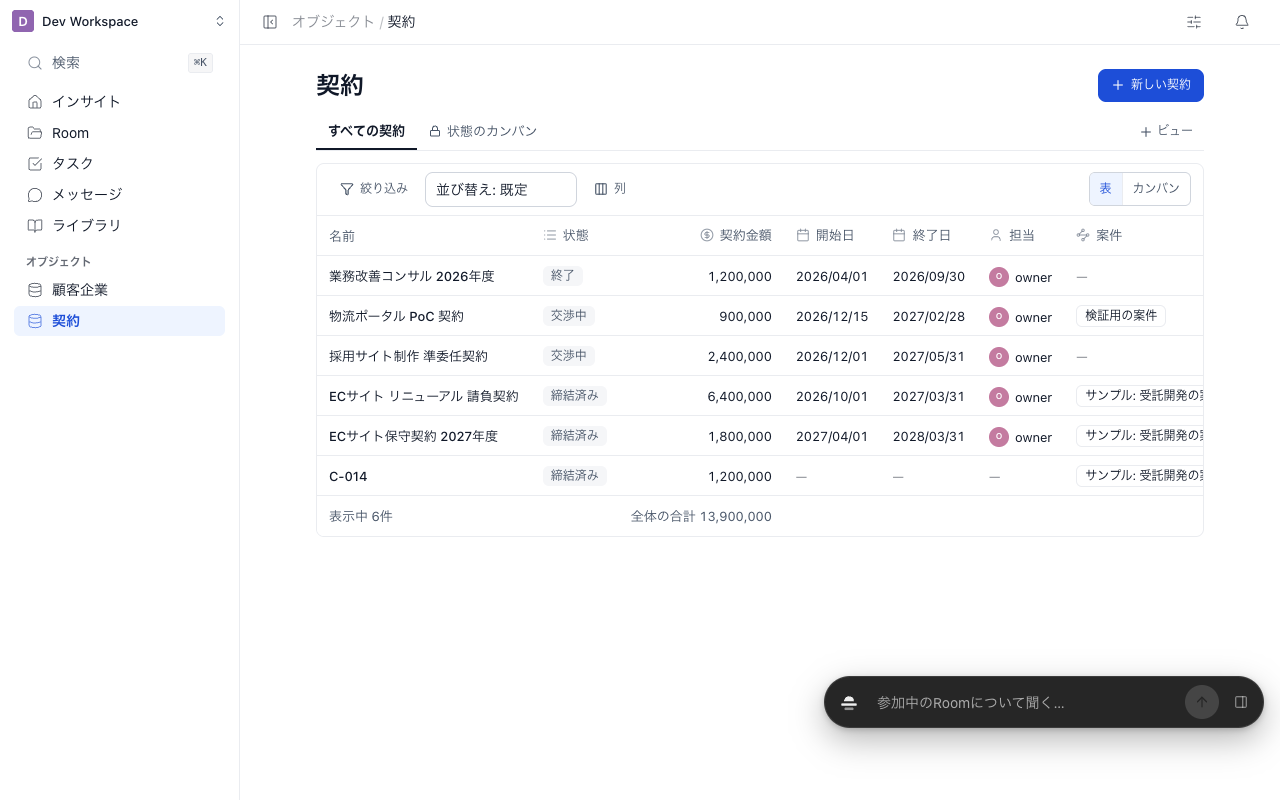
Open a table
- Custom objects and client companies: open them from Objects in the sidebar.
- Rooms (client projects): view tabs appear above the usual Room list (Views in the Room list).
Column headings show the item type icon, and the name column on the left stays in place when you scroll sideways. Select values appear as colored chips, members as avatars, and relationships as record chips.
Below the table you see the record count and the total of number and amount items. Totals only include records you can read. When there are many Rooms, totals use the 500 most recently updated ones, and the table says so.
Click New (for example, New 契約 for an object made from the contract template) to create a record with just a name. The record page opens after it is created (Record Pages).
Records and values are internal only. Every internal member can create and edit custom object records. Room values are visible only to people who joined that Room, and only its editors or above can change them.
Edit cells
Tables can be used row by row with the keyboard.
| Key | Action |
|---|---|
| Tab | Move to the next row |
| ← → | Move between cells in a row |
| Enter | Start editing / save |
| Esc | Cancel editing |
You can also click a cell to edit it. If someone else changed the same value first, a message says so and the latest value is loaded. To use your own input, click Re-apply my input below the field.
Filter, sort, and columns
The toolbar holds search, Filter, Sort, Columns, and the layout switch (Table / Kanban).
| Control | Items you can use |
|---|---|
| Filter | Select, member, date, number, amount, checkbox, relationship (the linked record) |
| Sort | Date, number, amount, text (records without a value come last) |
| Columns | Show, hide, and reorder the object's items |
When no record matches, the table says No match the conditions. Clear all conditions to return.
The + at the right end of the table opens item creation for admins (Objects and Items) and the column picker for everyone else.
Save a view
A view stores the layout, filters, sort order, columns, and kanban columns under a name. Switch views with the tabs below the heading.
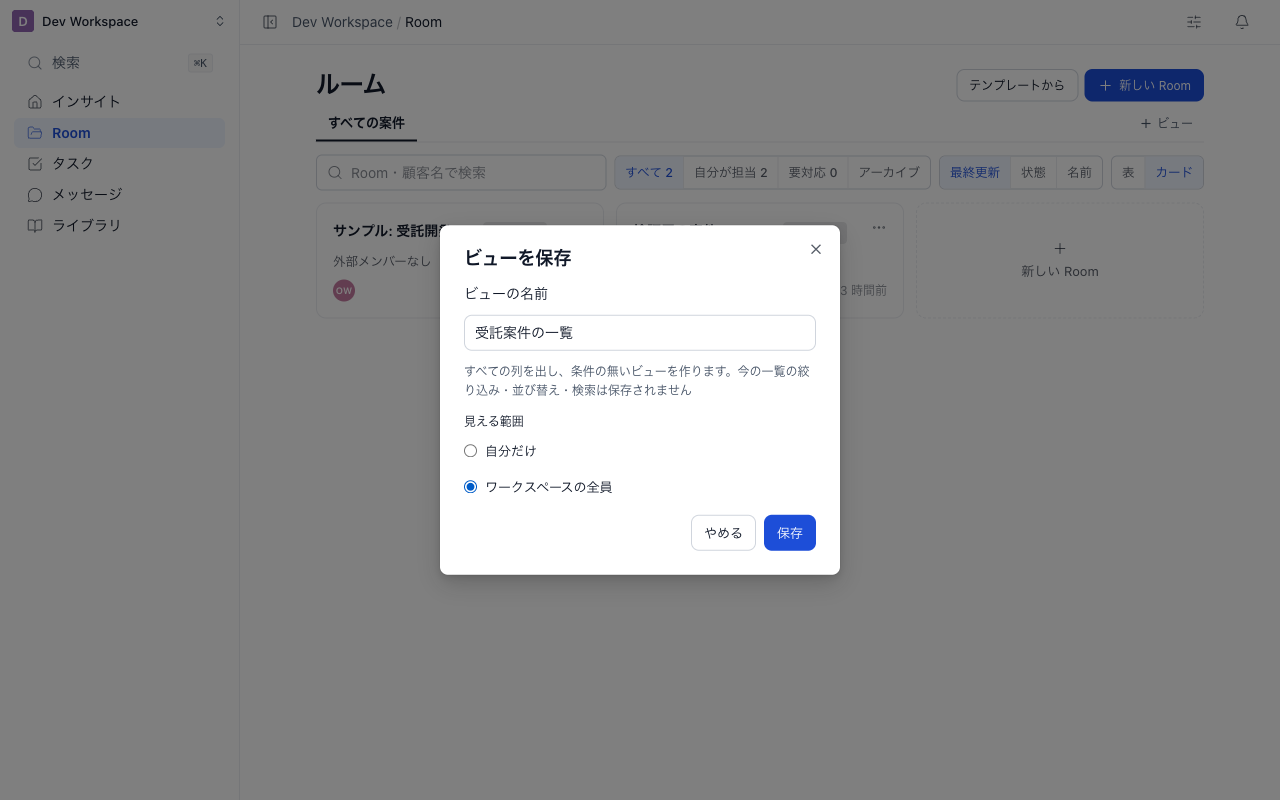
- Click View at the right of the tabs
- Enter a view name
- Under Visibility, choose Only me or Everyone in the workspace
- Click Save
If you change conditions or columns while a view is open, Undo changes and Save view appear at the right of the toolbar. The … menu on the tab lets you rename, duplicate, or delete the view. Deleting a view keeps records and values.
| Visibility | Who sees it | Who can change or delete it |
|---|---|---|
| Only me (lock icon) | Only the creator | The creator |
| Everyone in the workspace | All internal members | Admins and the creator |
People who cannot change a workspace view see Save as new (only me) instead. You can have up to 50 views per person and 200 per workspace.
The view URL includes savedView=, so sharing the URL opens the same view. If an item used by a view is archived, the view still opens. Only that column and condition are removed, with a note that the item was archived.
Kanban
Choose Kanban in the toolbar to show records as cards. Use Kanban columns to choose the item that forms the columns.
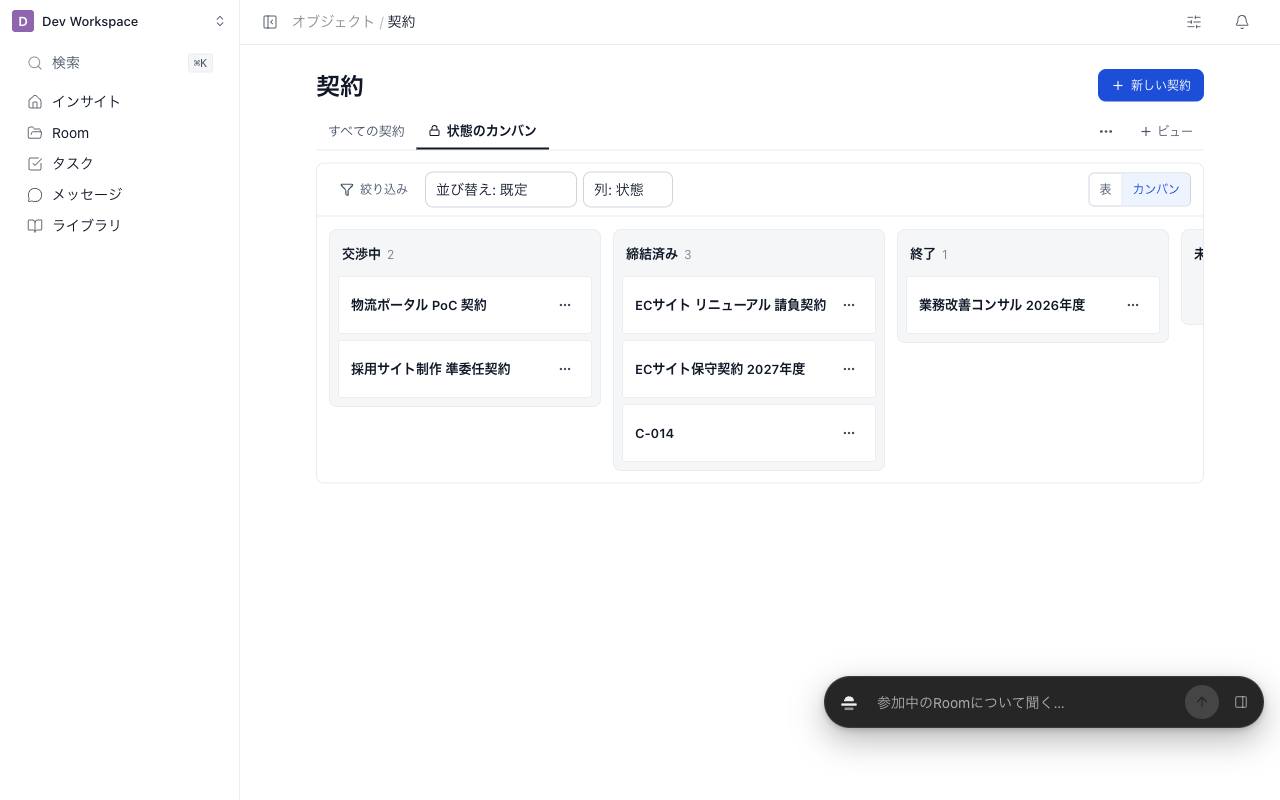
- Columns can be a Select (one) item or the Room project phase. Records without a value go into Not set.
- Drag a card to another column to save that value.
- You can also change the value without dragging from the card's … menu → Change .
- If saving fails, the card returns to its column and the reason is shown.
- Moving a project phase shows Set manually.
With the keyboard, press Enter on a card to open it, Space to pick it up, arrow keys to move between columns, Space to drop, and Esc to cancel.
Views in the Room list
For internal members, the Room list shows All client projects and saved view tabs at the top.
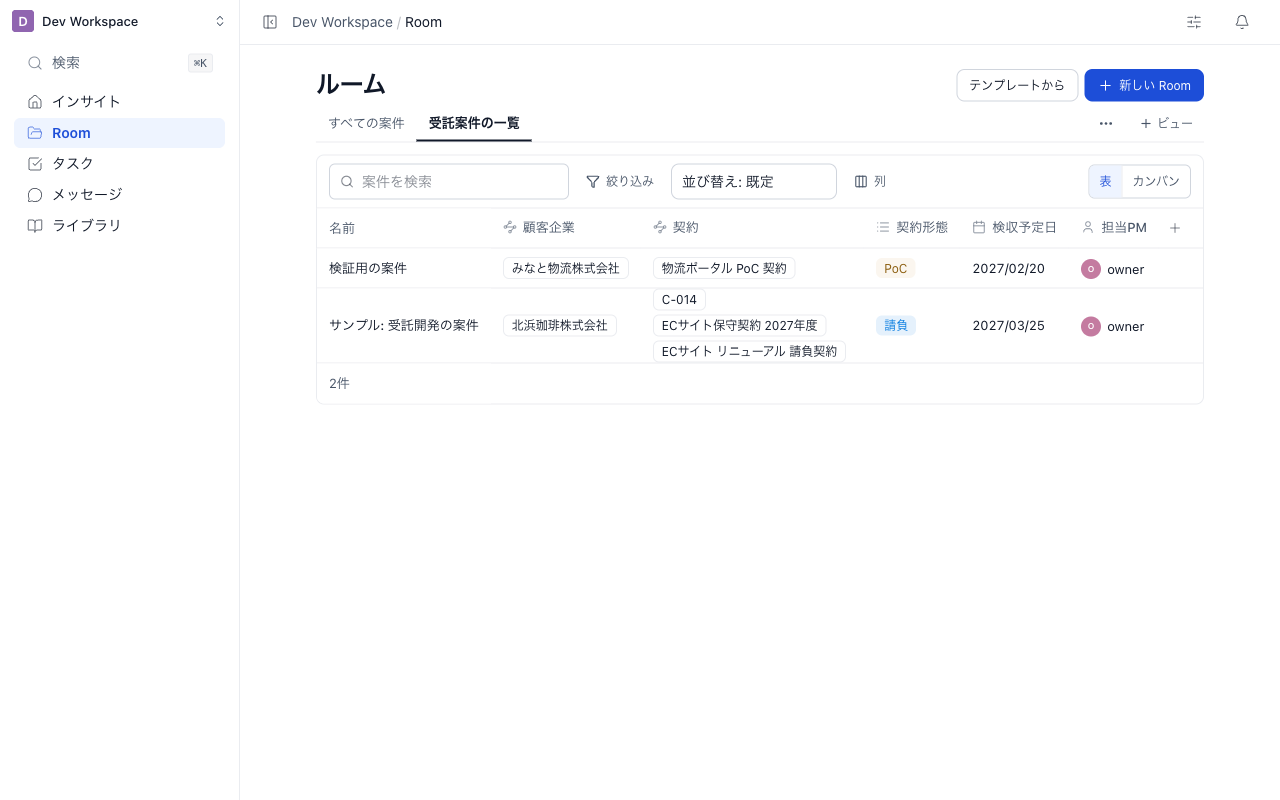
- All client projects is the Room list you already know (cards or table, with the All, Mine, Needs action switches).
- Choosing a view shows a table or kanban with Room items (client company, contract type, acceptance date, and so on) as columns. The kanban can use the project phase as columns.
- Room values in the table appear only for Rooms you have joined.
- Clients (external members) do not see view tabs.
On a phone
On narrow screens such as phones, each table row becomes a card with its items listed vertically.
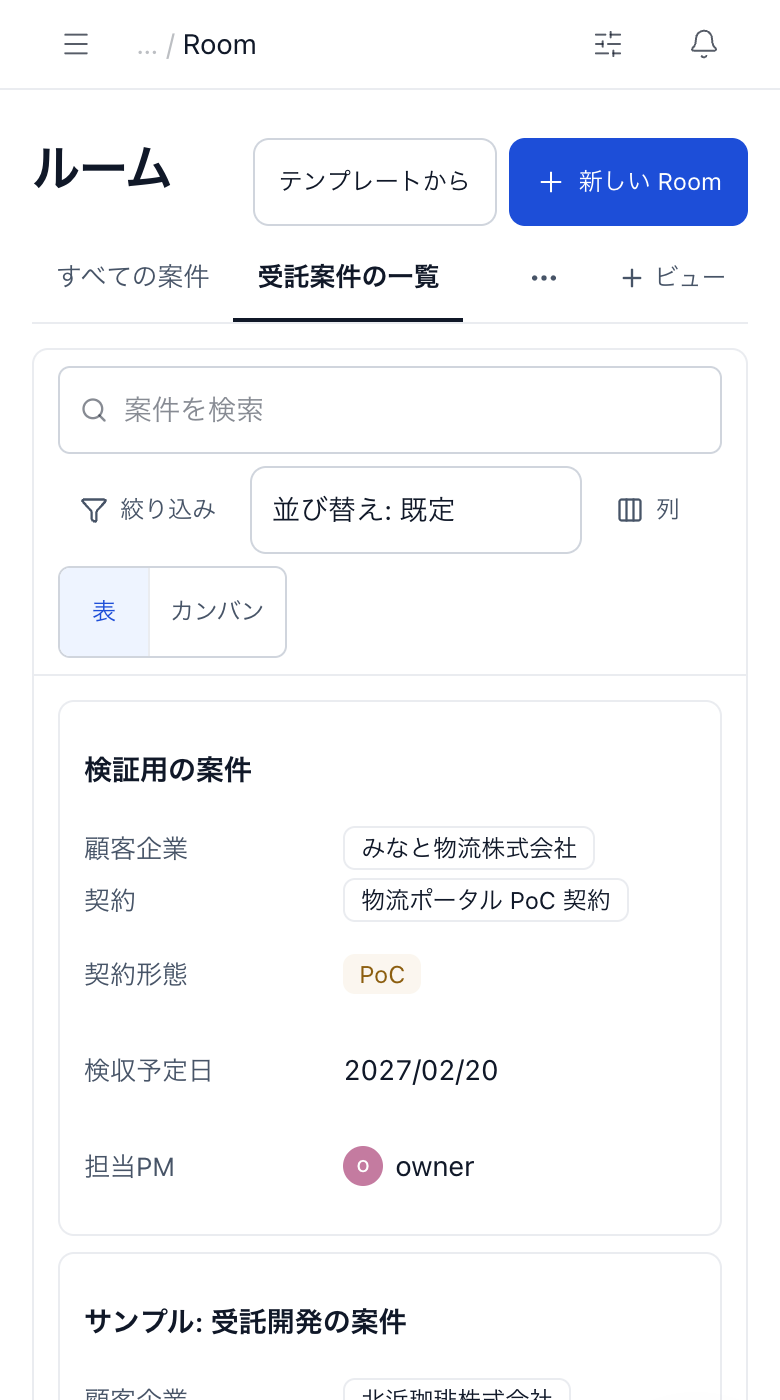
- View tabs scroll sideways.
- Filters and columns open in a sheet from the bottom.
- Tapping a value opens its input in a bottom sheet.
- Kanban cards can be moved with the … menu.
Try with a sample project
When a workspace has no Rooms yet, owners and admins see Try with a sample project in the Room list. It adds:
- One sample Room, "サンプル: 受託開発の案件" (Sample: contract development project)
- A contracts object (契約, from the contract template)
- Three Room items: 契約形態 (contract type), 検収予定日 (acceptance date), and 担当PM (project manager)
The sample names are created in Japanese. See Objects and Items to add your own items.
The sample Room counts toward your plan's Room limit like any other Room, and is not added when the limit is reached. Archive the Room when you no longer need it. Clicking again does not duplicate objects or items with the same names.
Open the sample Room to see the internal-only items and the contracts tab on its home. Try it together with Record Pages to see the whole flow.
Related articles
- Objects and ItemsHow to create objects, items, and relationships that fit your work, such as contracts or invoices, and link them to Rooms (client projects)
- Record PagesHow to edit a record's values in place, link records, and let admins configure the page layout. Also covers the internal-only items on a Room home
- Create Client Companies from a DomainHow to fill a client company's name and logo from its public website using the domain, and what happens when they cannot be filled