Keep emails in a Room with the Gmail add-on
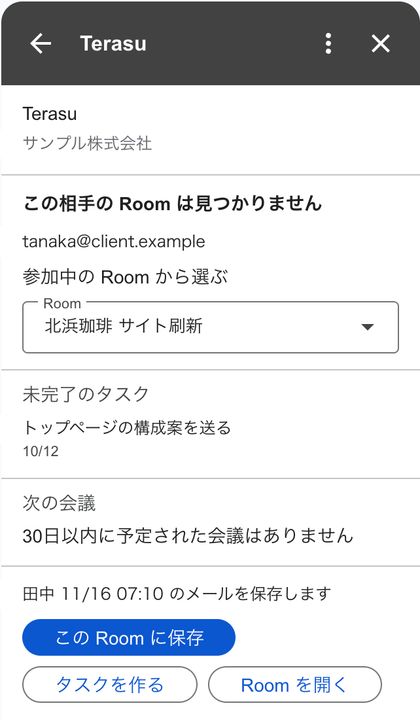
Open the Terasu add-on in Gmail's side panel to see the Room for the email you are reading. You can save the email to the Room's Emails (メール) or create a task from it. This also covers emails you sent without the BCC address and emails you received from the client.
The add-on is shown in Japanese.
The add-on is available in organizations where a Google Workspace administrator installed it. If Terasu is not among the icons on the right of Gmail, ask your Google Workspace administrator.
Who can use it
| Condition | Details |
|---|---|
| Member type | Internal members |
| Who can save | Editors and owners of the Room |
| Email it reads | Only the one email you have open |
Connect to Terasu
- Open an email in Gmail and open Terasu from the icons on the right
- Click Connect to Terasu (Terasu に接続)
- In the Terasu page that opens, verify your identity, choose the workspace to use, and click Allow (許可する)
- When "Connected. Close this tab." (接続しました。このタブを閉じてください。) appears, close that page
When you close it, the panel reloads and shows the Room for the email. A connection lasts 30 days. When it expires or is revoked, Reconnect (接続し直す) appears.
On the consent page, choose the workspace before clicking Allow. If you allow with the workspace that is selected first, the add-on connects to that workspace.
Save an email to a Room
- Open the email. Rooms whose client company matches the sender or recipients appear as suggestions
- If there is no suggestion, choose a Room under Choose from your Rooms (参加中の Room から選ぶ). If you are in many Rooms, type a name in Find a Room by name (Room を名前で探す)
- Click Save to this Room (この Room に保存)
After saving, "Saved to this Room" (この Room に保存済みです) appears, and the email shows under the Room's Emails as saved from the Gmail add-on with your name. If the same email was already captured by BCC, "Already saved" (すでに保存されています) appears and it is not saved twice.
Saved emails are shown only to internal members. They are not used for external guests or AI answers.
To save, the Room needs a BCC address. If "This Room has no BCC address" (この Room の BCC アドレスがありません) appears, issue one from Email capture in the Room settings (see Issue a BCC address in Capture replies with your Gmail connection).
Create a task from an email
- With a Room selected, click Create task (タスクを作る)
- Check the title (the subject is filled in), assignee, and due date, then click Create task (タスクを作成)
If the email is saved, the task description includes a link to the email. The task is a regular task and is visible to the Room's clients.
Insert the BCC address while composing
- Compose an email in Gmail and click the Terasu icon in the toolbar at the bottom
- Choose a Room found from the recipients, or one under Choose from your Rooms
- Click Insert the Room's BCC (Room の BCC を入れる)
If you add recipients later, Search from recipients again (宛先から探し直す) rebuilds the suggestions.
Disconnect
Use Disconnect Terasu (Terasu の接続を切る) in the panel menu (︙) to disconnect the add-on. You can revoke the token on the Terasu side from MCP tokens in the Terasu settings.
Messages you may see
| Message | What to do |
|---|---|
| Reconnect to Terasu (Terasu に接続し直してください) | Connect again with Reconnect |
| Could not load the Room (Room を読み込めませんでした) | Click Retry (再試行) |
| Showing the 100 most recently updated Rooms (最近更新した100件を出しています) | Type the Room's name in Find a Room by name and press Enter |
| No joined Room matches the name (に当たる参加中の Room はありません) | Check the name. Rooms you have not joined are not shown |
| Too many Rooms match, showing 100 (当たる Room が多いため100件を出しています) | Type more of the name |
| You cannot save to this Room (この Room に保存する権限がありません) | Ask an editor of the Room to save it |
| Emails cannot be saved now (今はメールを保存できません) | Email capture is paused for the workspace. Try again later |
| Wait a moment and try again (少し待ってからもう一度実行してください) | Many saves happened in a short time. Wait a moment, then save |
| The body is too long to save (本文が長すぎるため保存できません) | Copy the part you need into a Room page |
Related articles
- Capture replies with your Gmail connectionConnect your Gmail from Email capture in Room settings so replies to emails sent with the Room's BCC address are captured automatically. How to connect, check, and disconnect
- Change Room settingsHow to change the Room name, tags, sharing and download, integrations, AI intake, and deletion
- MCP operations and limitationsAvailable AI-tool operations, token scopes, file uploads and uncertain-outcome checks